How to Add a Zoom Link to Class Confirmation Emails
Set a Virtual Meeting URL on a timeslot and it automatically appears in every registration confirmation email sent to registrants — no separate automation needed.
Steps
Step 1: Open the class in Calendar
- Navigate to: Schedule > Calendar
- Click on the class, then click the class name or the edit/manage option
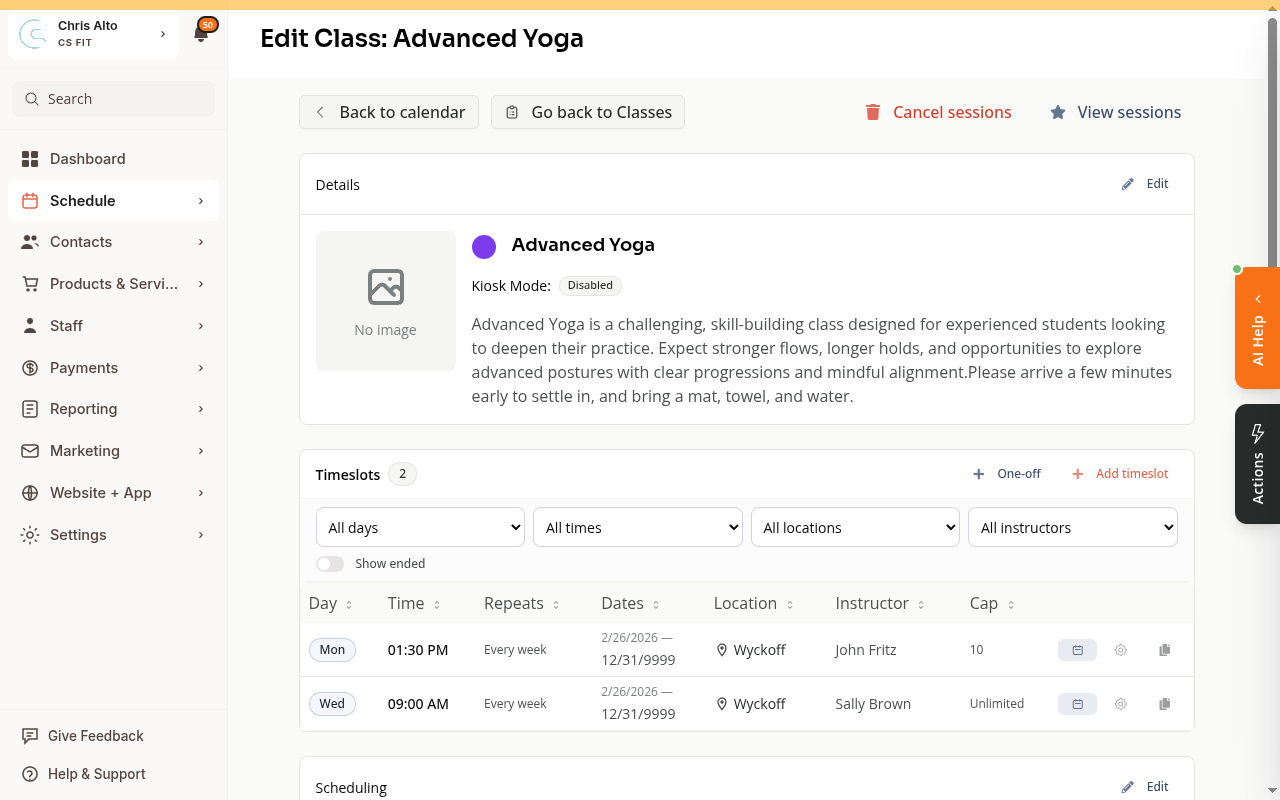
Step 2: Edit the timeslot’s scheduling details
- In the Scheduling section, click Edit next to the timeslot you want to update
- In the timeslot editor, find Event location type
- Select: Virtual (class is entirely online) or Hybrid (has both in-person and virtual attendees)
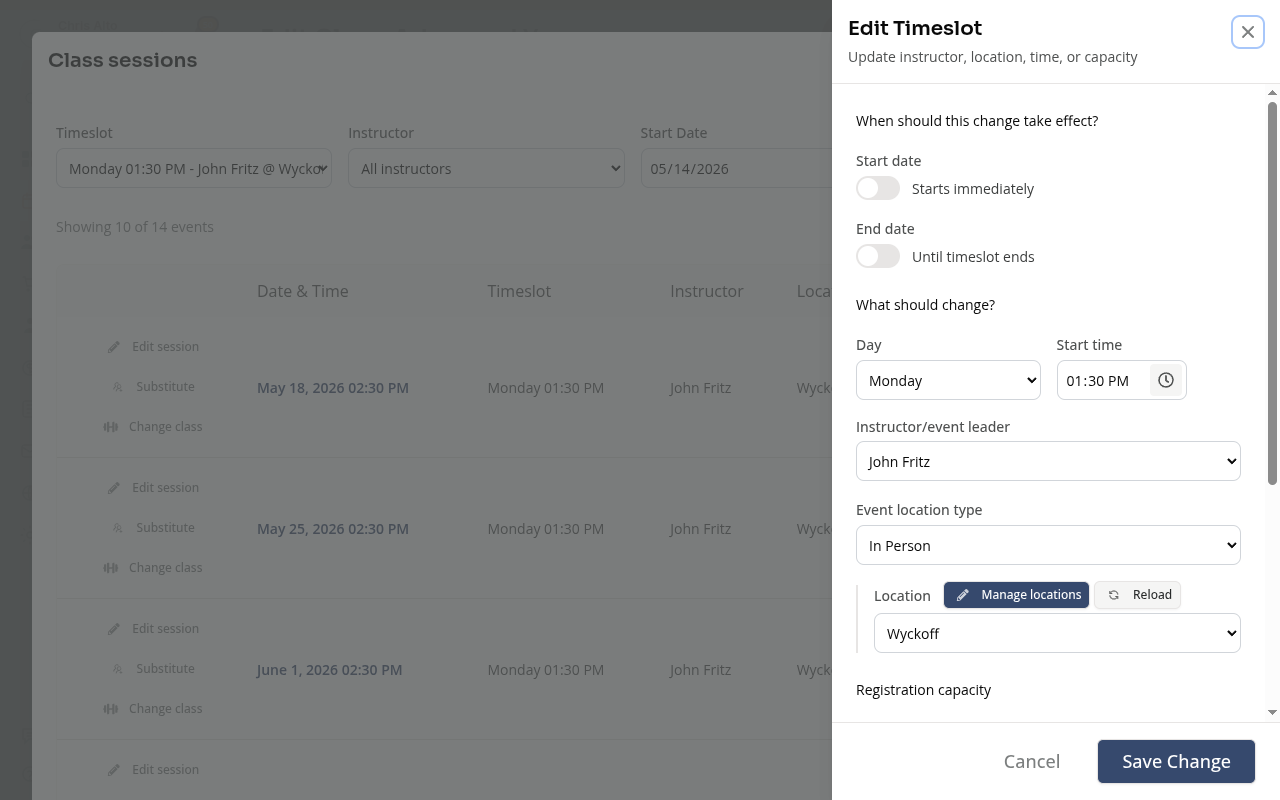
Step 3: Enter the meeting URL
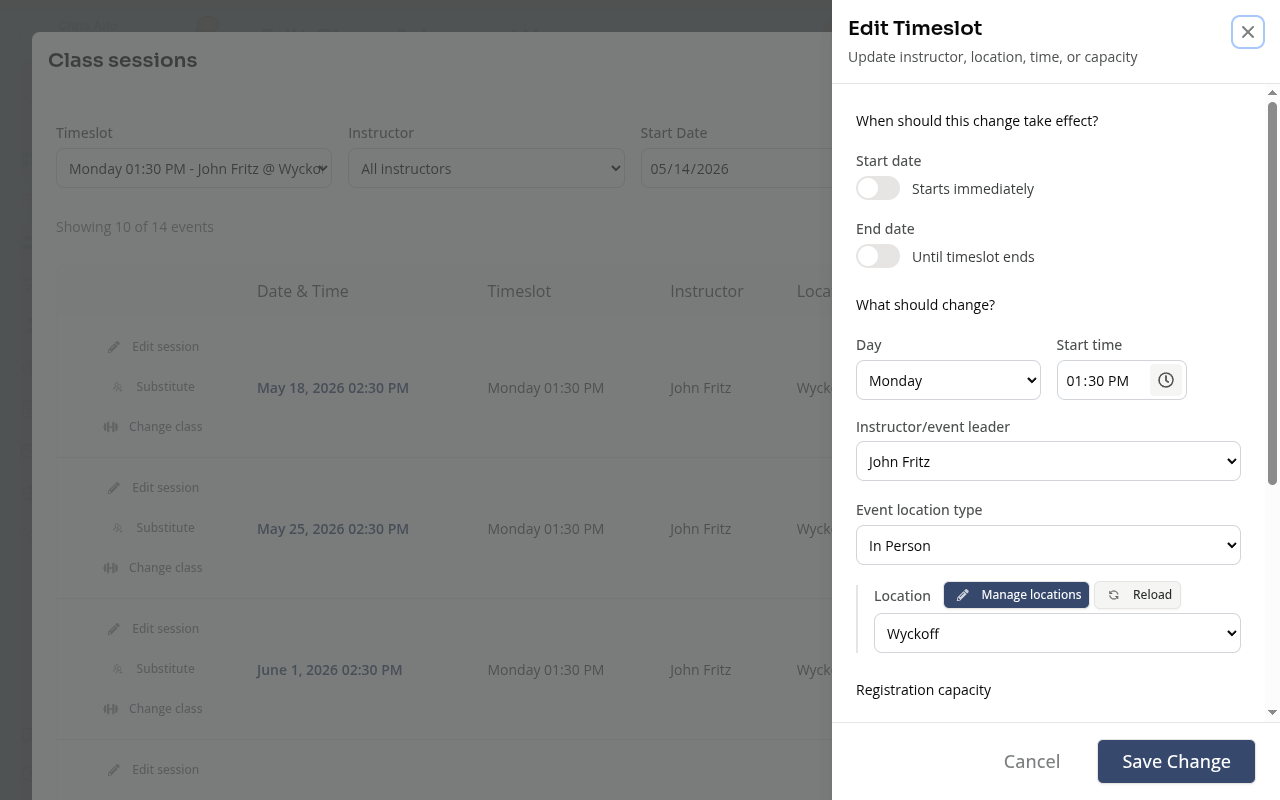
- The Video Meeting URL field appears once you select Virtual or Hybrid
- Paste your Zoom link (or Google Meet, Teams, or any video URL)
- Click: Save all
Updating All Future Sessions
When you edit the timeslot, you’ll be asked whether to apply changes to:
- Just this session
- All upcoming sessions
Choose All upcoming sessions to update the Zoom link across all future class sessions.
Tips
- No Zoom integration required for a manual link — just paste any URL. If your organization has connected Zoom to Zipper, you can also have Zipper create and manage a separate Zoom meeting for each session.
- Students already registered before you added the link: They received confirmation before the URL existed. Use the Send class email feature (Schedule > Calendar → class → Email registrants) to share the link manually.
- Want reminders to include the link too?: Set up an automation with a timed delay after class registration. The video URL can be included in the automation email.
Troubleshooting
“Video Meeting URL” field isn’t showing. The URL field only appears when Event location type is set to Virtual or Hybrid — not In Person. Check the location type selection.
Students say they didn’t receive the Zoom link. Check: (1) the URL was saved before they registered, (2) the confirmation email isn’t in spam, (3) their email address on file is correct.
Need a hand?
Email our team at support@joinzipper.com and we'll usually reply within a few hours.
Was this article helpful?
Thanks for your feedback.