Zippy Questions and Data Checks Explained
Ask Zippy about your studio and add the right customer, class or product context.
Zippy Questions and Data Checks Explained
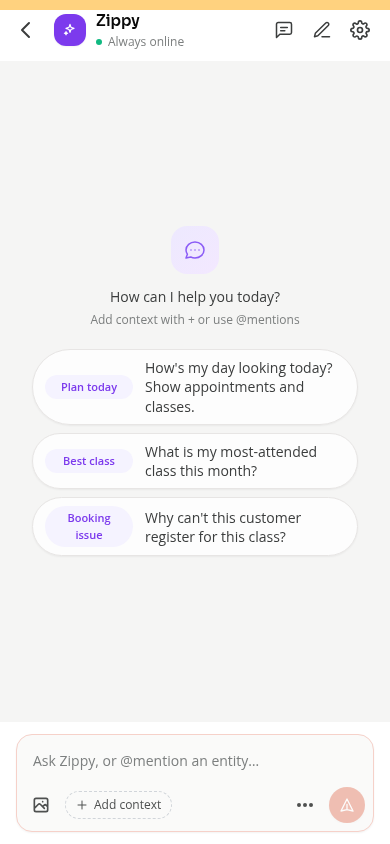
Zippy is Zipper’s built-in assistant. Use it to ask questions about your studio, investigate a booking problem or understand your data. A question is more useful when you name the customer, class and date involved.
Open a Conversation
- Click Open Zippy in the dashboard.
- Type your question in Ask Zippy, or @mention an entity….
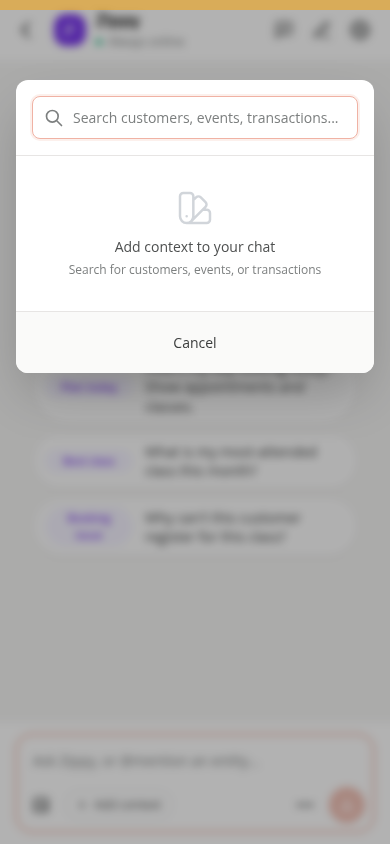
- Use Add context to choose the relevant customer, class, event or product, or use an
@mention. - Click Send.

For example, ask “Why can’t this customer register for this class?” and attach the customer and class. For a schedule question, include a date range rather than asking about “next week” without explaining what you need.
Zippy availability depends on your organization’s settings and your access. If it is unavailable, ask an administrator to check the assistant settings.
Review the Answer
Check the records and dates Zippy refers to before acting on a suggestion. An explanation, a proposed action and a completed change are different things. Confirm the result in the customer profile, calendar or billing screen before treating an issue as resolved.
AI answers can be incomplete or mistaken. For a payment or credit discrepancy, include the exact transaction or booking and compare the answer with the original record.
Dr. Zippy Data Checks
Organization administrators can use /doctor in Zippy chat to request a studio data audit. You can add a focus, such as /doctor payments.
The check examines class and product configuration and recent payment, membership and credit activity. It returns a prioritized findings report. It does not automatically repair those records. Read the findings and inspect the named records before deciding what to change.
If the report says it reviewed only the most recent items, do not treat it as a check of every historical record. If the audit cannot run, try again later or share the original issue with support.
On Mobile
Open Zippy, enter the question and use Add context just as on desktop. Conversations lets you return to another chat and New chat starts a separate conversation.
Save a Suggested Action for Later
When Zippy offers Save for later on an action suggestion, you can save it as a task assigned to your account. Saving a task does not execute that action.
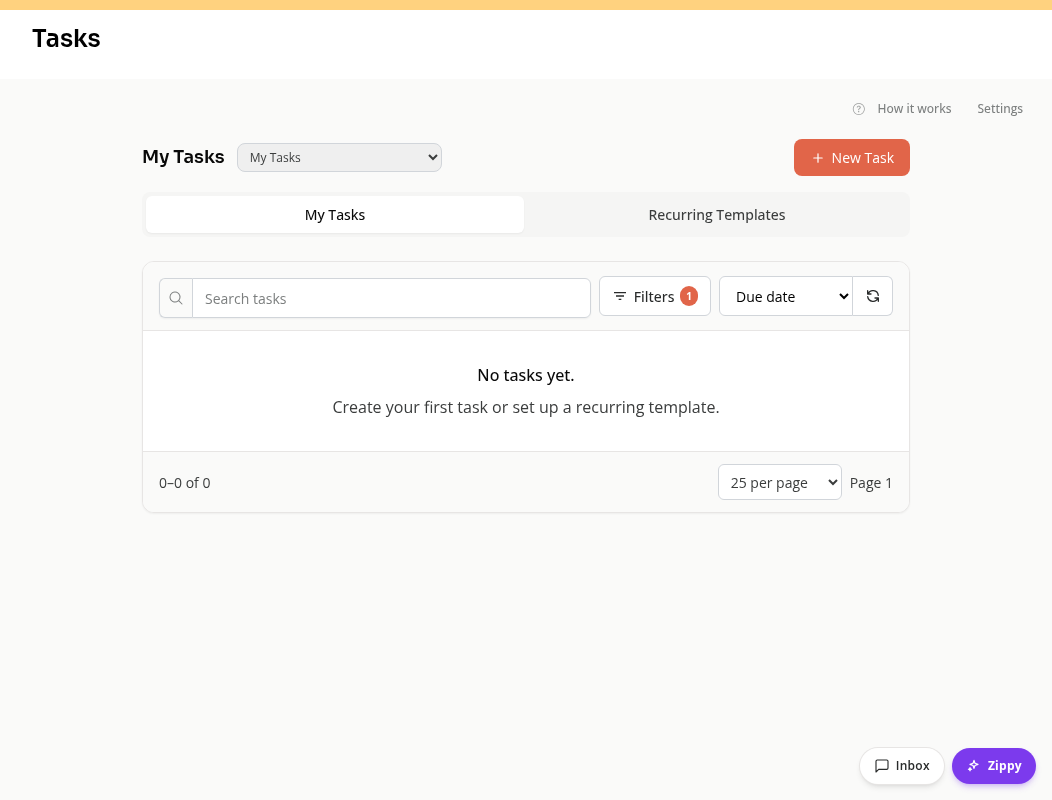
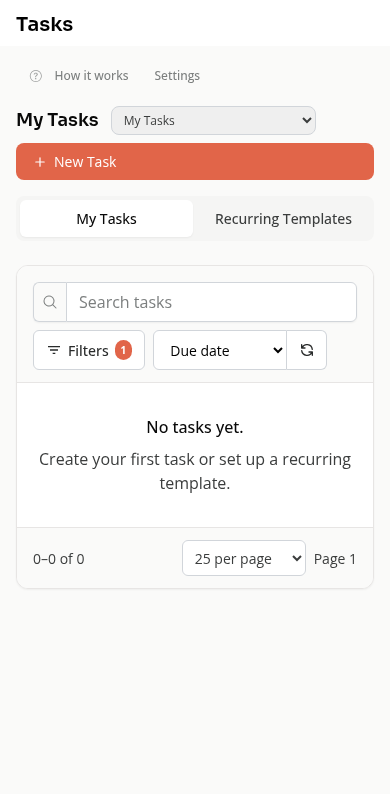
Open the Tasks page and check My Tasks to confirm it is present. To reopen a saved action on a phone, open the Chat page, use To-dos, and select the action task in Zippy’s task pane. That pane can return you to a linked conversation or open the corresponding action form. Review the action and its result before treating the work as done. Checking off a task on the ordinary Tasks page marks the task complete; it does not perform the suggested action.
Using Another AI App
The built-in assistant and the external Zippy connection are separate ways to work. See How to Connect Zippy to ChatGPT or Claude for the external connection’s setup and read-only access rules.
Need a hand?
Email our team at support@joinzipper.com and we'll usually reply within a few hours.
Was this article helpful?
Thanks for your feedback.