Zipper Staff App vs Customer App
Zipper has two different interfaces — one for studio staff and one for members. Here's the difference and how to access each.
Staff App (Admin Dashboard)
Who it’s for: Studio owners, admins, managers, and instructors
What it does: Manage the calendar, classes, and appointments; check in clients and view class rosters; access the Point-of-Sale; view customer profiles and billing; run reports and manage automations; configure settings, staff, and products.
How to access: staging01.joinzipper.com/dashboard (or your studio’s Zipper admin URL). Log in with staff credentials. The dashboard view depends on your role (Owner, Manager, Instructor).
Customer App (Member Portal)
Who it’s for: Studio members and clients
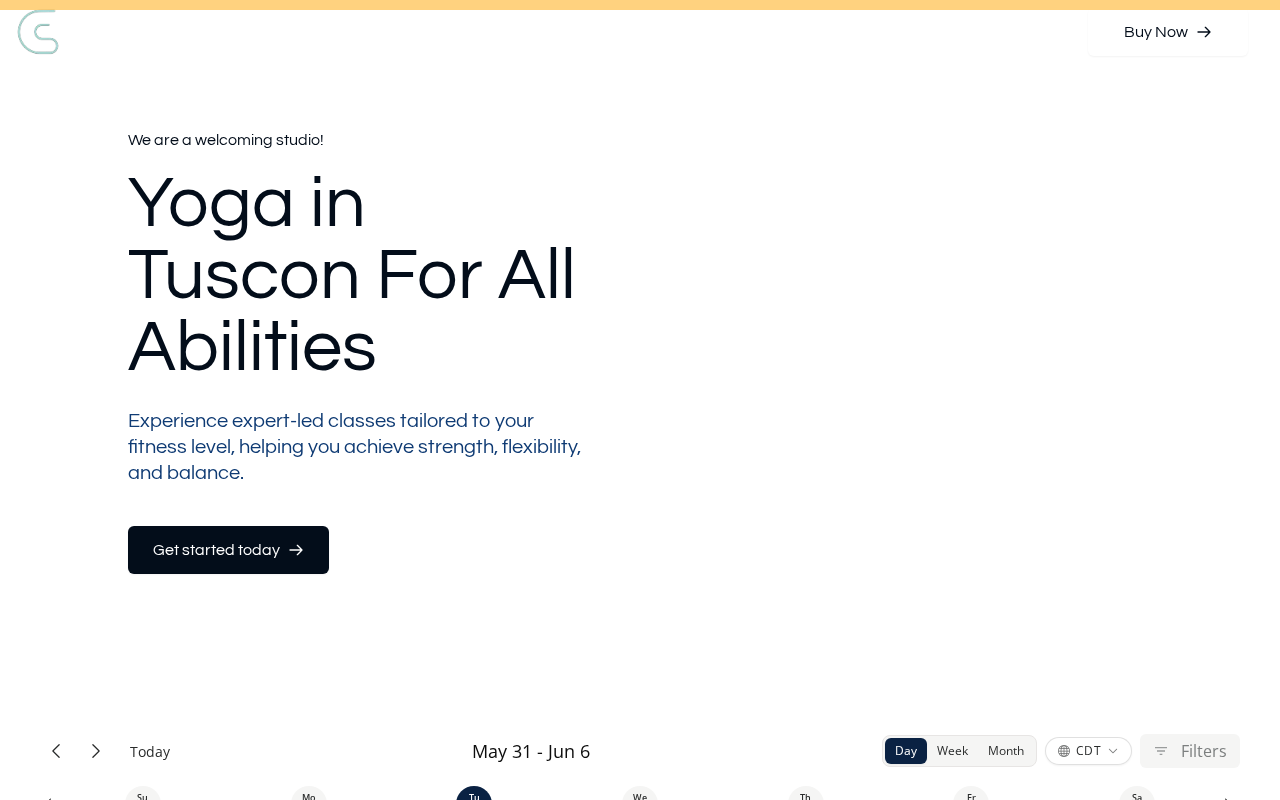
What it does: Browse and book classes, events, and appointments; view upcoming schedule and booking history; manage account settings and payment methods; receive confirmations and reminders; apply gift card credits at checkout.
How to access:
- Web: your studio’s customer site (e.g.,
yourdomain.com/apporhttps://yourbusiness.site.joinzipper.com/app) - Mobile: visit the studio’s booking URL on mobile → Share → Add to Home Screen to install as a PWA
- Some studios have a branded native app in the App Store / Google Play
The Key Difference
| Staff App | Customer App | |
|---|---|---|
| Access via | /dashboard | Studio’s booking URL |
| Primary use | Managing the studio | Booking and self-service |
| Login | Staff credentials | Member email/password |
| Sees | All customers, financials, settings | Their own bookings and account |
If a Staff Member Is Also a Client
The same Zipper account can have both a staff profile and a customer profile. Staff use the Staff App for teaching and admin tasks; they use the Customer App when booking their own classes as a member. Which dashboard they land on depends on how their account is configured.
Troubleshooting
A staff member is seeing the customer dashboard instead of the admin dashboard. Go to Staff > Staff Members → edit their profile → change Dashboard View from “Default” to the appropriate staff view (Manager, Instructor, etc.).
A member says they can’t find the app. Direct them to your studio’s booking URL. If your studio’s plan includes a branded native app, ask your Zipper onboarding rep.
Need a hand?
Email our team at support@joinzipper.com and we'll usually reply within a few hours.
Was this article helpful?
Thanks for your feedback.