Why Your Google Reviews Aren't Showing
If Google reviews you imported or requested aren't appearing on your Zipper website, work through this checklist.
Checklist
1. Google Business Profile is connected
Go to Settings > Integrations → Google section.
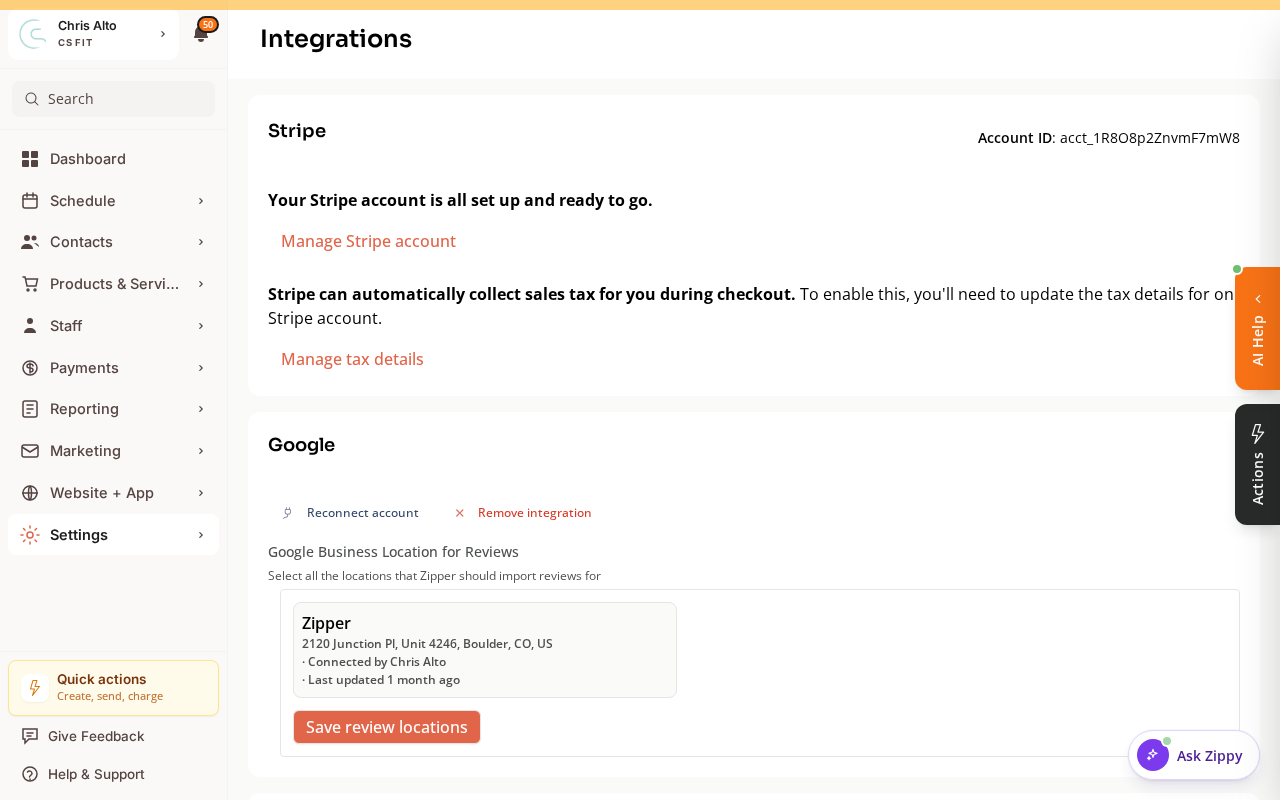
Confirm your Google Business Profile is connected and the review location is selected. If disconnected, click Reconnect account then Save review locations.
2. You’ve imported reviews
Go to Marketing > Reviews → Import from Google and click Import to pull in your latest reviews.
3. Reviews are published
Go to Marketing > Reviews and check each review’s status. Click Publish on any reviews you want to show — only “Published” reviews appear on the site.
4. A reviews block is on your website page
Go to Website + App > Site Editor → open the page → confirm a Reviews block exists. If not, add one: Add block → Social/Reviews → Reviews.
5. Site is published
Click Publish in the Site Editor after any changes.
Tips
- After importing from Google, allow a few minutes for reviews to appear on the site after publishing.
- Use Marketing > Reviews → Request reviews to proactively ask customers for Google reviews after their sessions.
Troubleshooting
Reviews show in the admin but not on the live site. Confirm: (1) reviews are set to Published, (2) a Reviews block is on the page, (3) the site has been published after the change.
Need a hand?
Email our team at support@joinzipper.com and we'll usually reply within a few hours.
Was this article helpful?
Thanks for your feedback.