Why a Customer Only Sees Some Purchase Options
The most common reason a product doesn't appear in the customer shop is that its visibility is turned off. Here's how to check and fix each possible cause.
Cause 1: “Show in Customer App” Is Off
This is the #1 reason a product is invisible to customers.
- Go to Products & Services > Manage Plans → find the product → Actions → Edit
- In the product editor, find the Show in customer app toggle
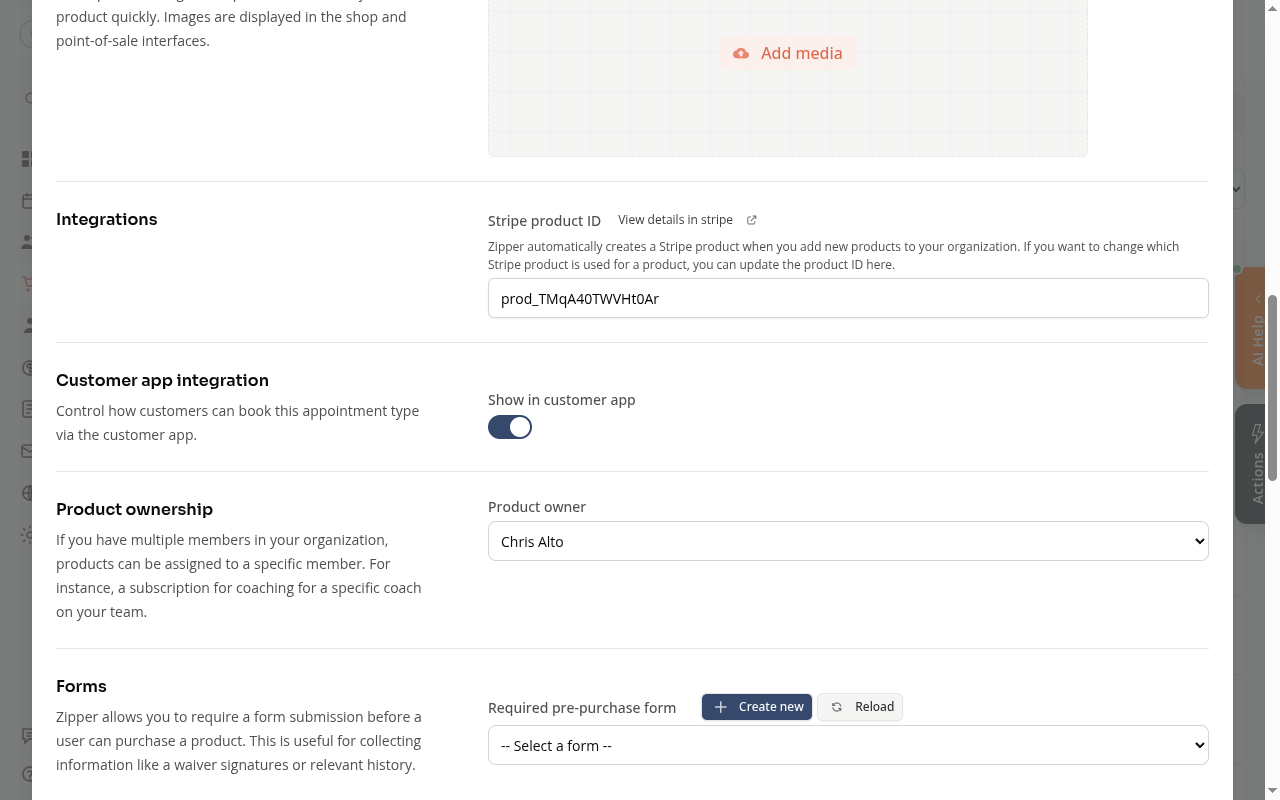
If the toggle is off, turn it on and save. The product appears in the customer shop immediately.
Admins always see all products in the admin panel regardless of this toggle — it only affects what customers see.
Cause 2: Tag-Gated Pricing
Some products have pricing tiers restricted to customers with specific tags (e.g., “Member”). If all tiers are tag-gated, a customer without the required tag won’t see the product at all. Customers must be logged in to see tag-gated pricing.
- Open the product editor → Pricing / Tiers — check for any “Restricted to” tag requirements
- Fix: Add the required tag to the customer’s profile via Contacts > Customers → find the customer → Manage tags, or remove the tag restriction from the tier if it was set unintentionally
Cause 3: Booking Window Not Open
Some products only appear during a specific registration window.
- Open the product editor → look for Booking window, Registration open/close date, or Available from settings
- Fix: Adjust the booking window to include the current date, or wait until it opens naturally
Cause 4: Single Purchase Restriction
If a product is set to “single purchase only,” customers who already bought it won’t see it again.
- Open the product editor → look for Limit to single purchase or Maximum purchases per customer
- Fix: Change the purchase limit setting, or manually add credits from the customer’s billing profile
Quick Checklist
| Check | Where to look | Fix |
|---|---|---|
| Show in customer app is on | Product editor → toggle | Turn it on |
| Customer has required tag | Customer profile → Tags | Add the tag |
| Booking window is open | Product editor → dates | Adjust the window |
| Customer hasn’t already bought it | Customer billing history | Check purchase limits |
Troubleshooting
Product is visible on mobile but not on desktop (or vice versa). Visibility settings apply across all devices. Ask the customer to hard refresh (Ctrl+Shift+R) or try an incognito window.
None of the above explain why the customer can’t see it. Share the product’s purchase link directly (product Actions menu → Purchase links) and have them try that URL. If it works, the issue may be a shop display order or category filter on the customer side.
Need a hand?
Email our team at support@joinzipper.com and we'll usually reply within a few hours.
Was this article helpful?
Thanks for your feedback.