Refund Options in Zipper Explained
Choose a full or partial refund, and return money to the original payment method or account credit.
Refund Options in Zipper Explained
Zipper lets you refund all or part of an eligible payment. You choose whether the refund goes to the original payment method or the customer’s global account credit.
Before You Start
Use a staff account with access to customer financial information and permission to manage point of sale. Your studio needs an active Stripe Connect account for either refund destination. Find a completed payment that still has a refundable amount. A pending payment is not the same as a completed payment.
Find the Payment
Open Contacts > Customers, choose the customer, and open Billing & Payments. In Transactions, find the successful payment and select its checkbox. Choose Refund Selected.

Choose the Amount
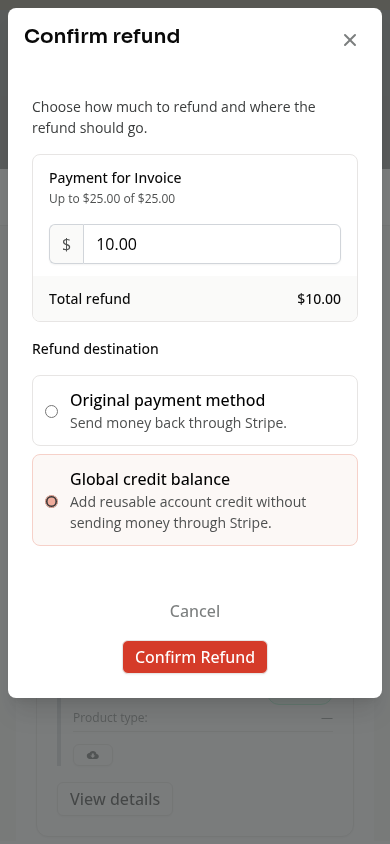
In Confirm refund, check the amount beside each selected transaction.
- Leave the remaining refundable amount to refund all of it.
- Enter a smaller positive amount for a partial refund.
For example, enter 10.00 to refund $10 from a $25 payment.
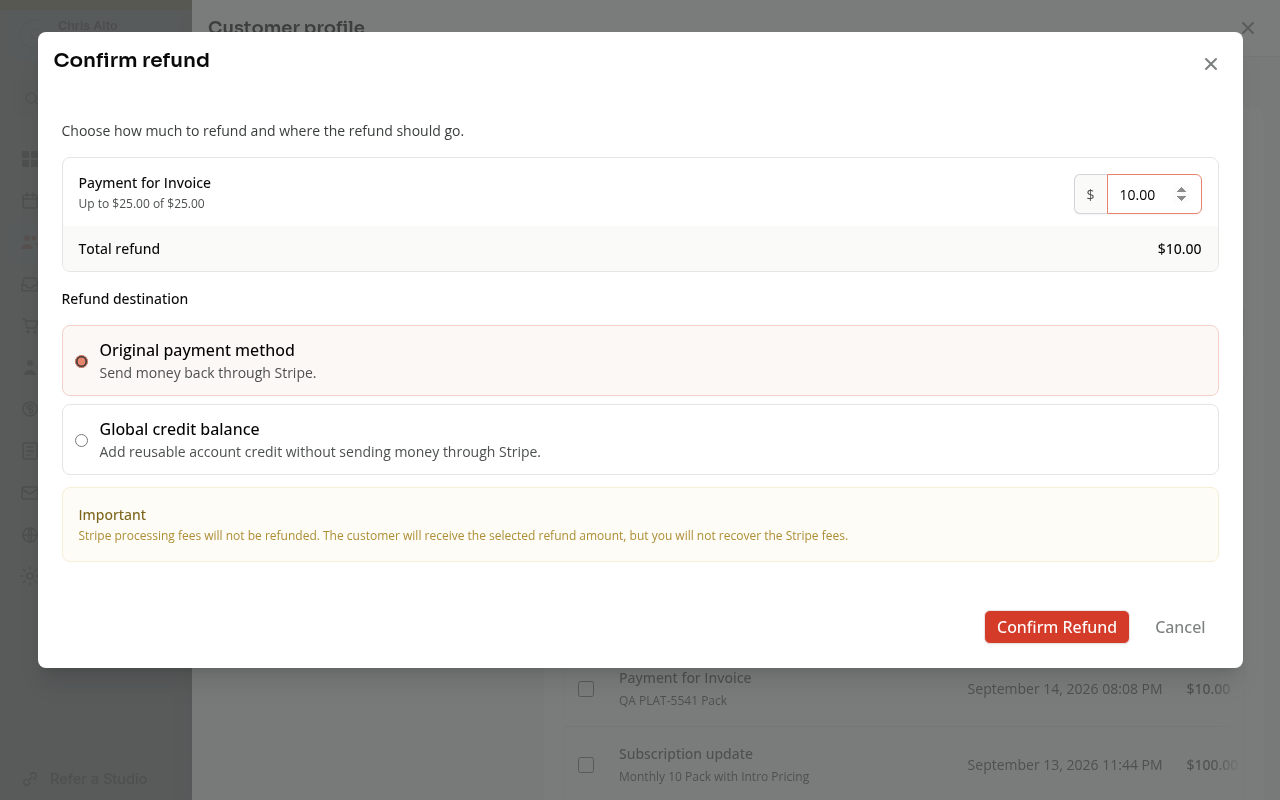
Zipper limits the amount to what remains refundable. Earlier refunds to the card or account credit reduce that limit. A pending refund request may also hold part of the amount.
Choose the Destination
| Option | What it does |
|---|---|
| Original payment method | Sends the refund through Stripe to the payment’s original method. |
| Global credit balance | Adds reusable account credit without sending money through Stripe. |
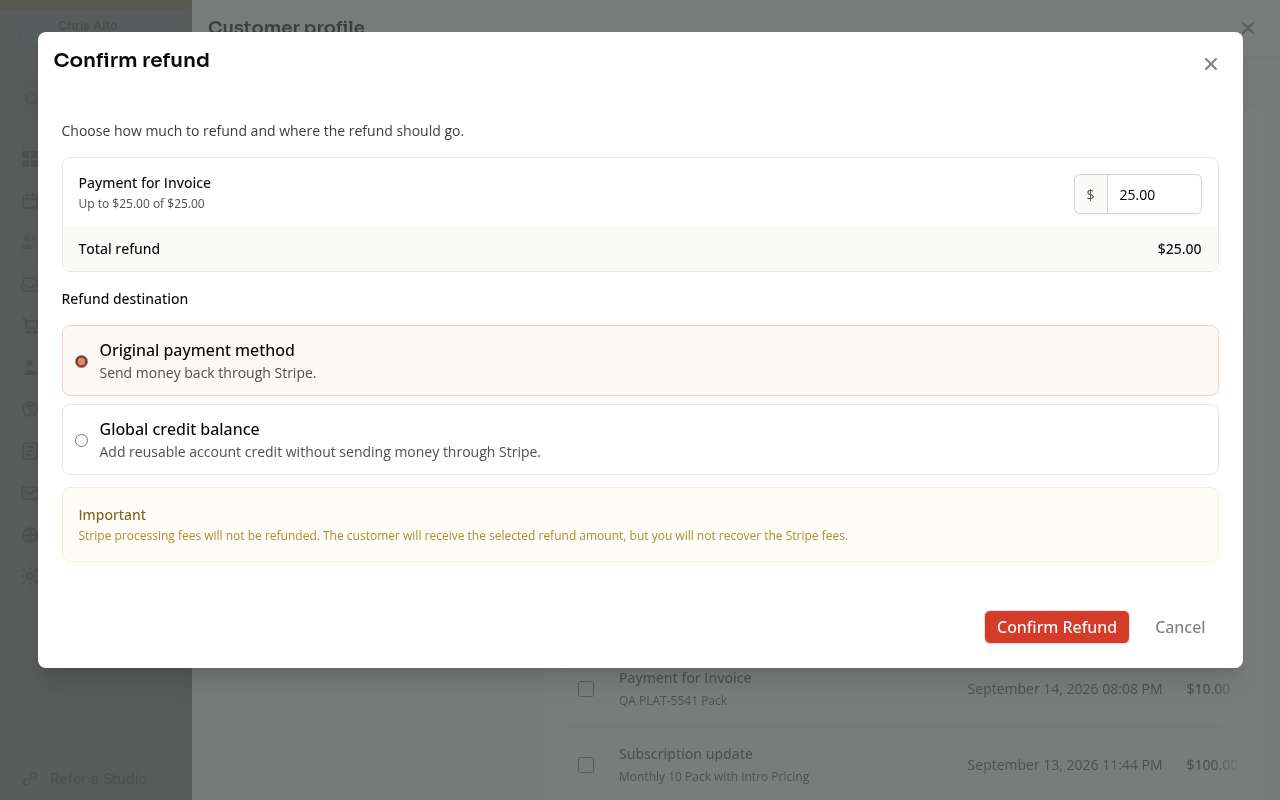
Check the amount and destination, then choose Confirm Refund. Choose Cancel if you only wanted to review the options.
Account credit is not a refund to the customer’s bank. Explain this choice to the customer before confirming.
What Else to Check
A money refund, a canceled booking and a canceled membership are different actions. Review the related booking or membership separately. Do not assume a refund restores a visit or ends future billing.
See Cash Balance Explained for account money and Booking Credits and All Access Explained for visit credits.
On Mobile
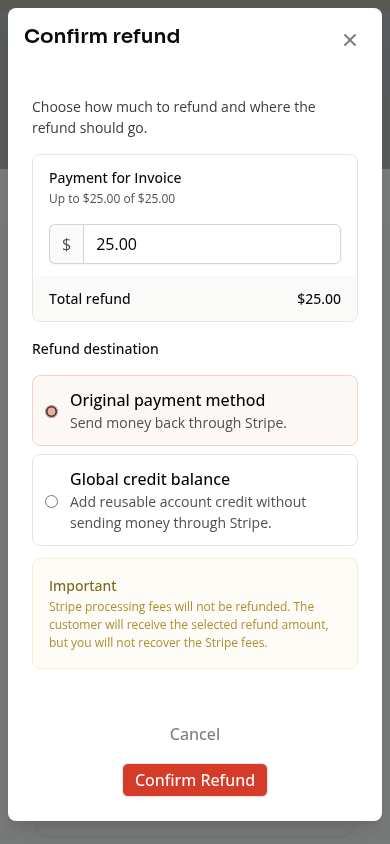
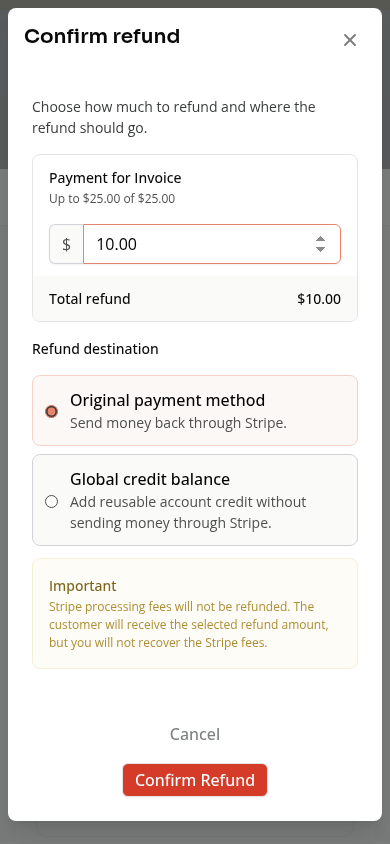
Open the same customer tab. The transaction list uses cards. Select a payment, then review the amount and destination in the refund dialog.
Troubleshooting
Refund Selected is disabled. Select an eligible successful transaction and check your refund permission.
The amount is rejected. It must be positive and no greater than the remaining refundable amount.
A refund fails. Read the error and check the payment’s state. Review transaction history before trying again so you do not send a second refund by mistake.
Need a hand?
Email our team at support@joinzipper.com and we'll usually reply within a few hours.
Was this article helpful?
Thanks for your feedback.