Is Guest Checkout Available for One-Off Events?
Yes — customers can register and pay for standalone events without creating a Zipper account. No login required.
What Is Guest Checkout?
Guest checkout lets anyone buy a ticket or register for a paid or free standalone event using just their name, email, and payment info. No account, no password.
This works for standalone events — created via Schedule > Calendar → Create → One-Off Session / Event. It does not apply to recurring class series or appointment bookings.
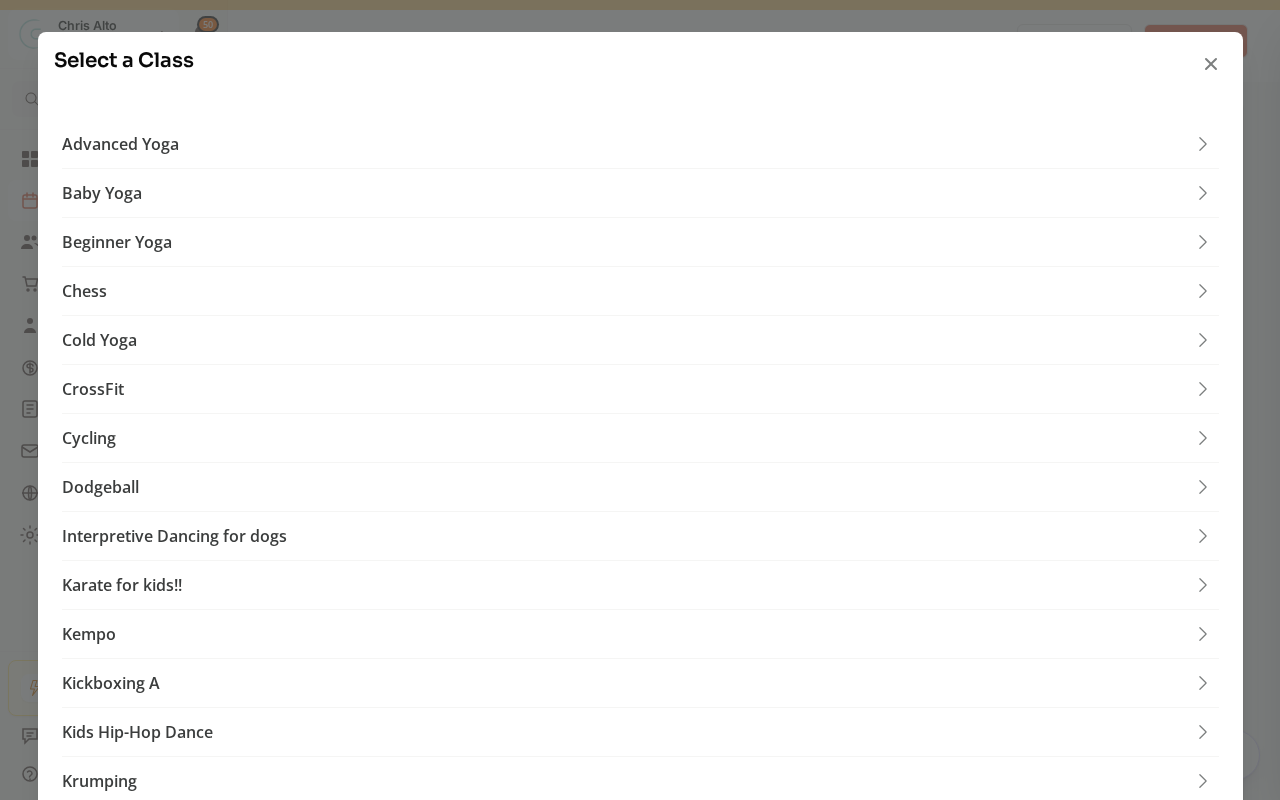
What Guests Provide at Checkout
- Name
- Email address
- Payment info (for paid events — credit card, debit, or ACH)
That’s it. No account creation required.
Who Can Use Guest Checkout?
Any unauthenticated visitor on your studio’s booking page. Guest checkout is on by default for all Zipper organizations — no toggle to enable.
What Happens After a Guest Registers
- Confirmation email: The guest receives a registration confirmation immediately
- Customer profile: A customer profile is created automatically with their name and email
- Account claim: The guest can later claim a full Zipper account using the same email address — this links their event registration history to their new account
What Guests Can’t Do
| Feature | Guests | Logged-in customers |
|---|---|---|
| Register for events | ✅ | ✅ |
| Pay at checkout | ✅ | ✅ |
| Use booking credits | ❌ | ✅ |
| Apply gift card balance | ❌ | ✅ |
| Access member pricing | ❌ | ✅ |
| View past registrations | ❌ | ✅ |
How to View Guest Registrations
Guests appear in the event’s registrant list alongside regular customers. Find them in:
- Schedule > Calendar → click the event → Manage registrations
- Or: Contacts → search by their email address
Tips
- Wrong email from a guest: Update the customer profile from Contacts and contact them directly.
- Guest wants to use credits: They need to claim their account first using the email they registered with.
Troubleshooting
A guest registered but their email isn’t in the customer list. Check Contacts and search by their full name — the customer profile may have synced under a slightly different format. If still not found, contact Zipper support.
The event isn’t showing a checkout option. Confirm the event is published and the registration window is open. Also check that the event is set to allow registrations (not invite-only).
Need a hand?
Email our team at support@joinzipper.com and we'll usually reply within a few hours.
Was this article helpful?
Thanks for your feedback.