How to View and Export Inventory Reports
Check stock position and settled retail sales, filter the results, and export a CSV.
Use Stock reports to check what you have on hand or review settled retail sales. The Manage menu shows Stock reports only when the retail catalog is turned on for your studio, and your account needs permission to manage products.
-
Open Products & Services → Products, then select Manage → Stock reports.

-
Choose Position for current stock or Sales and margin for settled sales.

Check stock on hand
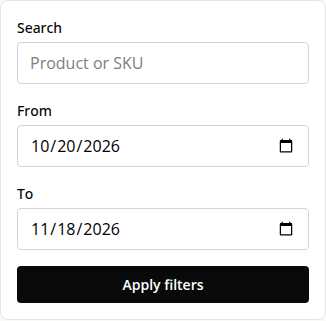
In Position, check On hand, Reserved, and Available by product option. Enter a product name or SKU in Search, then select Apply filters.

Review sales and margin
In Sales and margin, use From and To to select a date range. Search by product or SKU if you want to narrow the report. Select Apply filters. The report uses your studio’s time zone.
Export the current view
Select Export current CSV to download the report with its current filters. Cost and margin columns depend on your access and the cost data available for each item.

Need a hand?
Email our team at support@joinzipper.com and we'll usually reply within a few hours.
Was this article helpful?
Thanks for your feedback.