How to Upload a Video to Your Video Library
Select a recording, upload it to the Video Library, and check when it is ready for playback.
How to Upload a Video to Your Video Library
Use Upload Video to add a recording from your device.
-
Go to Website + App > Video Library and select Upload Video.
-
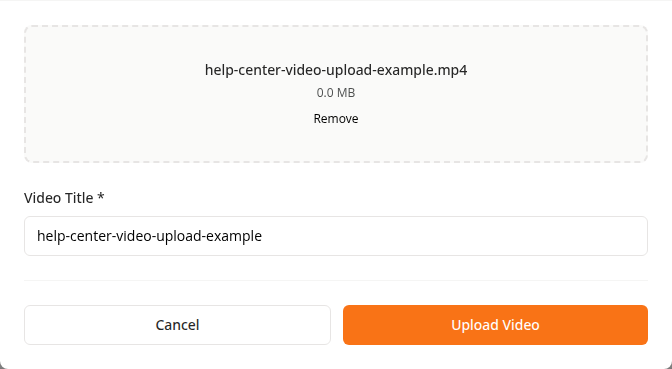
In Upload New Video, use Choose File or drag the recording into the upload box. The dialog accepts MP4, MOV, M4V, MKV, and WebM. Check the file-size limit shown there.
-
Review the prefilled Video Title or enter a title of your own. Select Upload Video.
-
Follow the upload progress. When the transfer finishes, look for the recording in Library. Encoding means Zipper is preparing the video for playback. Published means the video is ready. Audience access still depends on your Video Library and category settings.
The upload dialog shows your library’s per-file size limit. The standard limit is 5 GB, but a library can have a different limit. This is separate from total storage: a file within the per-file limit can still exceed the available storage.
On a phone, open the sidebar and follow the same steps.
If the Upload Is Stuck
- Upload Video is disabled. In the upload dialog, select a supported file, enter a title, and check the file-size and storage messages. On the Library page, the button is also disabled when your studio reaches its storage limit.
- Storage limit reached. Open Library and check the Storage card. Uploads pause when your studio reaches its limit.
- Failed. If an uploaded video shows Failed in the library, open it and choose Retry Encoding. Check its status again before sharing it.
Once the recording is in your library, you can edit its details, tags, or thumbnail.
Need a hand?
Email our team at support@joinzipper.com and we'll usually reply within a few hours.
Was this article helpful?
Thanks for your feedback.