How to Update Your Branded App Icon
The app icon (favicon/PWA icon) appears when customers add your Zipper app to their phone's home screen and in browser tabs. Here's how to update it.
Steps
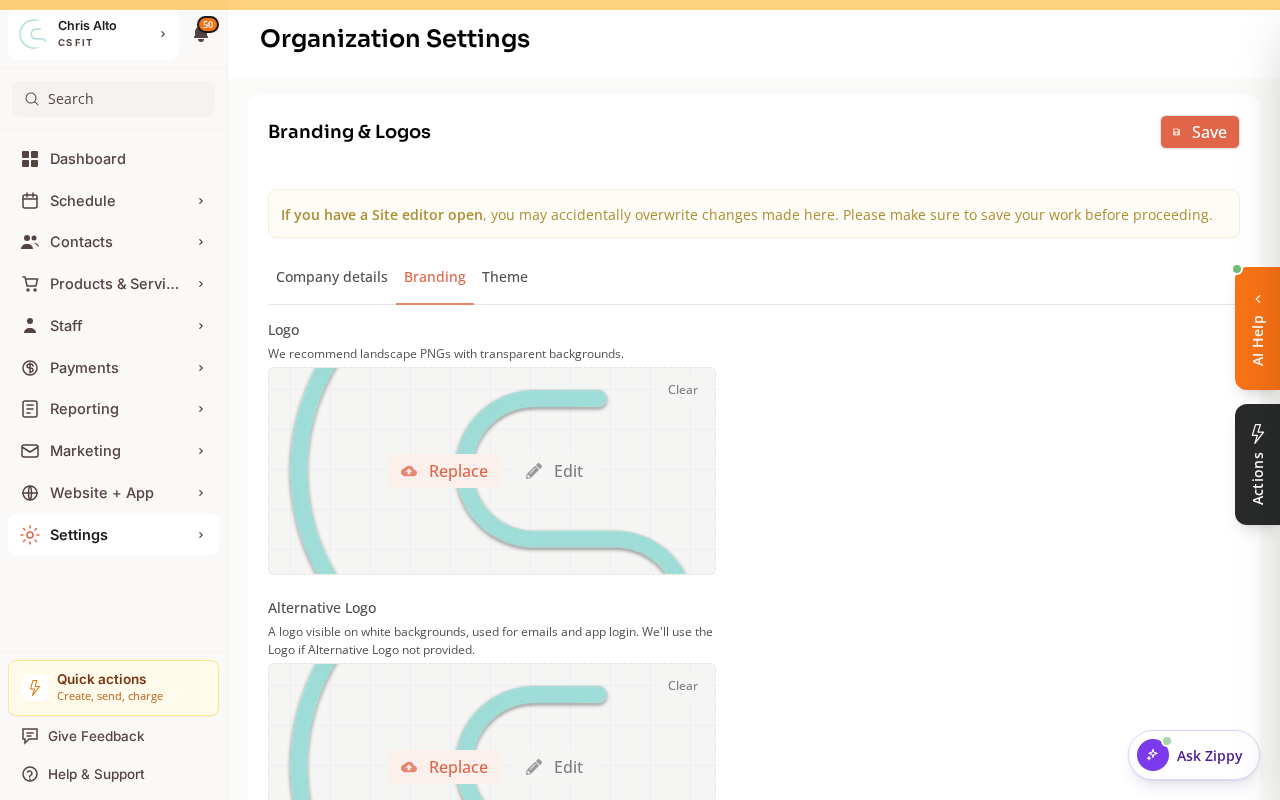
Logos and icons are managed under Settings > Organization Settings > Branding, where you can replace your Logo and Alternative Logo (used on white backgrounds, in emails, and the app).
For the home-screen / browser-tab icon specifically:
- Navigate to: Website + App > Site Editor
- Open Site settings → Branding (or look for Favicon / Site icon)
- Click: Upload or replace the current icon
- Upload your icon image
- Recommended size: 512×512 pixels (square)
- Recommended format: PNG with transparent background
- Click: Save and then Publish
Icon Requirements
| Specification | Recommended |
|---|---|
| Size | 512×512 px (minimum 192×192 px) |
| Format | PNG (transparent or white background) |
| Shape | Square |
| Content | Logo or icon — no text (too small to read) |
Tips
- Simple designs work best: At 48px on a phone screen, complex logos become unreadable. Use a simple icon or monogram.
- Two icons may be needed: The site editor may ask for both a favicon (16×16 or 32×32 for browser tabs) and a full PWA icon (512×512 for home screens). Prepare both sizes.
- Changes take time on devices: Once a customer has added the app to their home screen, the icon update may not show until they remove and re-add it.
Troubleshooting
The icon updated in the editor but looks the same in my browser. Clear your browser cache and refresh. Favicons are aggressively cached by browsers.
The icon looks blurry on iPhone. Upload a larger image (512×512 or higher). A small image scaled up will appear blurry.
Need a hand?
Email our team at support@joinzipper.com and we'll usually reply within a few hours.
Was this article helpful?
Thanks for your feedback.