How to Update Stock for Multiple Products
Review and apply stock receipts, physical counts, loss, or damage for several product options.
Use Bulk update stock when you receive a shipment or need to record a count for several product options. You can review up to 50 options in one list. Bulk update stock appears in the Manage menu only when the retail catalog is turned on for your organization.
-
Open Products & Services → Products. Select Manage → Bulk update stock.

-
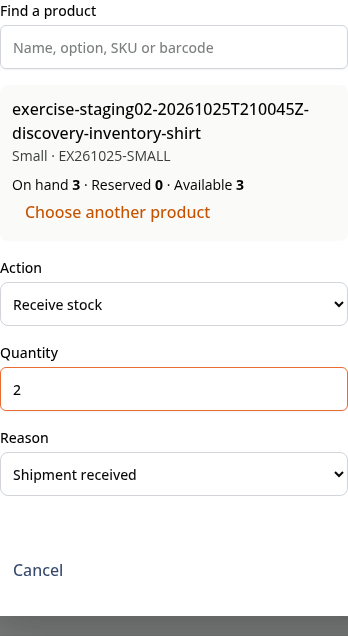
Use Find a product to search by name, option, SKU, or barcode. Select the correct option.

-
Choose an Action. Use Receive stock to add units, Set counted quantity to enter the total you counted, or Record loss or Record damage to take units out of stock. Enter the quantity and check the Reason.
-
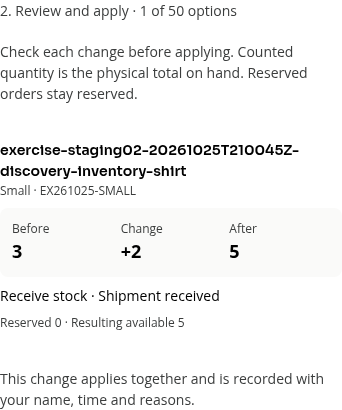
Select Add to list. Repeat for other options, then select Review with the number of changes, such as Review 2 changes. Check the new on-hand count and what will still be available. Reserved units stay reserved.
-
Select Apply to save the changes. If anything looks wrong, select Back to changes to edit the list first.

Need a hand?
Email our team at support@joinzipper.com and we'll usually reply within a few hours.
Was this article helpful?
Thanks for your feedback.