How to Understand Zipper's Reporting Dashboard
Use Overview, Reports, Forecast and Actions to understand your studio and choose what to do next.
How to Understand Zipper’s Reporting Dashboard
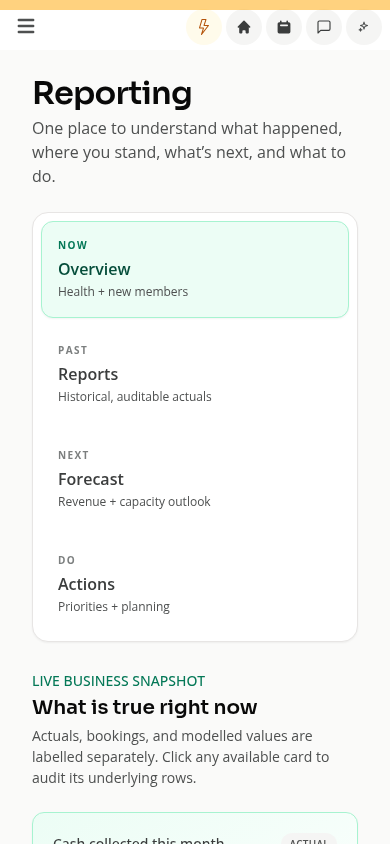
Open Reporting to see your studio’s numbers in one place. Four views answer different questions.
Before You Start
You need permission to view reports. Financial views also require permission to view the studio’s finances.
Now: Overview
Choose Now > Overview for a quick view of your studio. Click a card to inspect the rows behind its total.
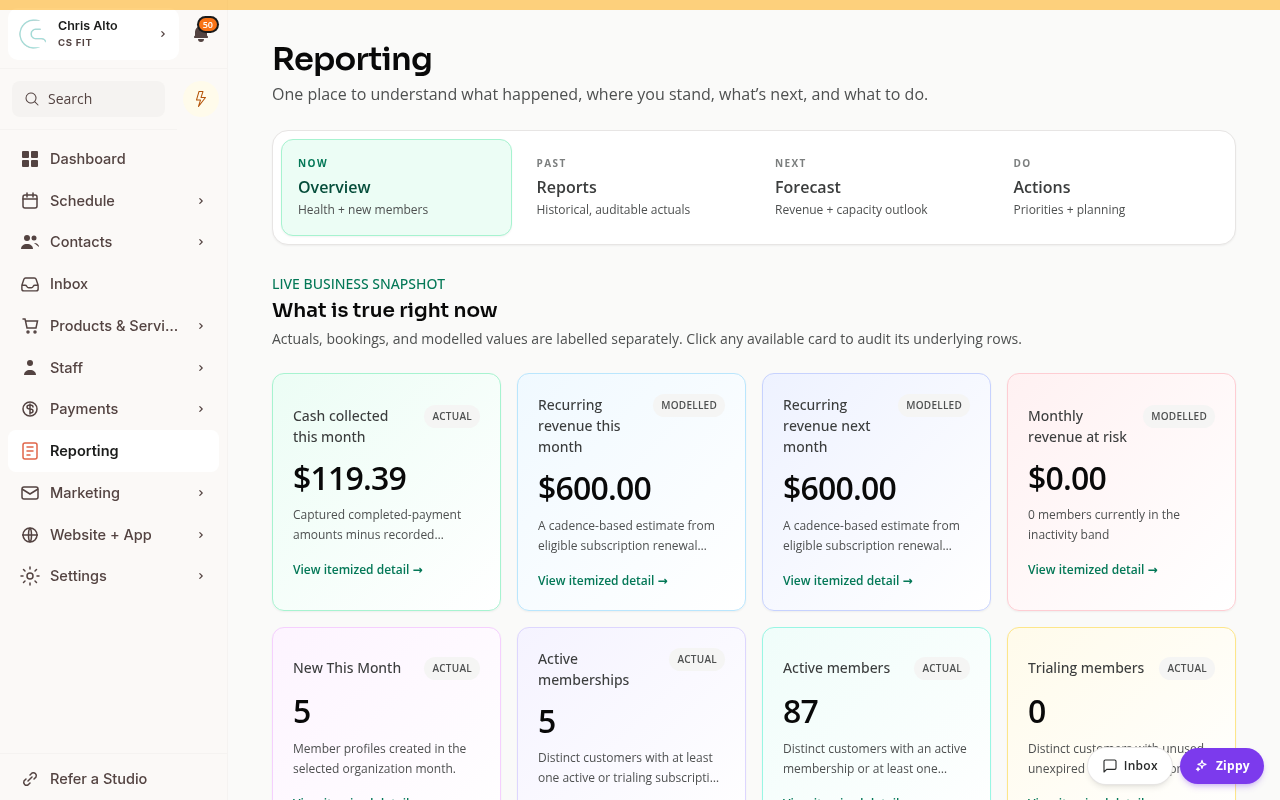
Check each card’s label:
- Actual describes recorded activity. For example, collected cash uses completed payments and recorded refunds.
- Modelled is an estimate. Recurring revenue uses subscription billing dates and cycles. It is not a promise that every payment will succeed.
- Booked visits counts bookings. It is different from the number of people who checked in.
Active memberships counts customers with an active or trialing subscription whose access has not ended. Active members can also include people with unused, unexpired pack credits.
Past: Reports
Choose Past > Reports, then Select a report. Search by name and choose the report you need.
Examples include Class Attendance Summary, Guest Sales, Recurring subscription revenue, and Customer demographics.
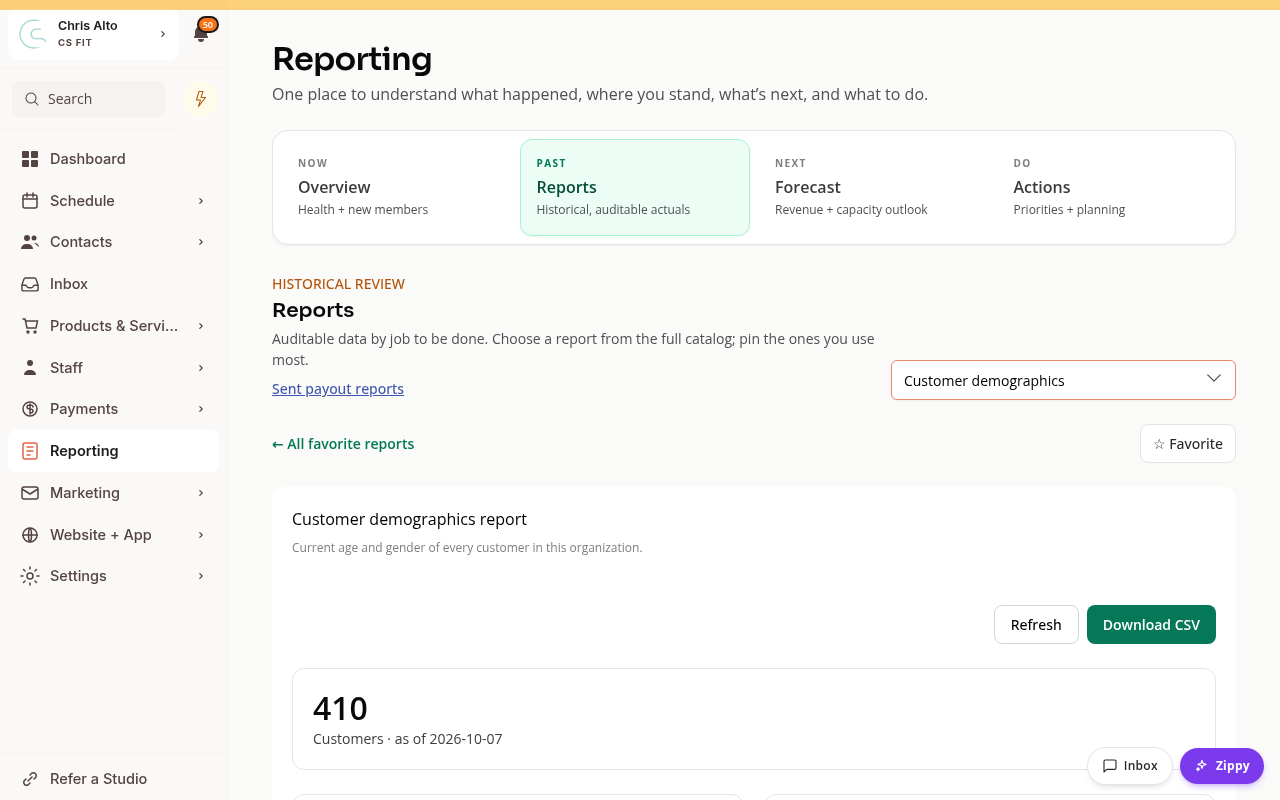
Use the filters shown for that report. Some reports use a date range; Customer demographics shows current data. Download options depend on the report.
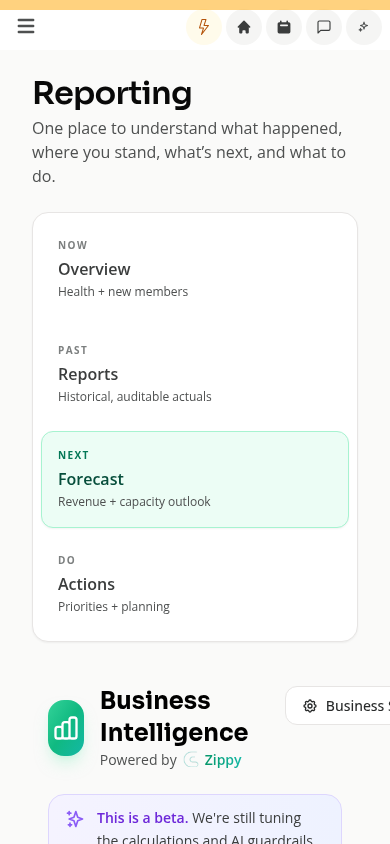
Next: Forecast
Choose Next > Forecast to explore revenue goals, capacity and demand. Use Business Setup or Configure to review the assumptions behind the forecast.
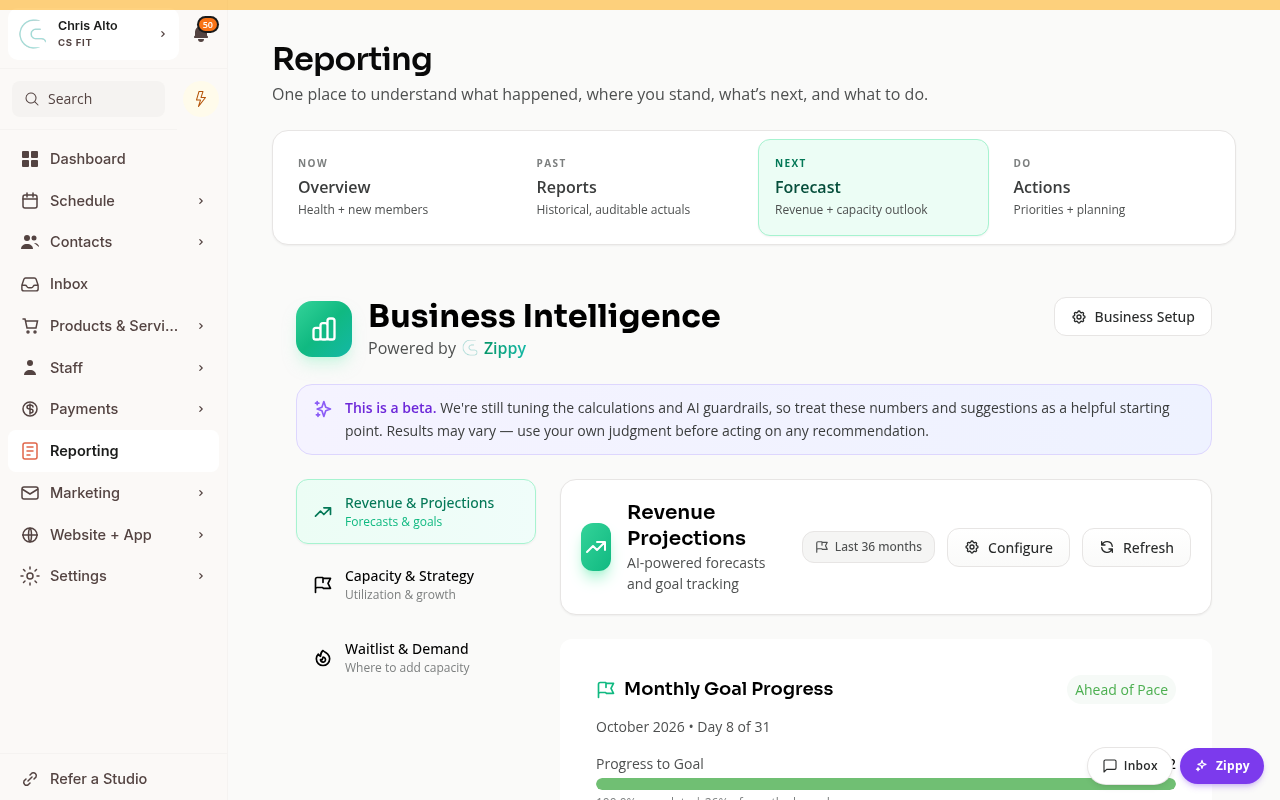
Forecasts help you plan. Use Past > Reports when you need recorded payments or attendance.
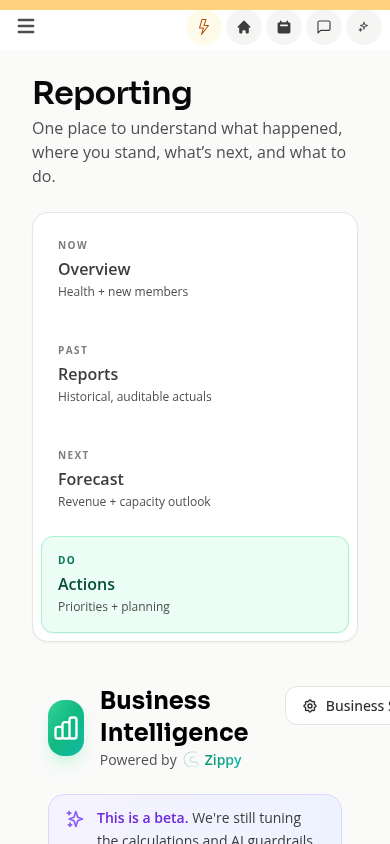
Do: Actions
Choose Do > Actions to explore recommendations, the What-if Planner, Churn Prevention, and Win-back.
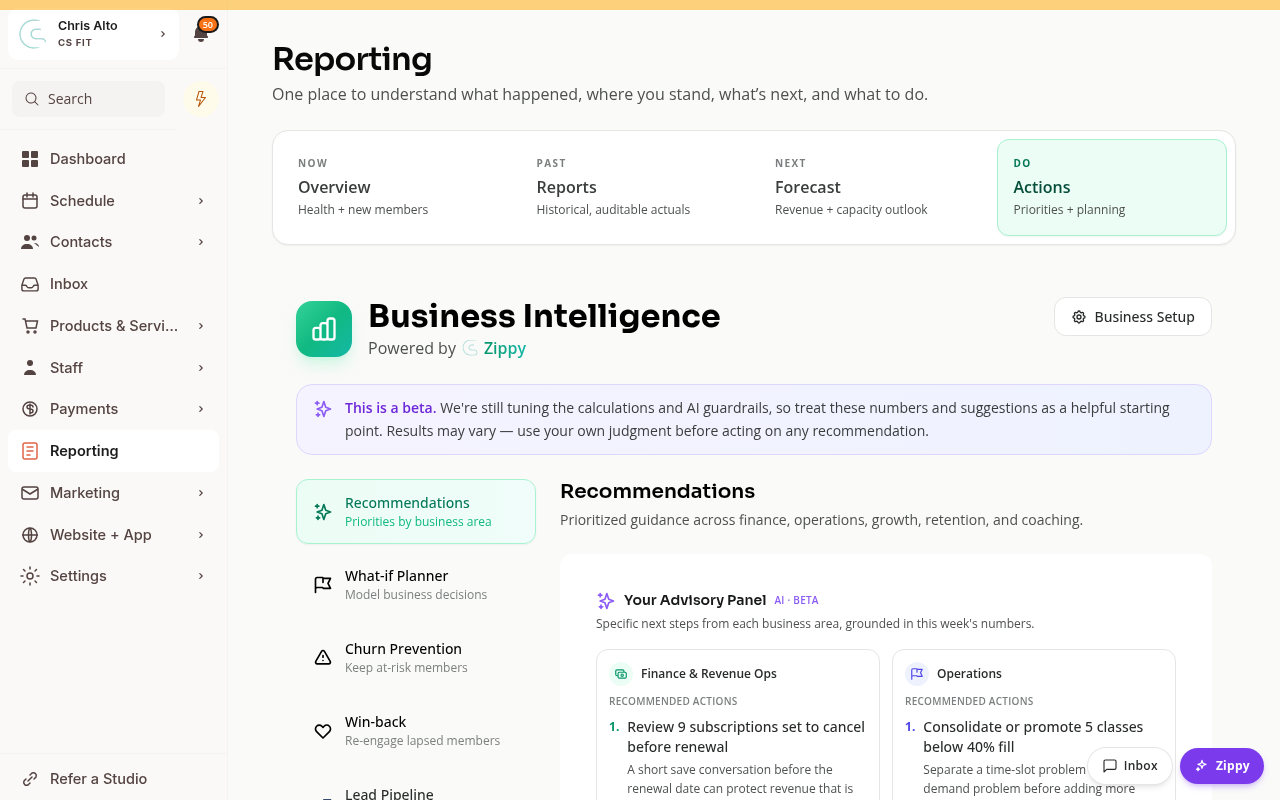
These tools help you choose next steps. Review a recommendation before using it to change your studio or contact members.
On Mobile
Open the sidebar and choose Reporting. The four views stay at the top; cards stack below them.
Tips
- Compare the same date range and location when comparing reports.
- Open a card’s detail before assuming two totals should match.
- Missing profile details can appear as unknown in demographic reports.
Troubleshooting
A total differs from another report. Check whether each number is actual or modelled, and whether it counts people, bookings or payments.
A view is missing. Ask the studio owner to check your reporting and financial permissions.
Need a hand?
Email our team at support@joinzipper.com and we'll usually reply within a few hours.
Was this article helpful?
Thanks for your feedback.