How to Style Your Customer App Home Page
Choose a header style, background image, greeting, and quote for your studio’s customer app.
Choose the header, greeting, and quote customers see when they open your studio’s app.
Choose a header
-
In the staff dashboard, open Website + App → Customer App → Styles. If the settings are unavailable, check that your customer app is on in Capabilities.
-
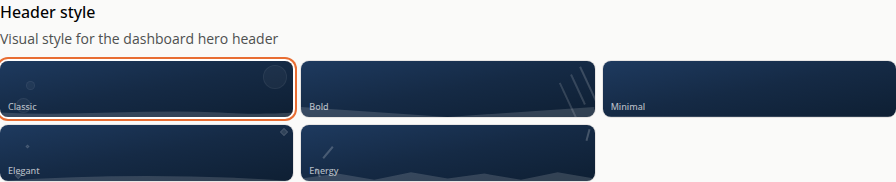
Under Header style, select the look you want.
-
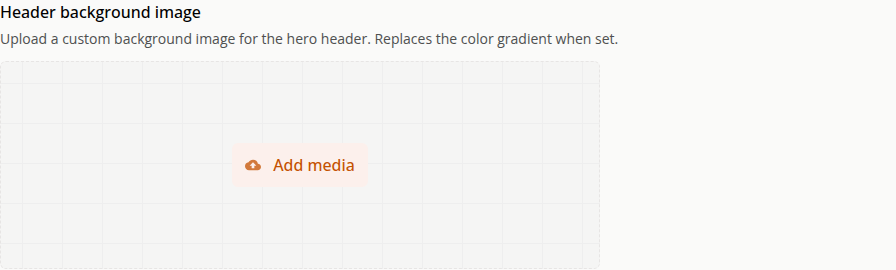
To use a photo, select Add media under Header background image (or Replace if a photo is already set). When you use a photo, it replaces the header’s color gradient.
Write your own greetings and quotes
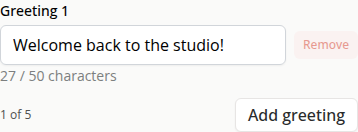
Turn on Custom greetings to replace the standard time-of-day greeting. Enter a greeting, then select Add greeting if you want more choices. The app picks one from the list to show.
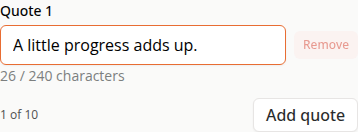
Turn on Custom quotes to replace the quote on the home page. Enter a quote and use Add quote to add another.
Select Save Changes, then open the app as a customer to check the result.

Need a hand?
Email our team at support@joinzipper.com and we'll usually reply within a few hours.
Was this article helpful?
Thanks for your feedback.