How to Share a Direct Link to a Program or Class
Get a shareable link that takes customers directly to a specific class or program registration page — no need to navigate through the full shop.
Create a Shareable Booking Link (Recommended)
The cleanest way to share a specific class or program is a direct booking link, which opens a calendar filtered to exactly what you choose.
- Navigate to: Website + App > Direct Links & Embedding.
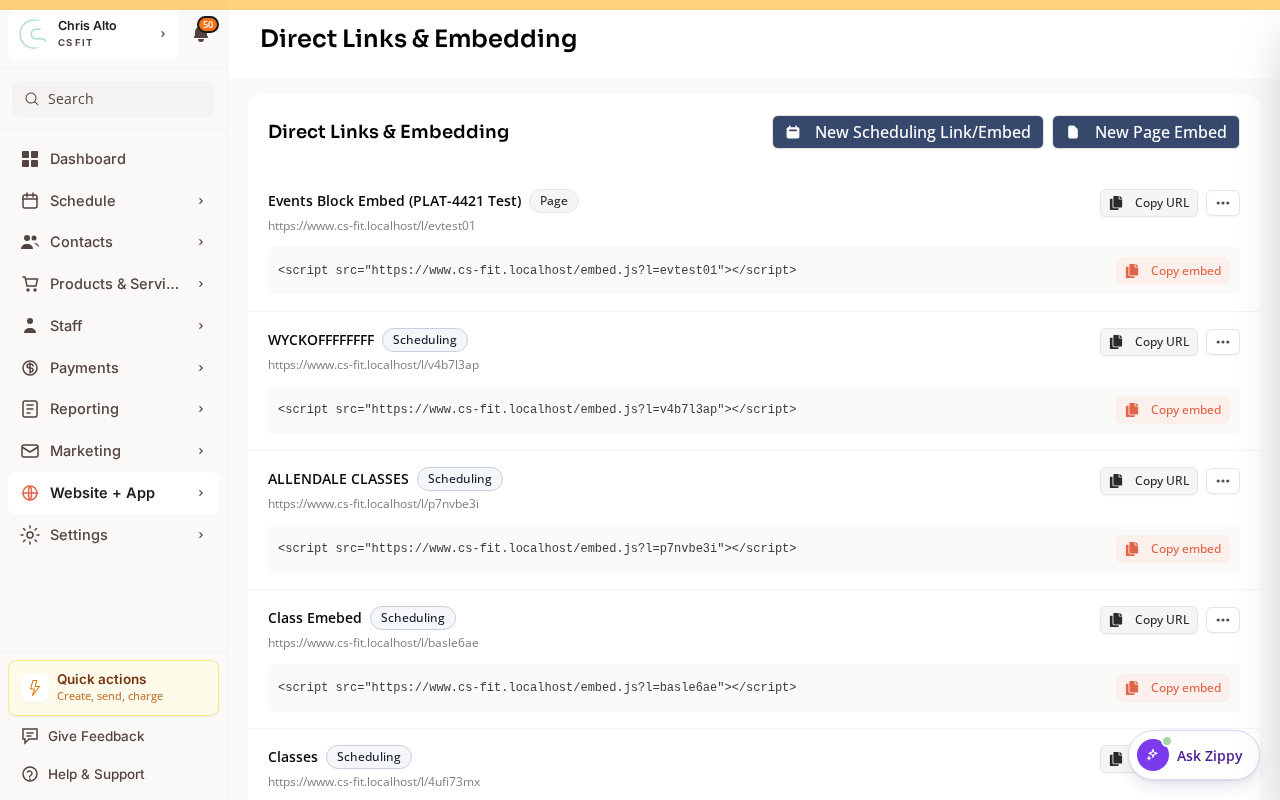
- Click New Scheduling Link/Embed. In the New Booking Link window, give the link a name, then filter to the specific class(es), instructor(s), or location you want it to show.
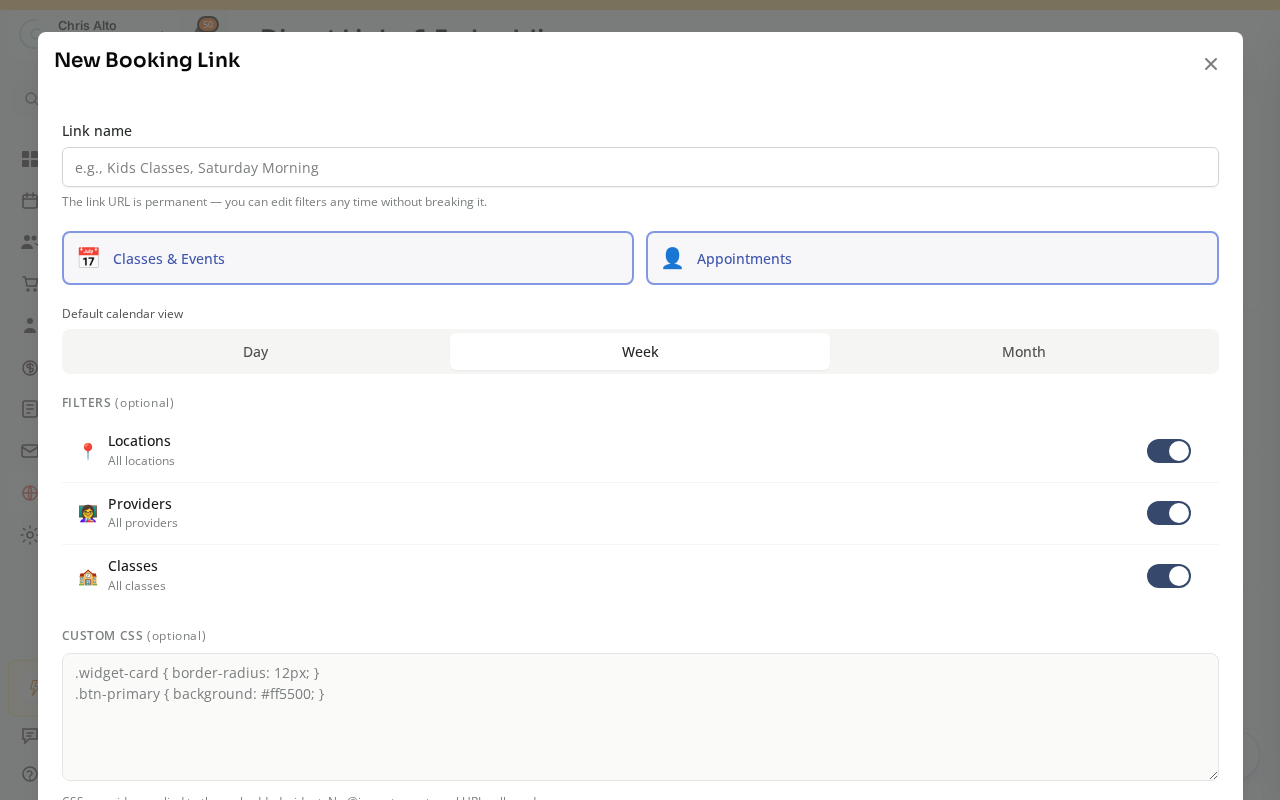
- Save the link, then use its Copy URL button to share it via email, social media, SMS, or your website. The URL is permanent — you can change the filters later without breaking it.
From the Calendar
- Navigate to: Schedule > Calendar
- Click on the event or program
- Click Share, Copy link, or QR Code
- Copy and share the link
For Products (Booking Credits, Subscriptions)
- Navigate to: Products & Services > Manage Plans
- Find the product → Actions → Purchase links (or Invite customer to purchase)
- Copy and share the direct purchase link
Creating a QR Code
- Get the direct link using the steps above
- Go to a free QR code generator (e.g., qr-code-generator.com)
- Paste the URL, generate, download, and print or display digitally
Tips
- Track clicks: Use a link shortener like bit.ly to track how many people click the link.
Need a hand?
Email our team at support@joinzipper.com and we'll usually reply within a few hours.
Was this article helpful?
Thanks for your feedback.