How to Set Up Unfilled Substitution Alerts
Choose who gets a reminder when an upcoming class still needs instructor coverage.
How to Set Up Unfilled Substitution Alerts
Posting a coverage request and alerting a manager about an unfilled request are separate settings. An unfilled alert helps your team catch an upcoming class that still needs coverage.
Before You Start
Use an organization administrator account with permission to manage staff. Make sure the substitution board is enabled. Recipients must have board access to appear in this list.
Choose the Recipients
- Open Staff > Substitution Board.
- Click Settings.
- Find Unfilled Substitution Alert Recipients.
- Select the team members who should receive these alerts.
- Click Save Changes.
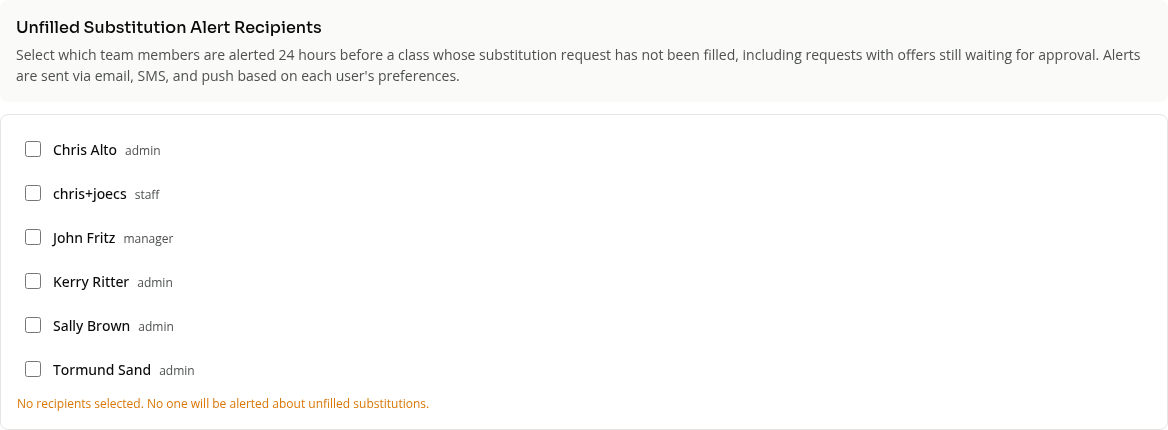
If nobody is selected, nobody receives an unfilled-substitution alert.
When the Alert Applies
The alert concerns a request that is still unfilled as its class comes within 24 hours. That includes requests with offers still waiting for approval. An offer is not confirmed coverage while it is awaiting approval.
Alerts use email, SMS and push according to each recipient’s notification preferences. This setting does not guarantee a particular delivery channel.
Substitution Notification Recipients is a separate list for normal substitution updates. Requesters also receive updates about their own requests. Choose the unfilled-alert list explicitly rather than assuming the normal notification list also gets these reminders.
Approval Settings
With Require approval for substitution claims enabled, a manager must review and approve an offer to cover. With it disabled, offers are immediately accepted. Use the board’s Open, Pending and Covered tabs to check the request’s state.
Changing alert recipients does not assign a substitute or approve a pending offer.
On Mobile
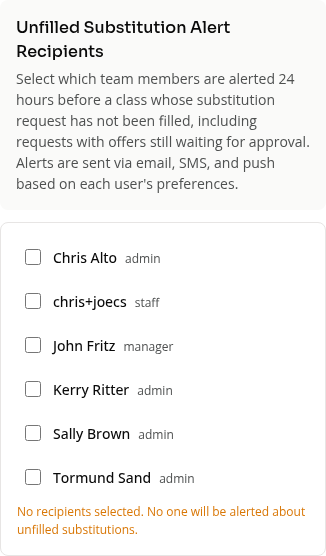
Open the board’s Settings, scroll to the unfilled-alert section, select recipients and save.
Troubleshooting
No alert arrived. Check the recipient selection, the request’s current state and the recipient’s notification preferences.
A staff member offered to cover but the class still looks unfilled. Check whether the offer needs manager approval.
For direct instructor changes, see How to Handle Instructor Substitutions.
Need a hand?
Email our team at support@joinzipper.com and we'll usually reply within a few hours.
Was this article helpful?
Thanks for your feedback.