How to Set Up Timeslots for Different Rooms at One Location
Configure separate class timeslots for multiple rooms within the same physical location — so different classes can run simultaneously without conflicts.
Steps
Step 1: Create locations/rooms in settings
- Navigate to: Settings > Locations.
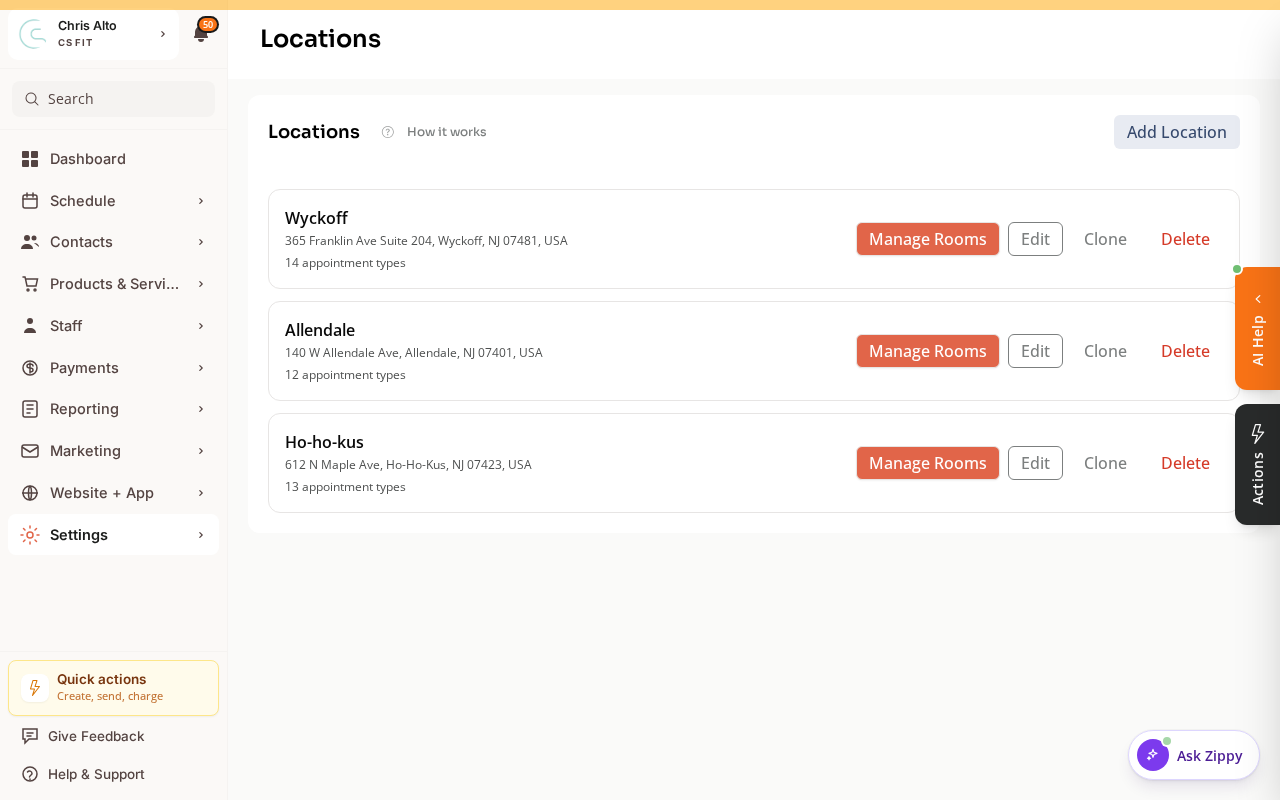
- On a location card, click Manage Rooms.
- Add each room (“Studio 1”, “Mat Room”, “Spin Studio”, etc.) and set its spot count.
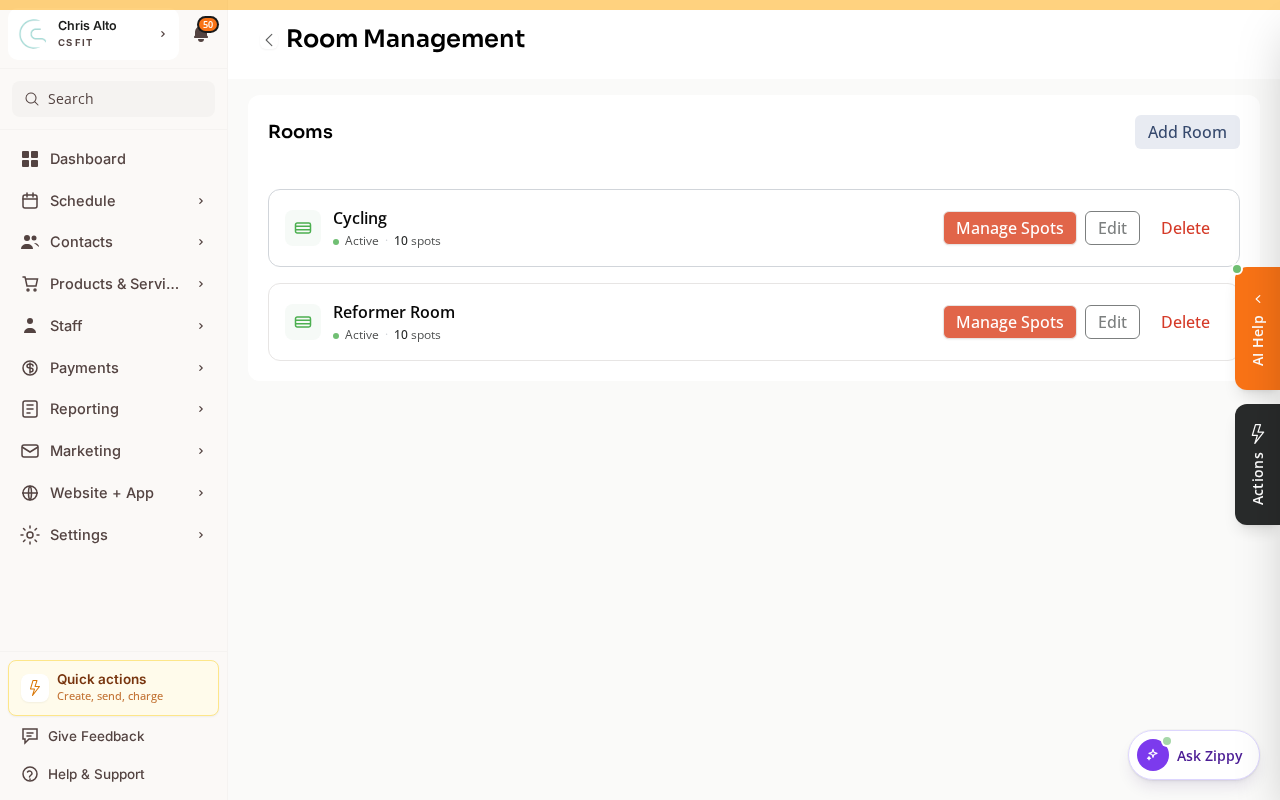
Step 2: Create classes with room-specific timeslots
- Navigate to: Schedule > Calendar → Create → Class
- In the scheduling step, when adding a timeslot:
- Set the day and time
- Under Location: select the specific room (e.g., “Studio 1 — Room A”)
- Add additional classes and assign each to their respective room
- Save
What This Achieves
- Multiple classes can run at the same time in different rooms without schedule conflicts
- Each room shows as a separate filter in the calendar view
- Capacity is set per room/timeslot
Tips
- Named rooms help members: Names like “Spin Studio” or “Yoga Room” tell members where to go when they arrive — better than “Room A”.
- Capacity per room: Set capacity limits per timeslot to match each room’s actual capacity.
Troubleshooting
Two classes at the same time are showing as conflicting. This can happen if they’re assigned to the same location (not room-specific). Confirm each timeslot is assigned to a specific room, not just the location parent.
Need a hand?
Email our team at support@joinzipper.com and we'll usually reply within a few hours.
Was this article helpful?
Thanks for your feedback.