How to Set Up SMS Notifications for Appointments Booked
Get a text message (or send one to customers) when an appointment is scheduled.
Prerequisites
- Connect Twilio for SMS to work: Settings > Integrations > Twilio
Enable SMS for “Appointment Booked” Notification
- Navigate to: Settings > Organization Notifications.
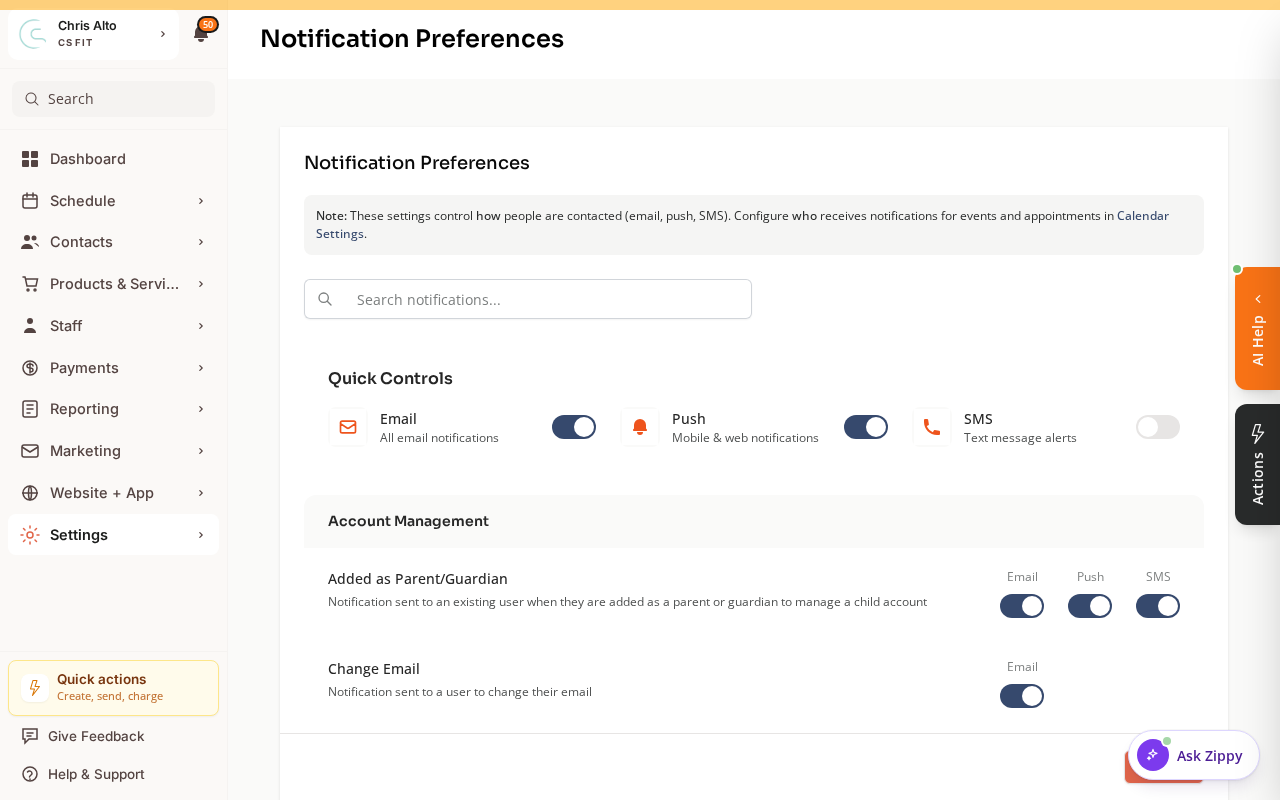
- Find Appointment Booked (or similar) in the notification list
- Toggle: the SMS column to On for this notification type
- Save
For Customer-Facing SMS Confirmation
Customer SMS confirmations are handled automatically when Twilio is connected. To verify:
- Go to Settings > Organization Notifications
- Find Appointment Booked to Customer
- Confirm SMS is toggled on
Staff Personal Preferences
Individual staff can configure their own SMS preferences:
- Settings > My Notifications → toggle SMS for Appointment Booked
Tips
- Staff phone numbers: SMS notifications only deliver if the staff member has a phone number on their profile. Go to Staff → edit profile → add phone number.
- Twilio costs: SMS messages incur costs through your Twilio account. Set up billing limits in Twilio to avoid surprises.
Troubleshooting
I enabled SMS but I’m not getting texts. Check: (1) Twilio is connected and active, (2) your phone number is on your staff profile, (3) the “Appointment Booked” SMS toggle is on in Settings > Organization Notifications.
Need a hand?
Email our team at support@joinzipper.com and we'll usually reply within a few hours.
Was this article helpful?
Thanks for your feedback.