How to Set Up Automatic Appointment Payment Reminders
Set when unpaid appointments receive a payment reminder and check or pause reminders on one booking.
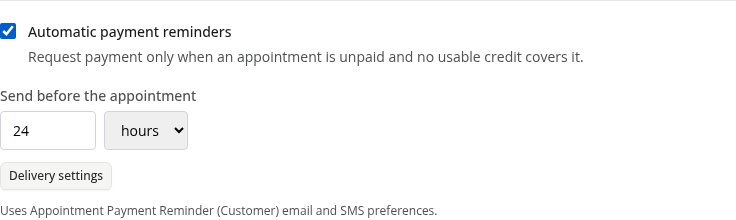
Set up automatic reminders for an appointment type when eligible customers can book before paying. Zipper requests payment for unpaid appointments when no usable Booking Credit covers them.
Choose when reminders are sent
- Open Schedule → Calendar → Manage → Appointment types and edit the appointment type.
- Find Automatic payment reminders in the Customer app integration section and turn it on. In a shared type, look under Details & forms.
- Under Send before the appointment, enter the lead time in hours or days.
- Open Delivery settings to check the organization’s email and SMS settings for Appointment Payment Reminder (Customer). Save any changes you make to those delivery settings.
- Save the appointment type. In a shared type, continue to Review changes and select Save changes after checking the scope.
Check a specific appointment
Open the appointment in Calendar. In the Payment row, choose More → Payment reminders. Check History and use Refresh to get the latest status. If automatic reminders are on, use Pause for this appointment or Resume reminders to control that booking.
For a manual message, see How to Send an Appointment Payment Link.
Need a hand?
Email our team at support@joinzipper.com and we'll usually reply within a few hours.
Was this article helpful?
Thanks for your feedback.