How to Set Up a Win-Back Automation
Re-engage customers who haven't attended or purchased in a while with an automated email or SMS offer.
Steps
- Navigate to: Marketing > Automations.
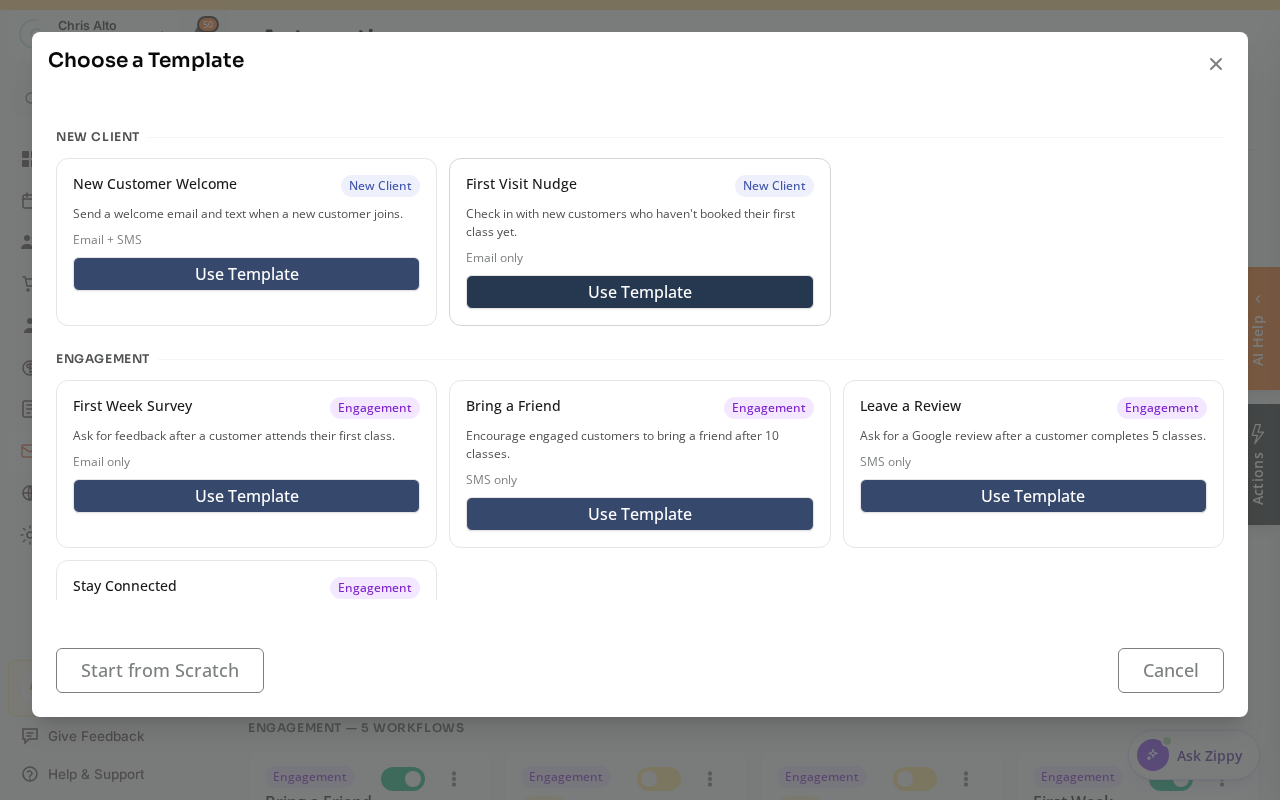
- Click: New Workflow. Pick a ready-made re-engagement template, or Start from Scratch.
 3. Set the trigger:
- Choose a time-based trigger like Monthly Anniversary or Events Attended Milestone
- Or: use a condition-based trigger that fires when a customer reaches N days of inactivity
- Add a delay (optional): wait until they’ve been inactive for your threshold (e.g., 30 or 60 days)
- Add a Send Email action:
- Write a re-engagement message: “We miss you! Come back and save 20%”
- Include a clear call to action: book a class, use a discount code
- Optionally add Send SMS for a text follow-up
- Publish the automation
Win-Back Email Template Ideas
- “It’s been a while — here’s 15% off your next session”
- “We saved your spot. Come back this week.”
- “Your membership credits are expiring soon — don’t let them go to waste”
Tips
- Offer an incentive: Win-back emails with a discount or free trial session perform significantly better than generic “we miss you” messages.
- Limit frequency: Set the automation to run once per customer maximum so lapsed members don’t get repeated win-back messages.
- Follow up SMS: Add a 3-day delay after the email, then send a short SMS reminder.
Troubleshooting
The automation isn’t finding lapsed customers. Verify the trigger is correctly configured with the right inactivity period. Test with a known lapsed customer account to confirm it fires.
Need a hand?
Email our team at support@joinzipper.com and we'll usually reply within a few hours.
Was this article helpful?
Thanks for your feedback.