How to Set Multiple Instructors on a Class
Assign primary, secondary and tertiary instructors and review the dates affected.
How to Set Multiple Instructors on a Class
Class sessions and events support a primary instructor plus optional secondary and tertiary instructors. Choose a different person for each position.
Add a Second Instructor for One Day
- Open Schedule > Calendar and the specific dated class session.
- If detail editing is locked because the session is connected to a class, choose Disconnect from class and review the confirmation.
- In the individual session editor, open Staff > Secondary instructor (optional) and select a different person.
- Review the dated session and save when ready.
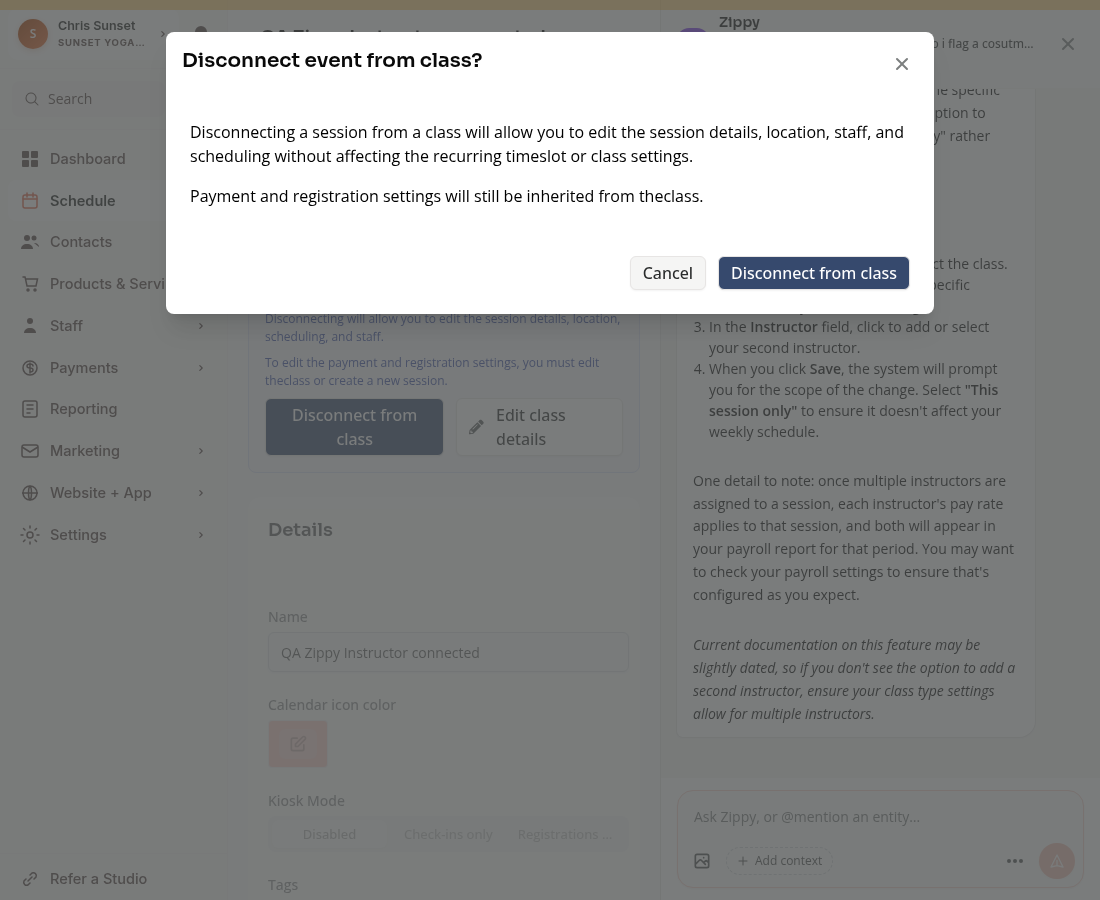
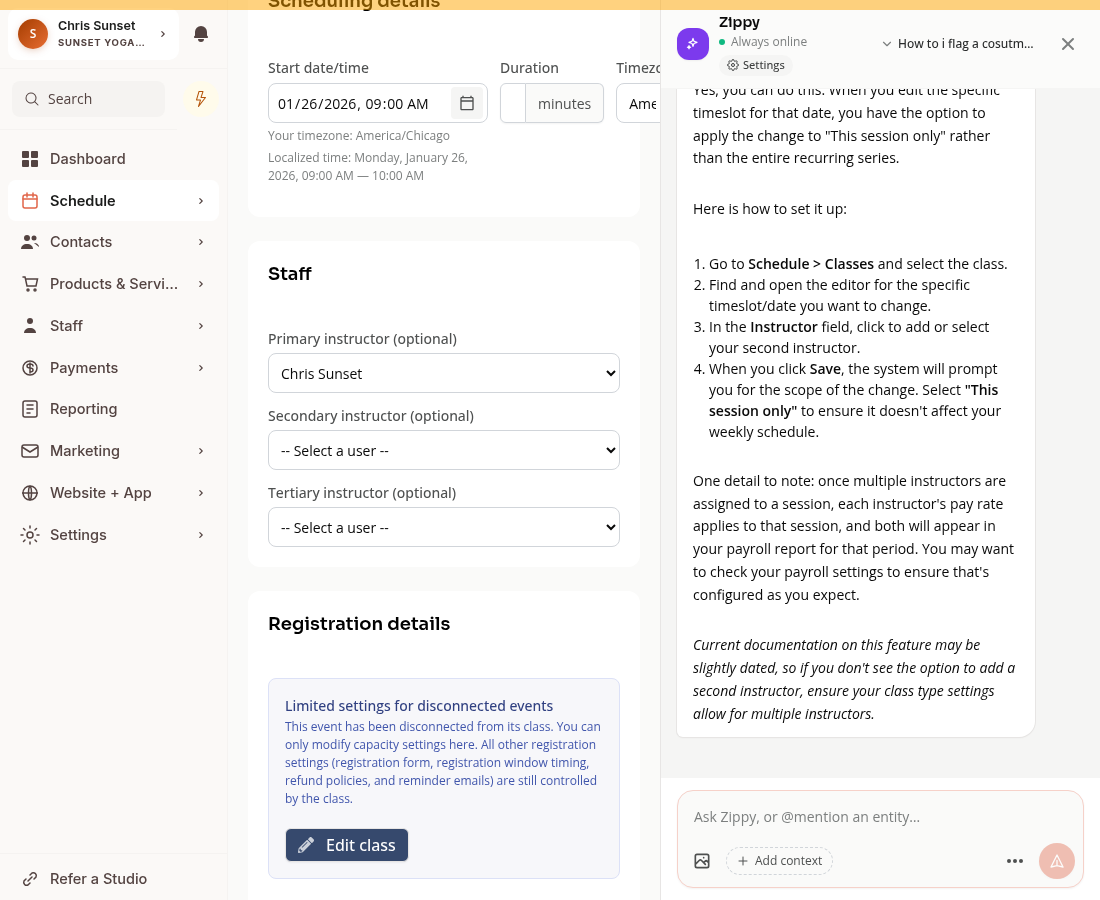
Disconnecting unlocks that session’s details, location, staff and scheduling. The recurring class and timeslot stay unchanged. Later updates to those inherited fields no longer update the disconnected session. Payment and registration settings remain inherited from the class.
Assign substitute replaces an instructor position. It does not add a second teacher.
Set Recurring Instructors
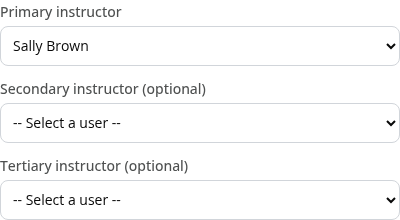
Open Schedule > Classes, edit the class, choose Manage timeslot and Current Settings > Edit. Select the instructor positions, then review When should this change take effect? and its warnings before Save Change.
An immediate timeslot change can affect past and future sessions or replace scheduled changes. Do not use it when you want to change only one occurrence.
A standalone event uses the event editor’s staff controls and has no class connection to disconnect.
Pay Settings
Several instructors do not automatically receive full duplicate payouts. Review the configured pay policy and payout report.
On Mobile
Open the dated session for one-day changes. For recurring settings, scroll through the effective dates and warnings.
Troubleshooting
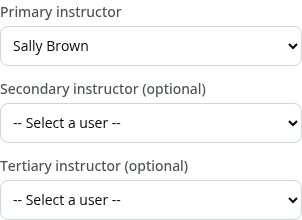
The same teacher cannot be selected twice. Select different people for each position.
Detail editing is locked. Review the dated session’s class connection before changing staff.
Need a hand?
Email our team at support@joinzipper.com and we'll usually reply within a few hours.
Was this article helpful?
Thanks for your feedback.