How to Sell Gift Cards Through Point-of-Sale and at Events
Sell gift cards in person using a purchase link — share the link at events, via email, or display it as a QR code for customers to scan and buy on the spot.
Before You Start
- Enable gift cards: Products & Services > Gift Cards > Settings → turn on Enable Gift Cards
- Ensure Stripe is connected (gift cards are processed through Stripe)
Step 1: Go to Products & Services → Gift Cards
- Navigate to: Products & Services > Gift Cards
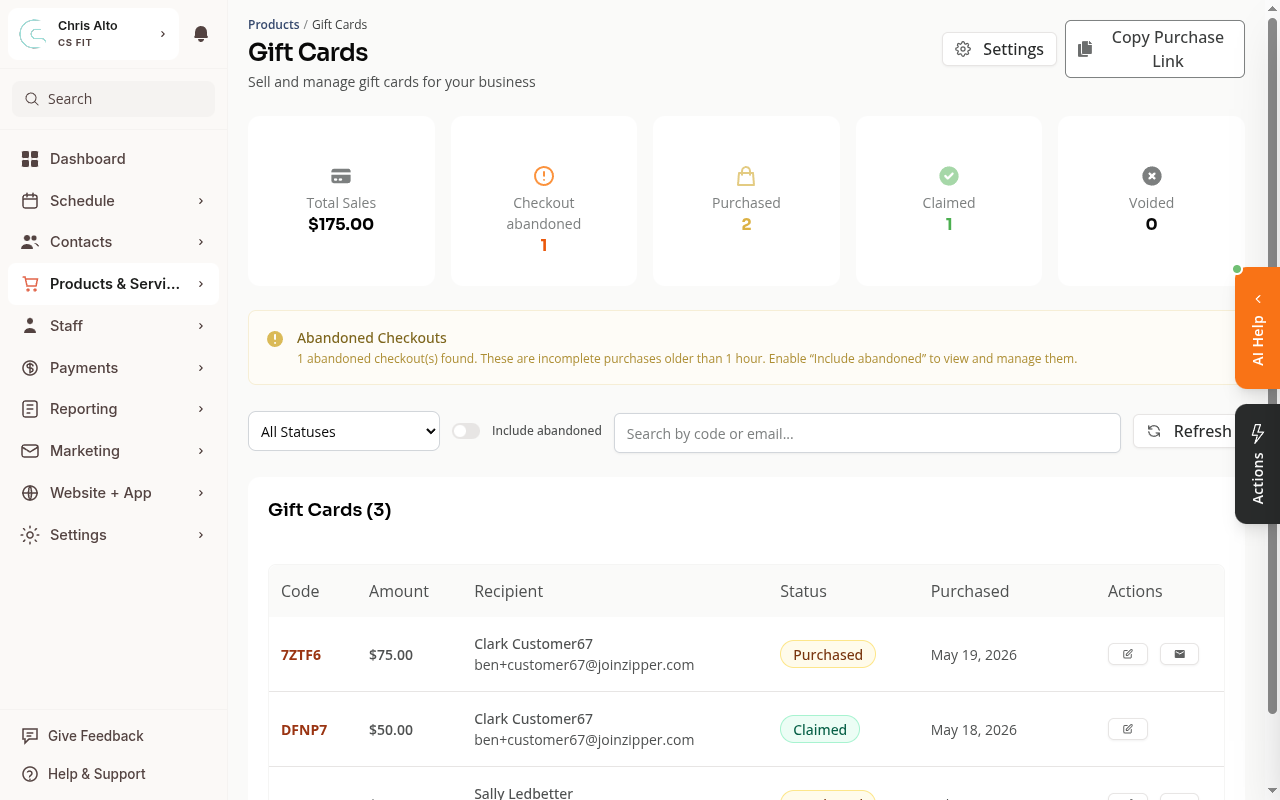
Step 2: Copy the Purchase Link
- Click: Copy Purchase Link (top right, next to Settings)
The purchase link goes directly to a gift card checkout page where anyone can buy a gift card for any amount ($5–$1,000), enter a recipient name and email, and add a personal message.
Step 3: Share the Link
At an event or in person:
- Paste the link into a QR code generator (e.g., qr-code-generator.com) → print or display the QR code
- Customers scan the code with their phone and purchase a gift card on the spot — no staff involvement needed
Via email or social media:
- Paste the link into your email campaign, social post, or website
- Customers click and purchase directly
At checkout:
- Share the link verbally or via text while helping a customer at the front desk
Who Gets the Gift Card?
When a customer buys a gift card:
- They enter the recipient’s name and email address
- The recipient gets an email with their gift card code
- The recipient can redeem the code on your website or app to load credits to their account
Gift Card Settings
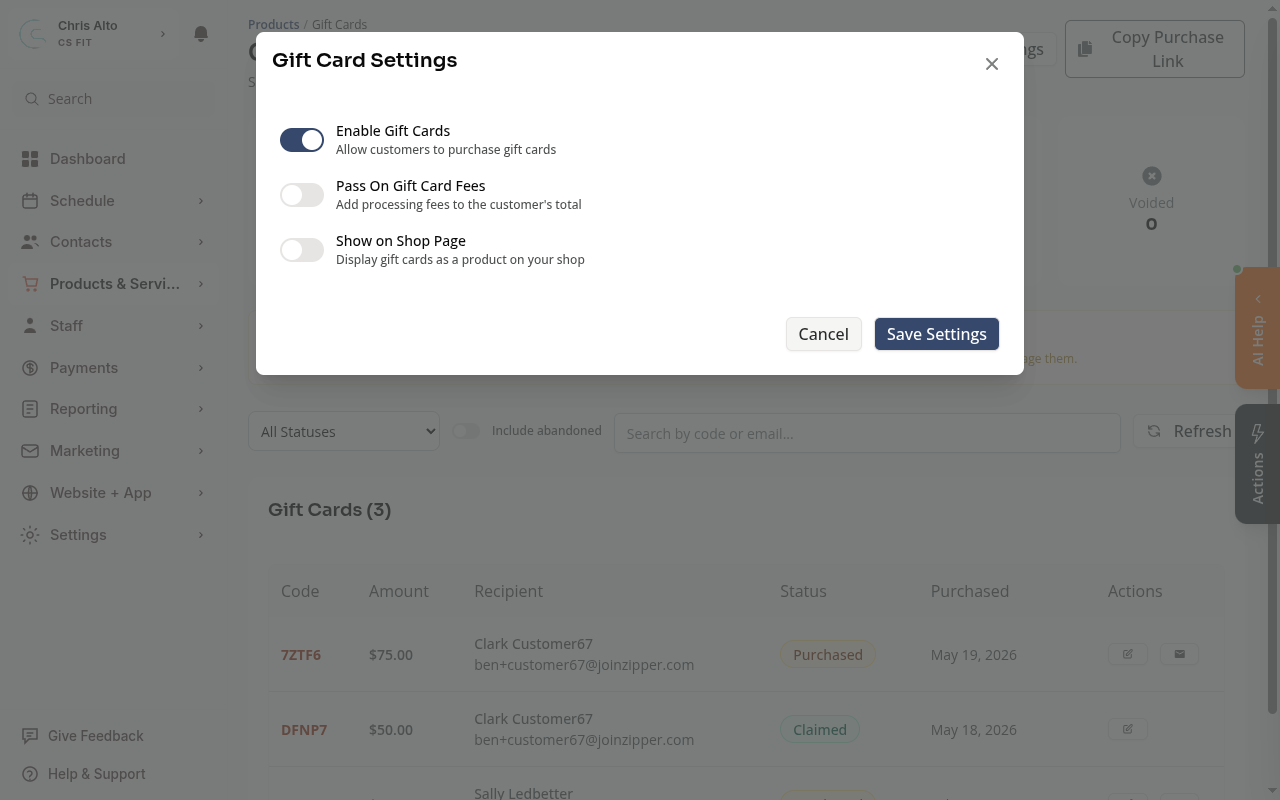
Go to Products & Services > Gift Cards > Settings to configure:
- Enable Gift Cards — turns the feature on/off
- Pass On Gift Card Fees — adds Stripe processing fees to the purchase price
- Show on Shop Page — displays gift cards as a product in your customer-facing shop
On Mobile
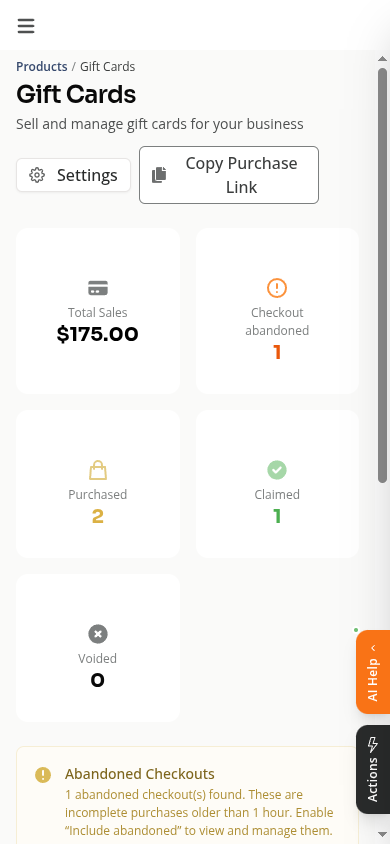
The steps are the same on mobile. Navigate to Products & Services > Gift Cards and tap Copy Purchase Link.
Tips
- Generate a QR code from the purchase link and add it to event flyers, table tents, or your studio’s front desk display
- Add the purchase link to your website’s “Give the Gift of Fitness” page
- Gift card purchases show up in your Gift Cards dashboard under “Purchased” — you can track all sales, redemptions, and voids there
Troubleshooting
The purchase link isn’t working. Check that Enable Gift Cards is turned on in Gift Card Settings.
Customers say they didn’t receive the gift card email. Ask them to check spam. The email comes from Zipper, not your studio email. You can also look up the gift card code in your Gift Cards dashboard and share it manually.
Need a hand?
Email our team at support@joinzipper.com and we'll usually reply within a few hours.
Was this article helpful?
Thanks for your feedback.