How to Schedule Recurring Classes (Including Biweekly)
Create a class that repeats weekly, every 2 weeks (biweekly), or on any regular schedule.
Steps
- Navigate to: Schedule > Classes, then click Create Class.
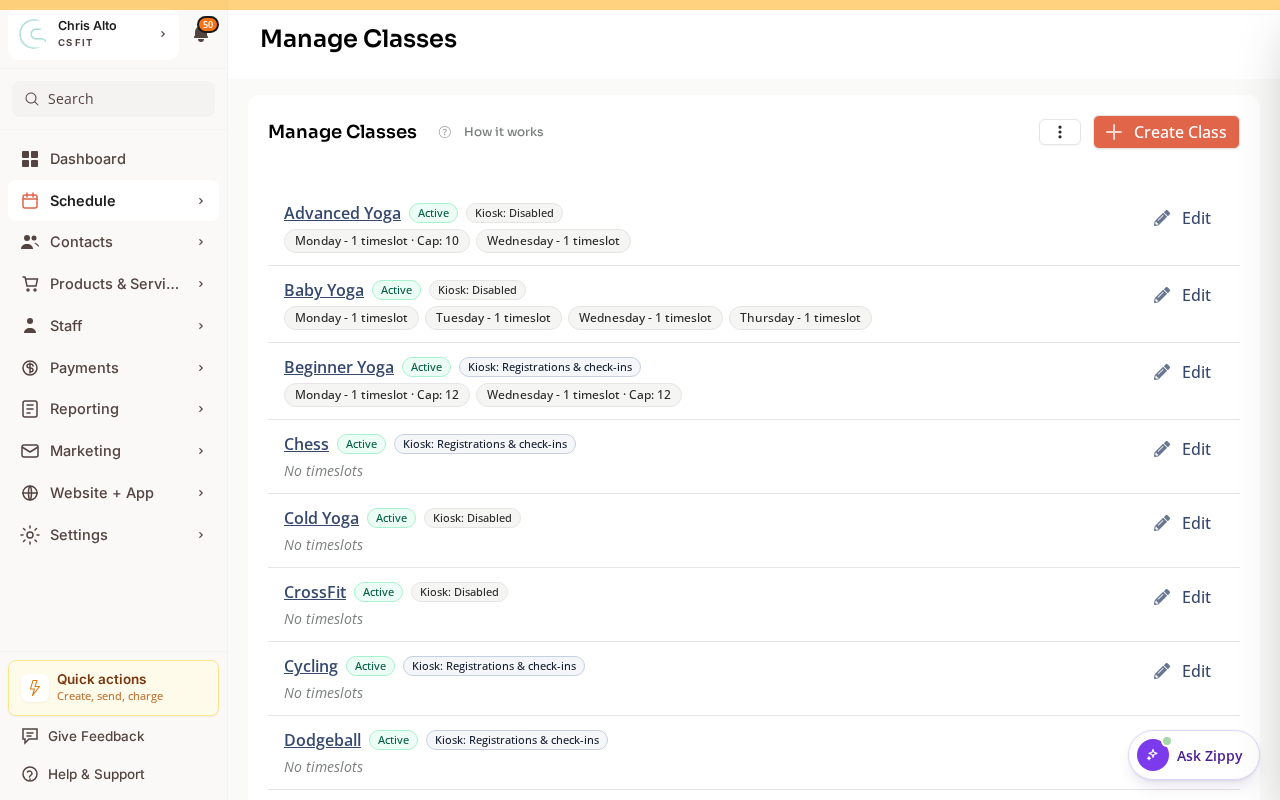
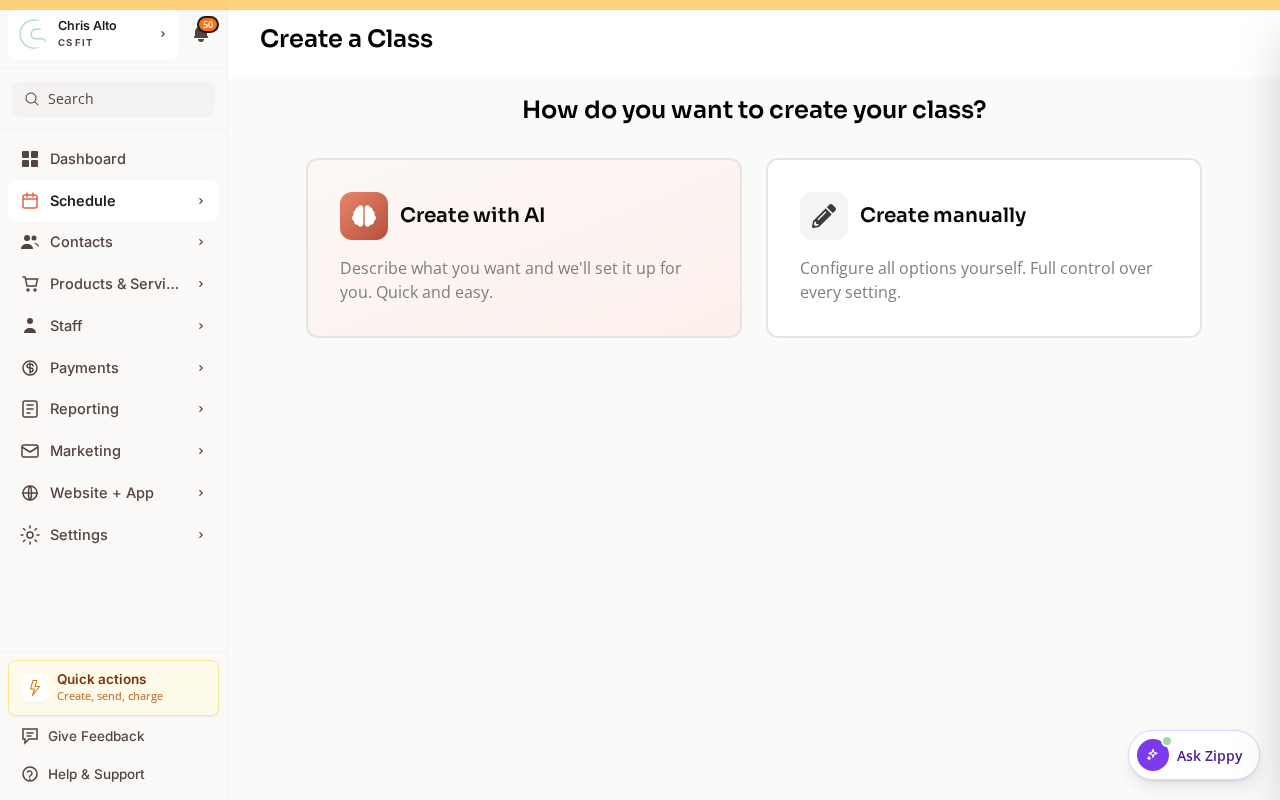
- Fill in the class name and details, then add timeslots with their repeat schedule.
Setting the Recurrence
- On the Scheduling step:
- Click: Add time slot
- In the timeslot form, find the Repeats setting:
- Every week — standard weekly class
- Every 2 weeks — biweekly
- Every 3 weeks, Every 4 weeks — other intervals
- Set the Day(s) the class meets
- Set the Start time
- Set the Duration
- Set the Instructor and Location
- Set the recurrence End (runs indefinitely or fixed end date)
- Click: Save for the timeslot
- Proceed through the wizard → Save
Biweekly Classes
For biweekly (every 2 weeks):
- Select Every 2 weeks in the Repeats dropdown
- Set the first class date — the series will generate sessions every 14 days from that date
- Review the session preview to confirm the dates look right before saving
Multi-Day Recurring Classes
For a class that meets multiple days per week (e.g., Mon + Wed):
- Add separate timeslots for each day of the week
- Each timeslot can have the same or different settings
On Mobile
Same steps — class creation wizard works on mobile browser.
Tips
- Use specific end dates: If a session is only for a term (e.g., a 10-week course), set an end date to prevent sessions generating indefinitely.
- Biweekly vs. semi-monthly: “Every 2 weeks” means exactly 14 days between sessions. If you need classes on specific calendar dates (1st and 15th), you’ll need to manually create individual sessions instead.
Need a hand?
Email our team at support@joinzipper.com and we'll usually reply within a few hours.
Was this article helpful?
Thanks for your feedback.