How to Review Subscriber and Member Class Attendance
Review lifetime attendance for a subscription plan or compare member attendance across your studio.
How to Review Subscriber and Member Class Attendance
Use Subscribers with Attendance to review members of one subscription plan. Use Member Class Attendance to look across your roster or focus on one location. These reports require the Manage Org Reports permission.
Check Attendance for a Subscription Plan
- Go to Reporting > Past > Reports, click Select a report, and choose Subscribers with Attendance.
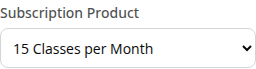
- Choose a recurring plan under Subscription Product. The rows and Download appear after you select a plan.
- Turn on Include canceled if you want canceled subscriptions included.
- Review Status, Start Date, and Events Attended. The attendance figure is the member’s lifetime class count, including recorded imported counts. Use Download to export the rows for your selection.
Check Attendance Across the Roster
Choose Member Class Attendance from the same report picker. Check Membership Status and Total Classes Attended. If your studio has more than one location, leave Location set to All locations for the studio-wide lifetime count, including imported attendance. Select a location for a count based on registrations assigned to that location.
For members who have reached or are close to a configured threshold, use the milestone reports.
Track Attendance Over a Set Period
The member counts above are lifetime counts; they do not show how many classes someone attended during a particular challenge period. To work out a period count, use the Class Attendance report to review the relevant months, sessions, attendee statuses, and check-ins. Count the qualifying visits for your chosen dates separately, and confirm your challenge rules before including a visit.
Need a hand?
Email our team at support@joinzipper.com and we'll usually reply within a few hours.
Was this article helpful?
Thanks for your feedback.