How to Review Customer Activity by Location
Find attendees at a location, see where new customers start, and compare return visits across locations.
How to Review Customer Activity by Location
Go to Reporting > Past > Reports and click Select a report. Set the reporting period for the report you choose. These reports require the Manage Org Reports permission.
Find Attendees at a Location
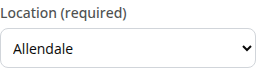
Open Attendees by Location and choose the studio in Location (required). The table shows one row per customer found for the selected location and period. Check Distinct Events Attended, Appointments Attended, Total Active Bookings, First Attended Date, Latest Class Event Date, and Latest Appointment Date. For event bookings, First Attended Date is when the registration was created, not the class date. For appointments, it is the appointment start date.
See Where New Customers Start
Open New Customer Acquisition by Location. Use New Customers to compare where customers made their first qualifying event registration or appointment booking. The report also shows Intro Offer Signups, Intro Offer Converted, and Intro Offer Conversion % for the new customers it attributes to a location.
Compare Return Visits
Open Customer Retention by Location. The report uses each customer’s first qualifying visit at a location within the selected period as the starting point. It tracks returns to that same location within 30, 60, and 90 days. A qualifying return must be at least a full day after the starting visit.
Check the pending counts for the 30, 60, and 90 day windows alongside the return percentages. Customers whose follow-up window is still open are counted as pending for that window.
Use Download to export a report. For a month-by-month comparison of check-ins, capacity, or revenue, use Location Trends by Month.
Need a hand?
Email our team at support@joinzipper.com and we'll usually reply within a few hours.
Was this article helpful?
Thanks for your feedback.