How to Review Class Capacity and Waitlist Demand
Find class times that are nearly full, have spare room, or are turning away waitlisted customers.
How to Review Class Capacity and Waitlist Demand
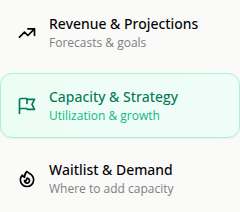
Open Reporting > Next > Forecast and use Capacity & Strategy and Waitlist & Demand to see where your class schedule has room and where customers are waiting for spots. The Forecast tab is available only to users with financial-report access. The Reporting page requires the Manage Org Reports permission, and the Forecast tab also requires View Org Financials.
Review Class Fill Rates
In Capacity & Strategy, check Avg Utilization and Open Spots. The utilization view uses class bookings and capacity from the last 30 days. Review High Demand for time slots at 90% full or higher and Needs Attention for slots below 40%. These figures and lists use only time slots with bookings and known capacity.
Review Waitlist Demand
Open Waitlist & Demand. The view looks at waitlist entries created in the last 90 days.
- Total Waitlisted and Demand Unmet summarize waitlist entries and how many people did not get a spot.
- Classes with Waitlist Pressure shows which classes had more waitlist activity. A % got in value appears for a class when the view can calculate the share of resolved waitlist entries that moved into the class.
- Schedule Suggestions can show a proposed day or time for more capacity when there is enough waitlist activity to support a suggestion.
For attendance and check-in totals by class or date range, use the attendance reports.
Need a hand?
Email our team at support@joinzipper.com and we'll usually reply within a few hours.
Was this article helpful?
Thanks for your feedback.