How to Review a Saved Customer Invite Import
Reopen an invite job, correct import rows, and review customer record creation and welcome email delivery separately.
How to Review a Saved Customer Invite Import
After you queue a customer invite CSV, choose Open job workspace. Save the job link if you need to return later. An older saved link may open Import Job Details. For a new job, go back to Customer invite import.
Review and Correct Import Rows
- Review Rows loaded, then check Customer records created, Welcome emails sent, and Failed rows for the current page. Check additional pages if the job has more rows.
- Use Search to find a row. Choose Edit to correct its details, then choose Save Changes. If the row failed, read its error and correct the cause before trying it again.
- Use Bulk actions for Add Subscription Invites, Add Booking Credits, Add Contact Lists, or Add Tags. Review which rows the action will apply to before saving.
Create Records, Then Send Welcome Emails
- Select the rows you want to process. You can check individual rows or use Select rows by email, enter one address per line, and choose Select Items.
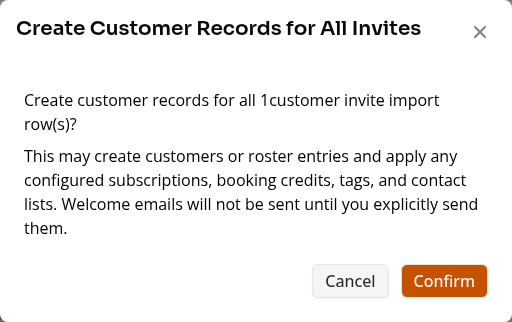
- Choose Create Customer Records for All, or choose Create Customer Records for N Selected after selecting rows (N is the number of selected rows). Review whether the confirmation covers the selected rows or the entire job. Confirm when ready. This can apply the subscription invites, Booking Credits, tags, and contact lists configured for those rows.
- Check that the intended rows have a customer record. To update the message, choose Customize welcome email, review the Live Preview, and choose Save template.
- Select the intended rows and choose Send Welcome Emails to N Selected (N is the number of selected rows), or choose Send Welcome Emails to All. Check the row count in the confirmation. Only rows with a customer record are eligible, and Zipper skips rows already emailed.
Need a hand?
Email our team at support@joinzipper.com and we'll usually reply within a few hours.
Was this article helpful?
Thanks for your feedback.