How to Reorder Products in the Shop
Control the order that products appear in your customer-facing shop.
Steps
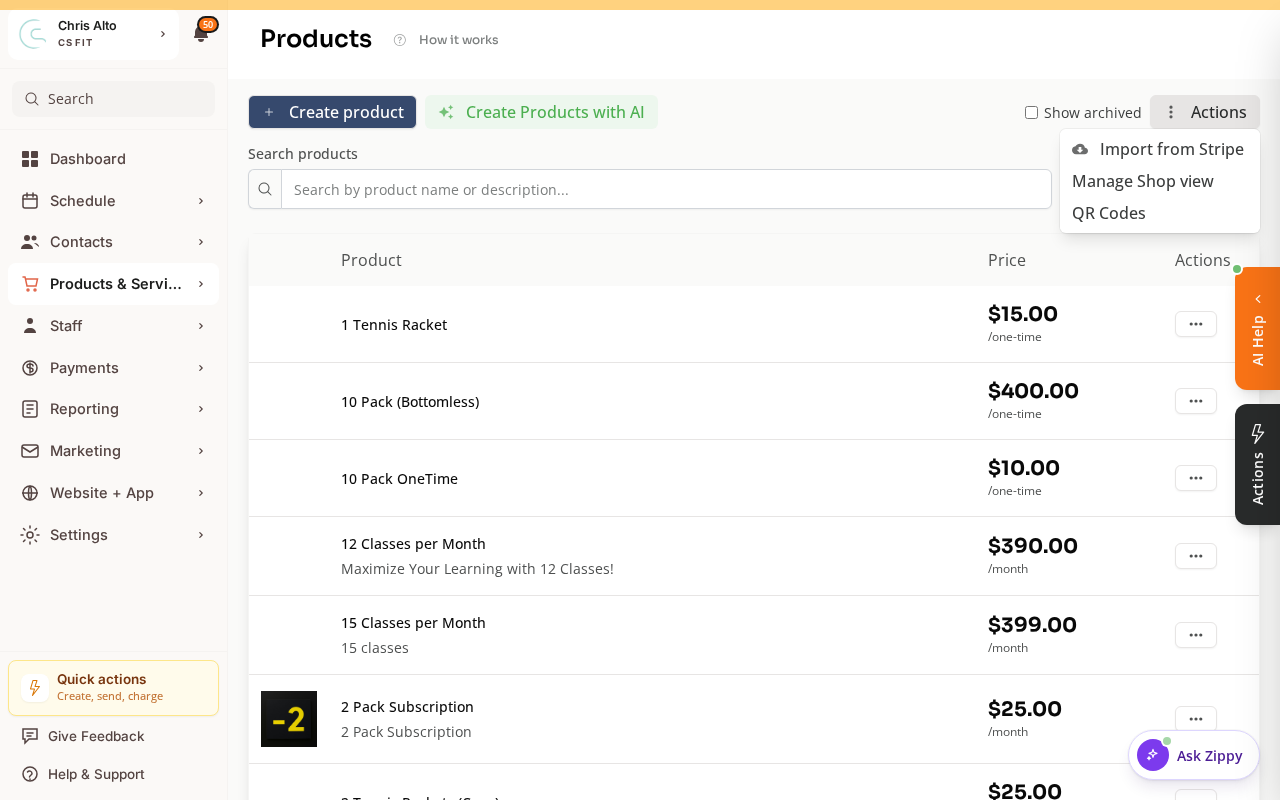
- Navigate to: Products & Services > Manage Plans.
- Click the Actions menu, then choose Manage Shop view.
- The Manage Shop window opens with your products grouped by category, each as a draggable card.
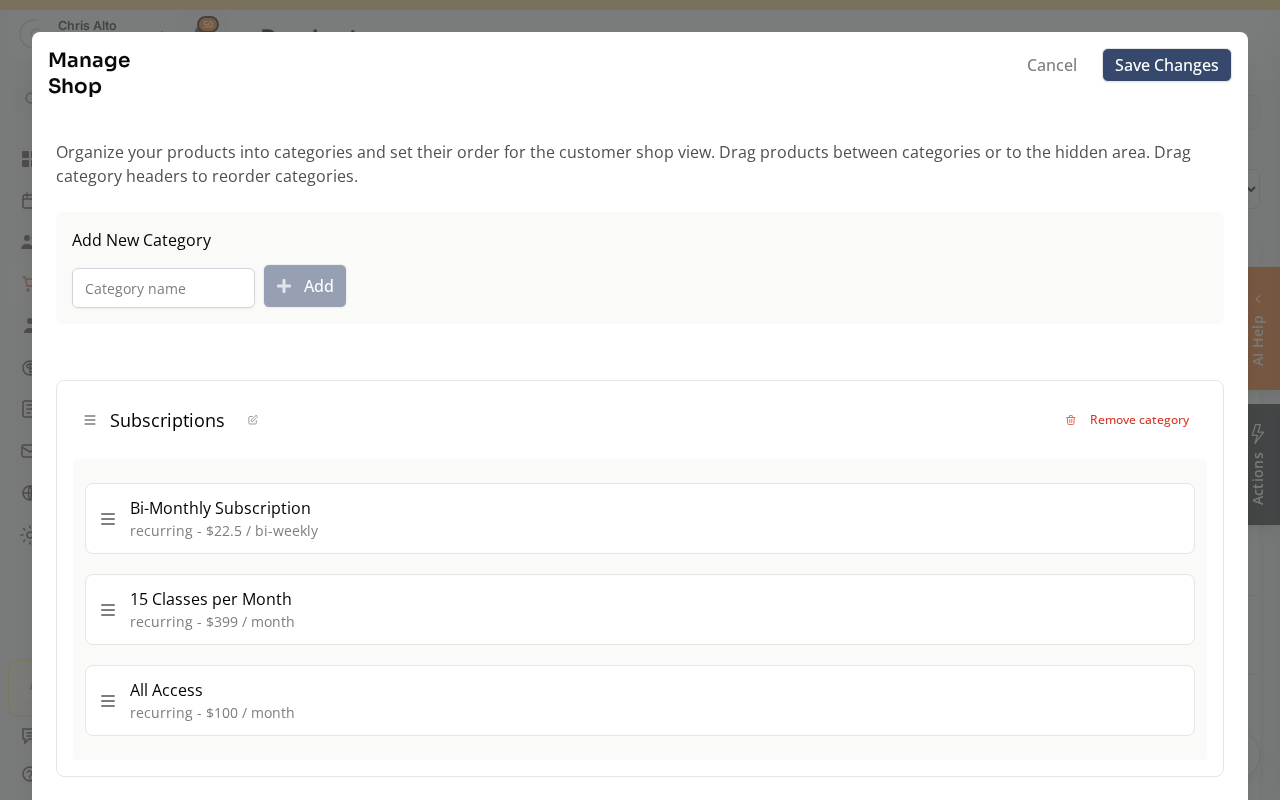
- Drag and drop products (using the handle on the left of each card) into the order you want. You can also reorder whole categories by dragging their headers.
- Click Save Changes.
- Expected: Products appear in the new order in the customer shop.
Alternative: Sort by Name or Price
If drag-to-reorder isn’t available:
- Use the default sort options (alphabetical by name, price ascending/descending)
- Name products with prefixes to control order: “1. Unlimited Membership”, “2. 10-Class Pack”, “3. Drop-In”
Tips
- Put your best-value membership first: The first product customers see gets the most clicks. Lead with your primary offering.
- Hide seasonal products: Rather than deleting products you’re not actively selling, use the “Show in app” toggle to hide them temporarily without losing their data.
Troubleshooting
I reordered but the shop still shows the old order. Confirm you saved after reordering. Also clear your browser cache — the shop order may be cached.
Need a hand?
Email our team at support@joinzipper.com and we'll usually reply within a few hours.
Was this article helpful?
Thanks for your feedback.