How to Pay for an Appointment From a Payment Link
Open the link your studio sends, review the total, and check the result of your appointment payment.
Open the payment link from your studio. If Zipper asks you to sign in, use the account linked to the appointment.
- Check the appointment name, date, and Total. The page lists any processing fee before you pay.
- Select a card under Payment method or add a new one. If you see Add your payment method, choose it first to open the card options.
- Choose Confirm payment after you review the amount. When Payment complete appears, select View payment history to see the recorded payment.
If the page says your payment is processing
Choose Check payment status if it appears. This checks the original attempt. Wait for the result before paying again. The page does not show Refresh details while a payment is processing. If Refresh details appears for a different payment state, choose it to reload the latest appointment and payment information.
If the link is not available
If you see This appointment link is not available, make sure you opened the complete link from the studio, including anything after the question mark. If it still does not work, ask the studio for a fresh payment link.

If the appointment could not be opened
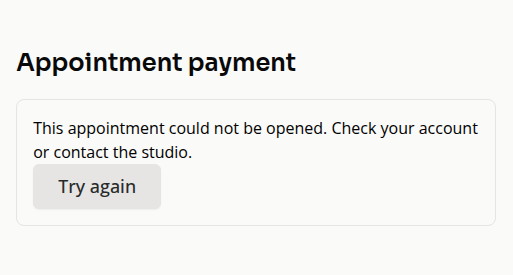
Check that you’re signed in with the account linked to this booking. Open the link again or select Try again. If the same message appears, contact the studio.
Need a hand?
Email our team at support@joinzipper.com and we'll usually reply within a few hours.
Was this article helpful?
Thanks for your feedback.