How to Manage and Organize All Tags
Rename, delete, or create customer tags globally from the Contacts page. Any change to a tag name automatically updates every customer who has it.
Steps
Step 1: Go to Contacts and open tag management
- Navigate to: Contacts > Customers
- Click the Tools button above the customer table, then choose Manage all tags.
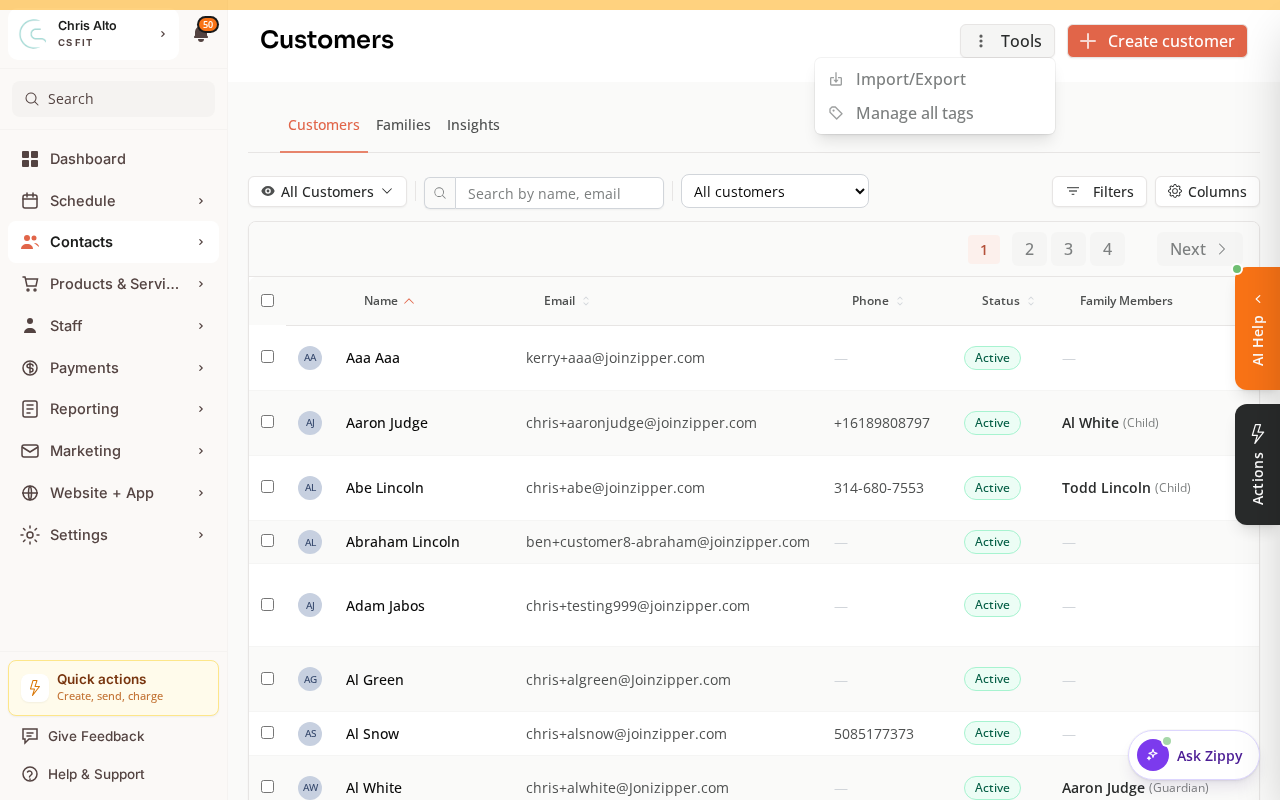
- Expected: The Manage Tags modal opens, showing every tag in your organization. A banner reminds you that changes here affect all customers.
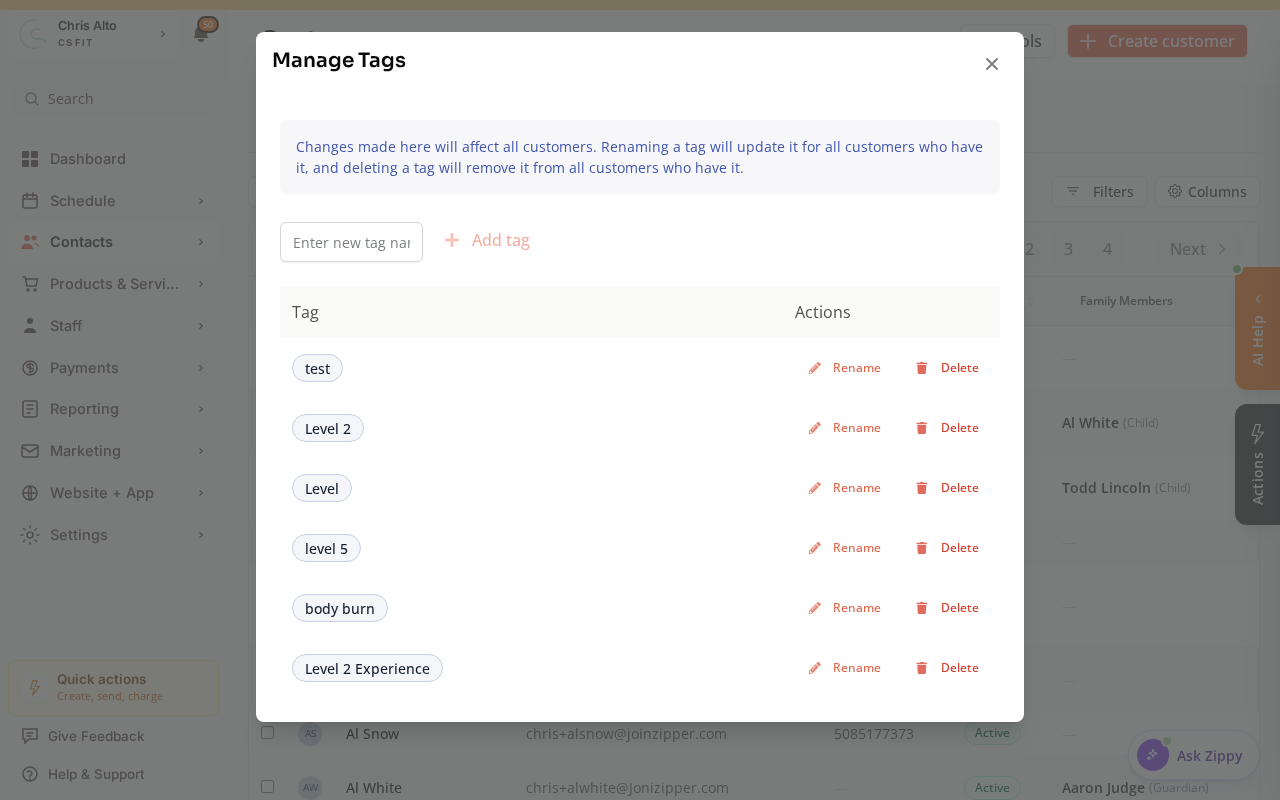
Step 2: Create a new tag
- Type the tag name into the new-tag field, then Click Add tag (or press Enter).
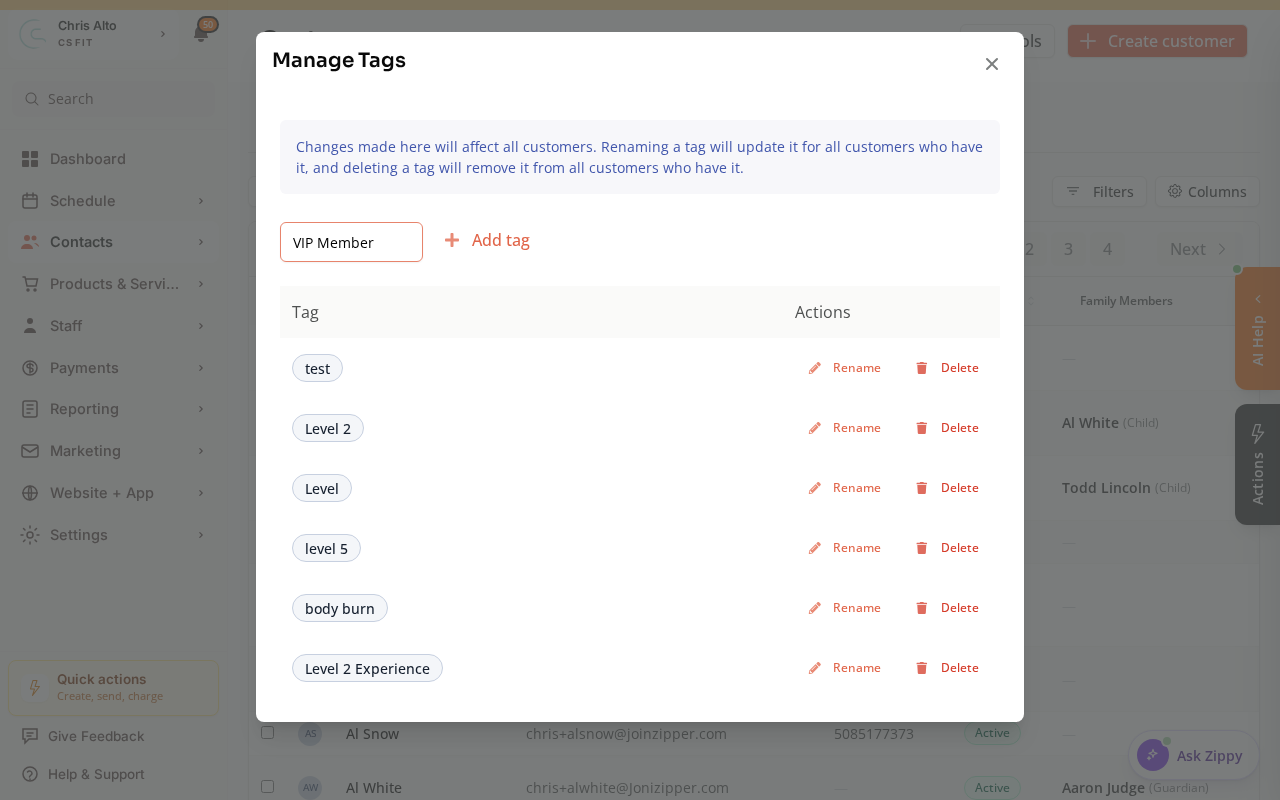
- Expected: The tag is added to the list and is now available to assign to customers.
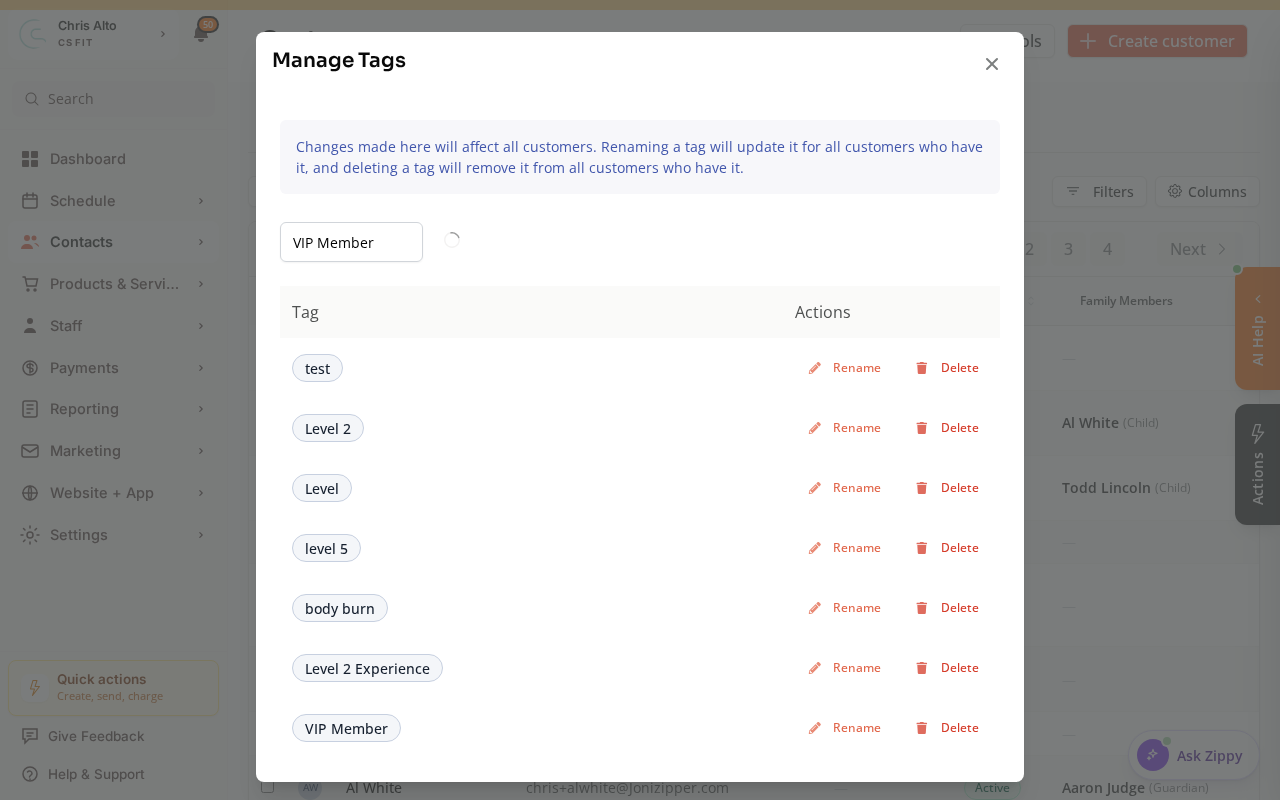
Step 3: Rename an existing tag
- Click the Rename (pencil) icon next to the tag, type the new name, and Click Save.
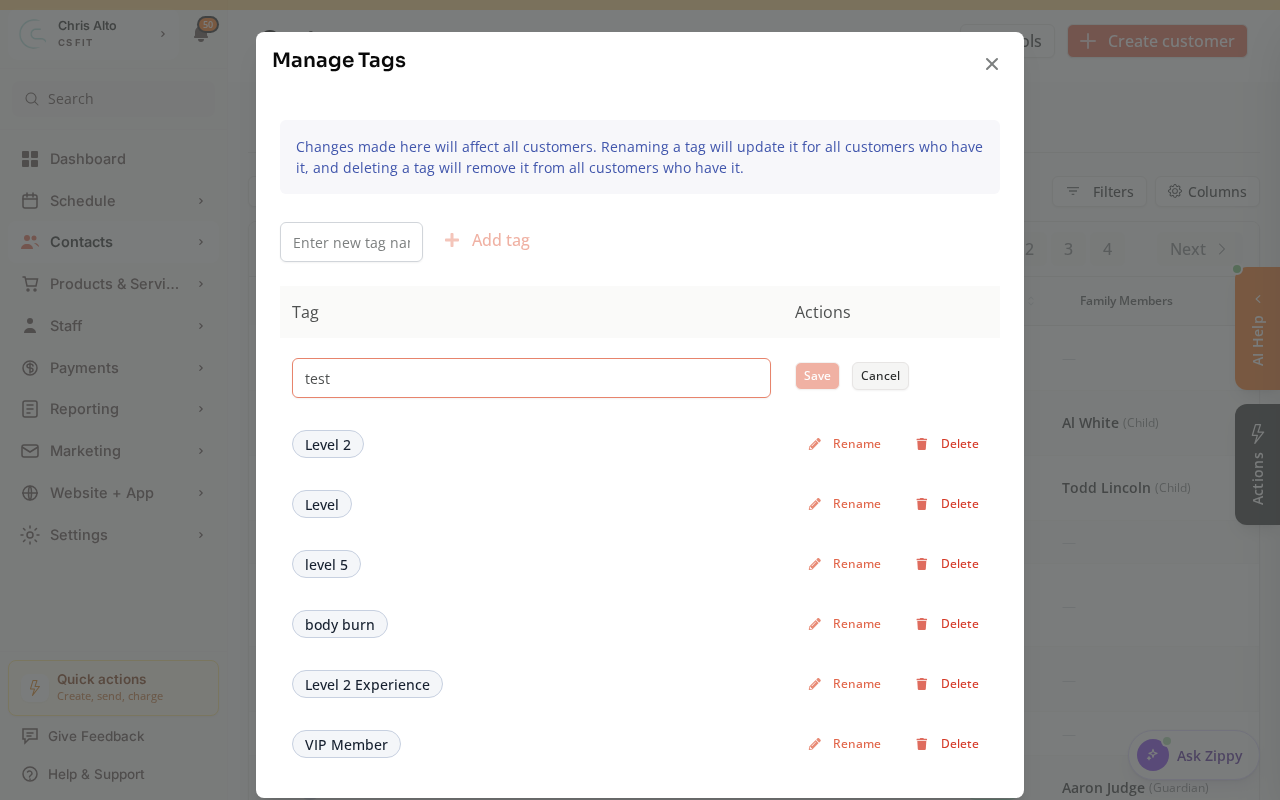
- Expected: Tag name updated on every customer who has it — no need to re-tag anyone manually
Step 4: Delete a tag
- Click the delete icon next to the tag
- Confirm the deletion
How to Assign Tags to Individual Customers
Tag management is for global organization. To add or remove a tag on a specific customer:
- Open the customer’s profile in Contacts > Customers
- Find the Tags section
- Add or remove tags from there
Tips
- Tag casing: Tags are case-sensitive in some contexts. Use consistent capitalization (e.g., always “Member”, not sometimes “member”).
- Bulk tagging: Use the Contacts list filters to find a group of customers and apply a tag to all of them at once via bulk actions.
- Tags for segmentation: Tags are powerful for filtering contact lists for email campaigns. A tag like “Drop-In” lets you send a targeted win-back campaign.
Troubleshooting
I renamed a tag but some customers still show the old name. Refresh the page — tag renames are immediate but the browser cache may be stale. If the old name still appears after refresh, check if there are two similar tags (e.g., one with a trailing space).
I accidentally deleted a tag. Tag deletion is permanent. You’ll need to recreate the tag and manually re-apply it to customers. Use the filter to identify customers who might need it.
Need a hand?
Email our team at support@joinzipper.com and we'll usually reply within a few hours.
Was this article helpful?
Thanks for your feedback.