How to Make Appointment Offerings Independent or Reconnect Them
Let a schedule’s offerings use their own settings or reconnect them to the latest shared appointment settings.
Open Schedule → Appointments, then choose the Appointment Types tab. Find the service in Shared appointment types.
Make one schedule’s offerings independent
- Choose Edit, then open Pricing & schedules.
- Under Assign availability schedules, uncheck the schedule that needs separate settings.
- Choose Review changes. Check the warning about shared product access, then choose Save changes when the affected schedules are correct.

To detach all connected offerings, choose Make independent on the shared type’s card. Review Connected appointment types, then choose Make types independent.
Independent offerings keep their current settings and existing bookings. They can be edited separately. Check access for memberships and credits that previously covered the offering through the shared type.
Reconnect offerings
- Choose Reconnect on the shared type’s card when detached offerings are available.
- Review Reconnect schedule offerings. The offerings will use the latest shared details and prices again.
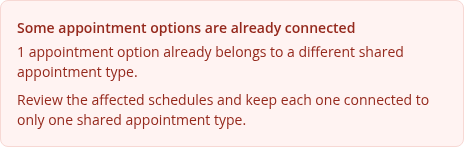
- If the review shows an option already connected to a different shared type, review the affected offering and decide which shared type it should belong to. Resolve that connection before trying again.
- Choose Reconnect offerings when the review is clear.
Need a hand?
Email our team at support@joinzipper.com and we'll usually reply within a few hours.
Was this article helpful?
Thanks for your feedback.