How to Link Tasks to Leads and Customers
Connect a task to one or more leads or customers and find the task from their profiles.
How to Link Tasks to Leads and Customers
Use Related to to connect a task to the people it concerns. One task can link to more than one lead or customer.
Link People in the Task Editor
- Go to Contacts > Tasks. Choose New Task, or Edit on a task you manage.
- Under Related to (optional), choose Add customers or leads.
- In Select customers and leads, enter at least two characters of a name, email, or phone number. Pick the matching Customer or Lead result. Search again to add another person.
- Select Done. Review the selected people and choose Create Task or Save Task.
You can also start from a customer’s Tasks tab or from Open tasks in a lead’s details. Choose + Create task there to start with that person already selected.
Find a Linked Task
On a customer profile, open Tasks. For a lead, open View details or View journey and look under Open tasks. Select View in Tasks to see the list filtered to that person. People with Full Access can also check View all assignees in the profile.
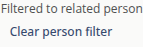
In the Tasks workspace, select Clear person filter to return to your broader task list. You can also open a related lead or customer directly from the link on the task card.
Need a hand?
Email our team at support@joinzipper.com and we'll usually reply within a few hours.
Was this article helpful?
Thanks for your feedback.