How to Import Retail Products From CSV
Use the retail CSV template to preview, review, and import merchandise, prices, and stock.
Use a CSV to add or update merchandise, prices, and stock. Zipper shows a preview before it makes any changes.
-
Open Products & Services → Products and select Manage → Import products from CSV.
-
Select Download CSV template. Keep the column names and use one row per variant, such as each color and size combination. The file can contain up to 5,000 rows and be up to 10 MiB.
-
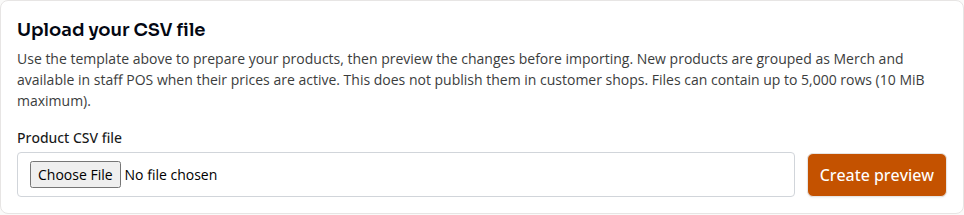
Under Upload your CSV file, choose your file and select Create preview.
-
In Import rows, review what Zipper plans to create or update. Check the product names, options, prices, and stock. If the preview reports errors, fix those rows in your file and upload it again.

-
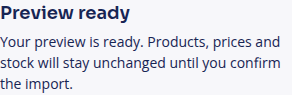
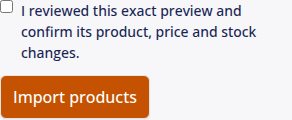
When the screen says Preview ready, review the confirmation, check the box, and select Import products.
Check the results after processing. If Zipper offers Retry failed rows, review those rows before retrying. Completed rows stay unchanged. You can also select Download results CSV when it is available.
New merchandise is grouped under Merch. Staff can sell it in point of sale once its price is active. Set its customer shop visibility separately.
Need a hand?
Email our team at support@joinzipper.com and we'll usually reply within a few hours.
Was this article helpful?
Thanks for your feedback.