How to Group Retail Products Separately From Memberships
Organize your product catalog so retail items (apparel, equipment, supplements) appear in a separate section from memberships and class packs.
Steps
Using Product Categories / Shop Sections
- Navigate to: Products & Services > Manage Plans, click the Actions menu, and choose Manage Shop view.
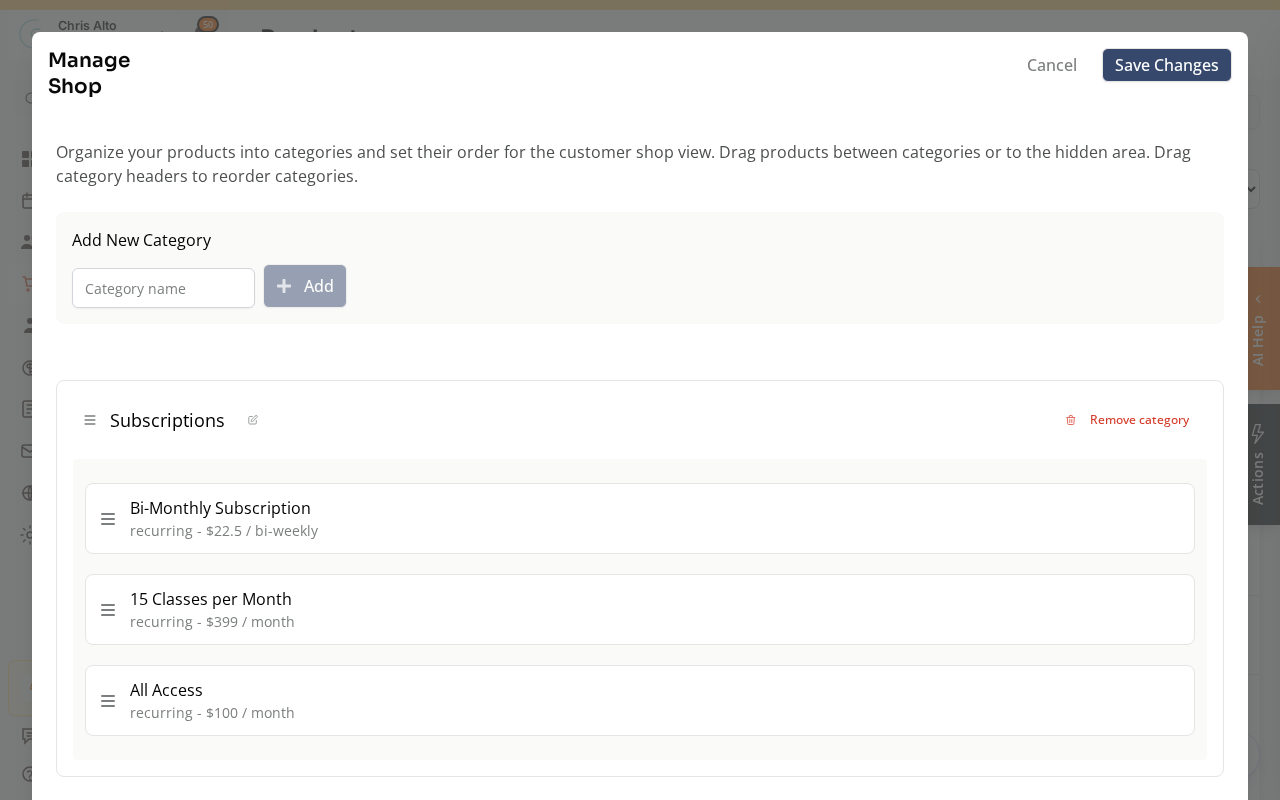
- Create a category for retail (e.g., “Retail”, “Shop”, “Gear”) using the add-category field.
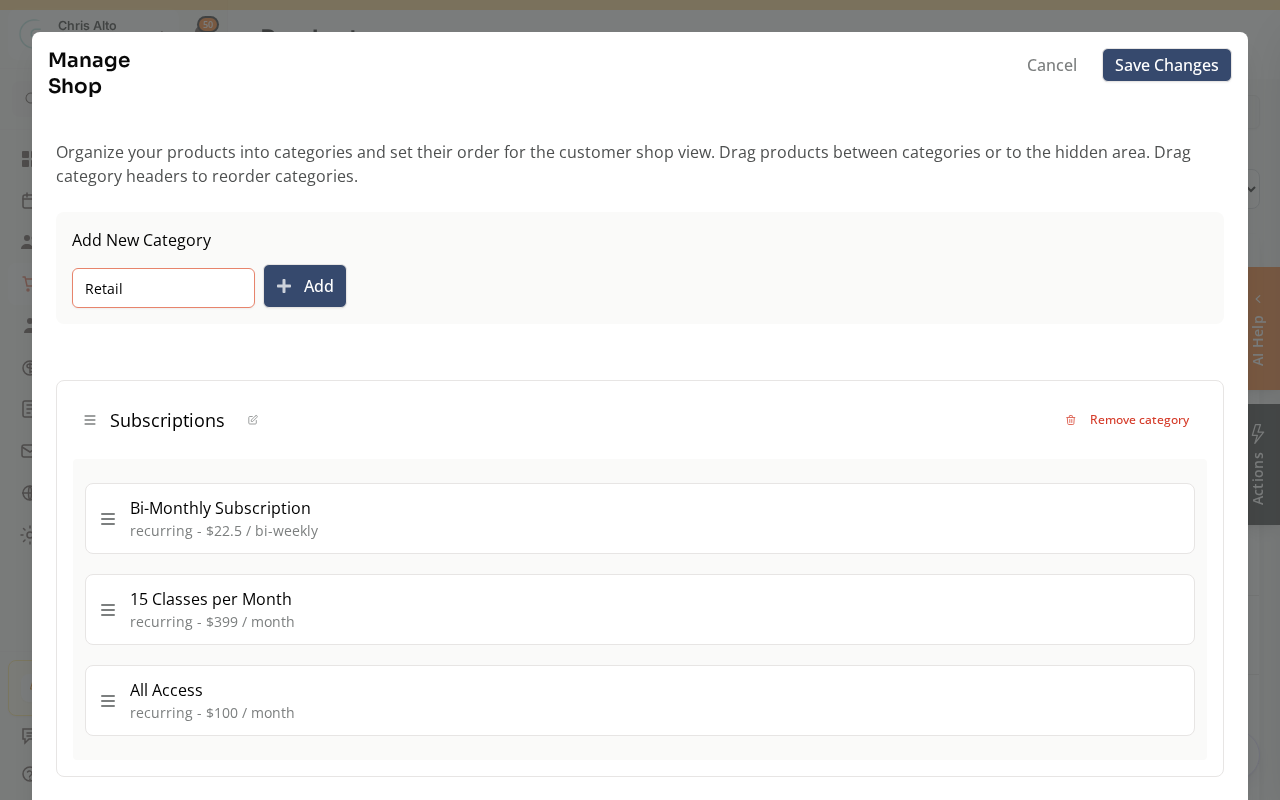
- Create a category for memberships/classes (e.g., “Memberships”, “Class Packs”) the same way.
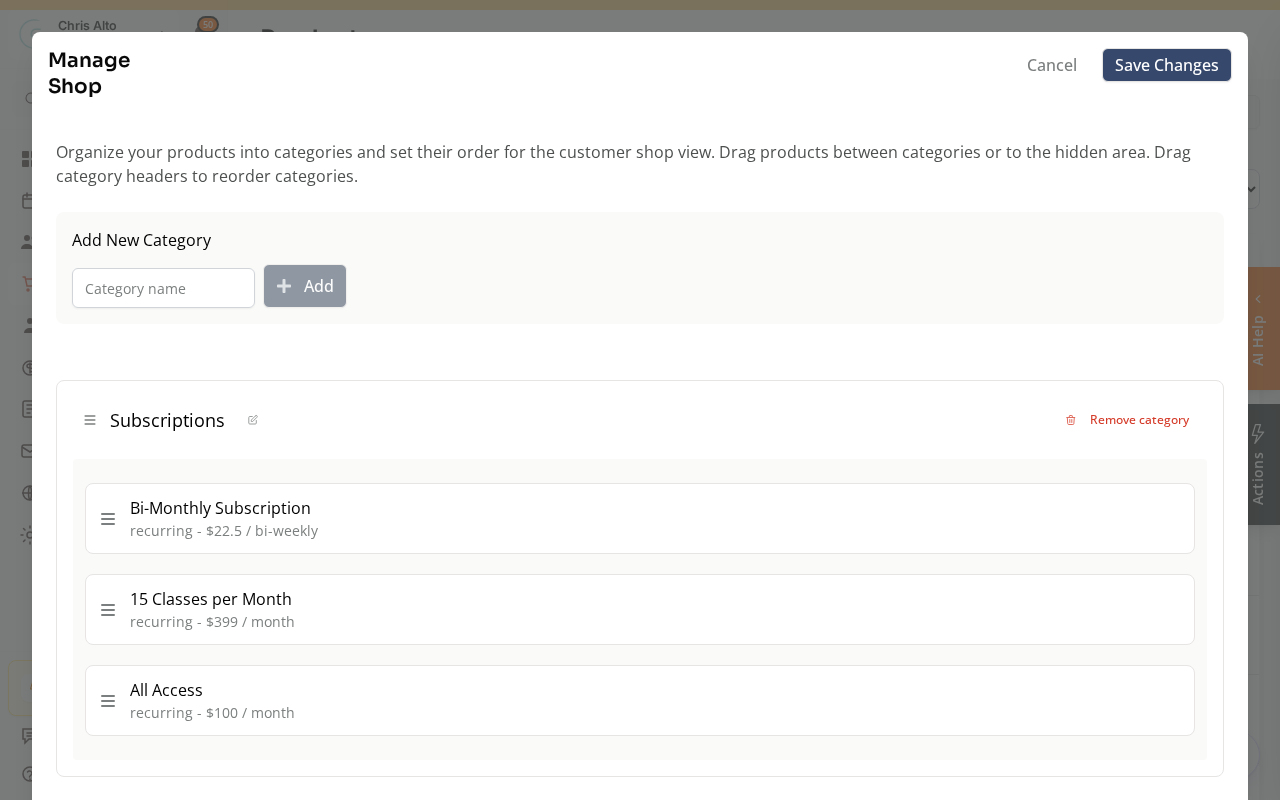
- Drag each product into the appropriate category, then click Save Changes.
If Categories Aren’t Available
Use a product name prefix: name retail products with a consistent prefix (e.g., “SHOP - Water Bottle”, “SHOP - T-Shirt”) so they group together alphabetically.
Tips
- Product order: Within each category, use the reorder function (see: How to Reorder Products in the Shop) to control which products appear first.
- Page visibility: Control which products appear on separate membership vs. retail pages via product visibility and page block settings.
Troubleshooting
Categories option not visible. Shop categorization may be plan-specific. Contact Zipper support if you need product categories but don’t see the option.
Need a hand?
Email our team at support@joinzipper.com and we'll usually reply within a few hours.
Was this article helpful?
Thanks for your feedback.