How to Give Instructors Access to Customer Forms
Allow instructors to view intake forms, waivers, and health history that customers have submitted.
Steps
- Navigate to: Staff > Staff Members.
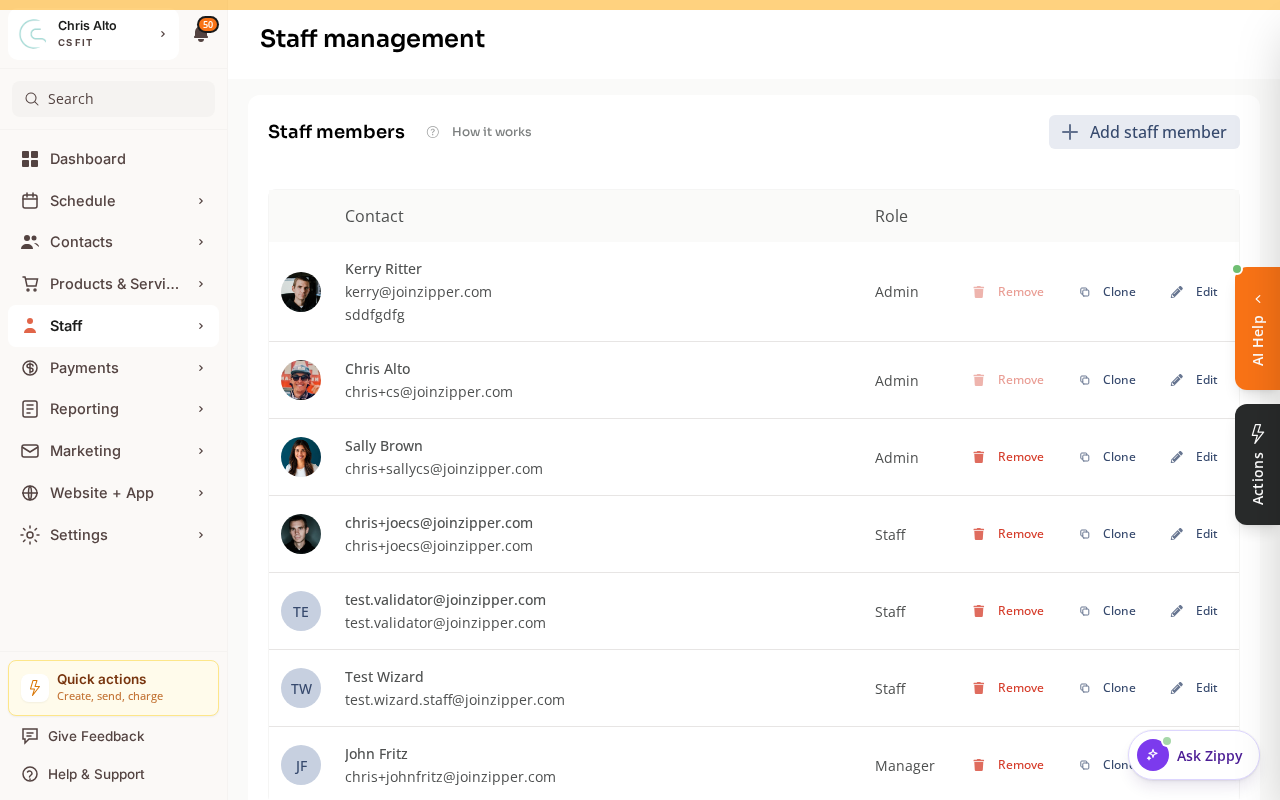
- Open the instructor’s profile to reach their role and permissions.
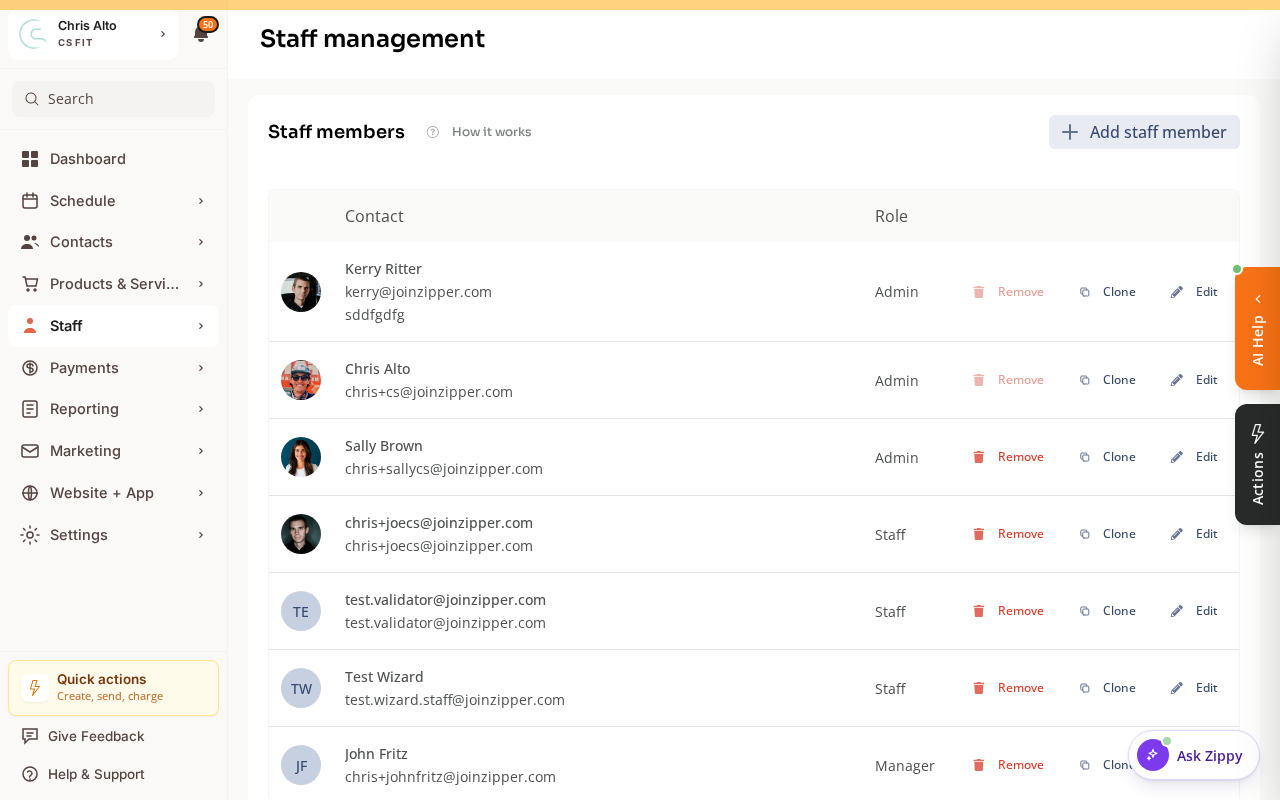
- Scroll to Advanced Permissions
- Click: Show to expand the permissions list
- Enable: view-customer-notes (allows viewing notes and forms)
- Or look for a more specific view-customer-forms permission if available
- Click: Save
What Instructors Can See
With the appropriate permissions, instructors can view:
- Form responses submitted by customers (health history, intake questionnaires)
- Signed waivers
- Notes on the customer’s profile
Important: Privacy Considerations
Only give instructors access to forms they legitimately need for their role (e.g., a yoga instructor seeing health intake forms for students in their classes). Avoid giving broad access to all customer data unless the role requires it.
Tips
- Limit by need: Grant form access only to instructors who actively use it. Review permissions periodically.
- Read-only: Instructor access to customer forms is view-only — they can’t edit form responses.
Troubleshooting
Instructor says they can’t see form responses. Check: (1) the correct permission is granted and saved, (2) the form responses exist (customer completed the form), (3) the instructor is looking in the right place (customer profile → Forms tab).
Need a hand?
Email our team at support@joinzipper.com and we'll usually reply within a few hours.
Was this article helpful?
Thanks for your feedback.