How to Extend a Recurring Appointment Series
Add more dates to an active, finite appointment series while keeping its existing schedule.
How to Extend a Recurring Appointment Series
Use Extend series to lengthen an existing recurring appointment series. This keeps the series together instead of creating a second series with a similar schedule.
Before You Start
Use a staff account with permission to manage appointments. The series must be active and have a finite end date or appointment count. An indefinite or cancelled series does not offer the same extension action.
Check the series’ instructor, appointment type, days and times. Extending it keeps its cadence, time, provider and appointment type.
Extend the Series
- Open an appointment in the series from Schedule > Calendar.
- Find Recurring appointment series and click Extend series.
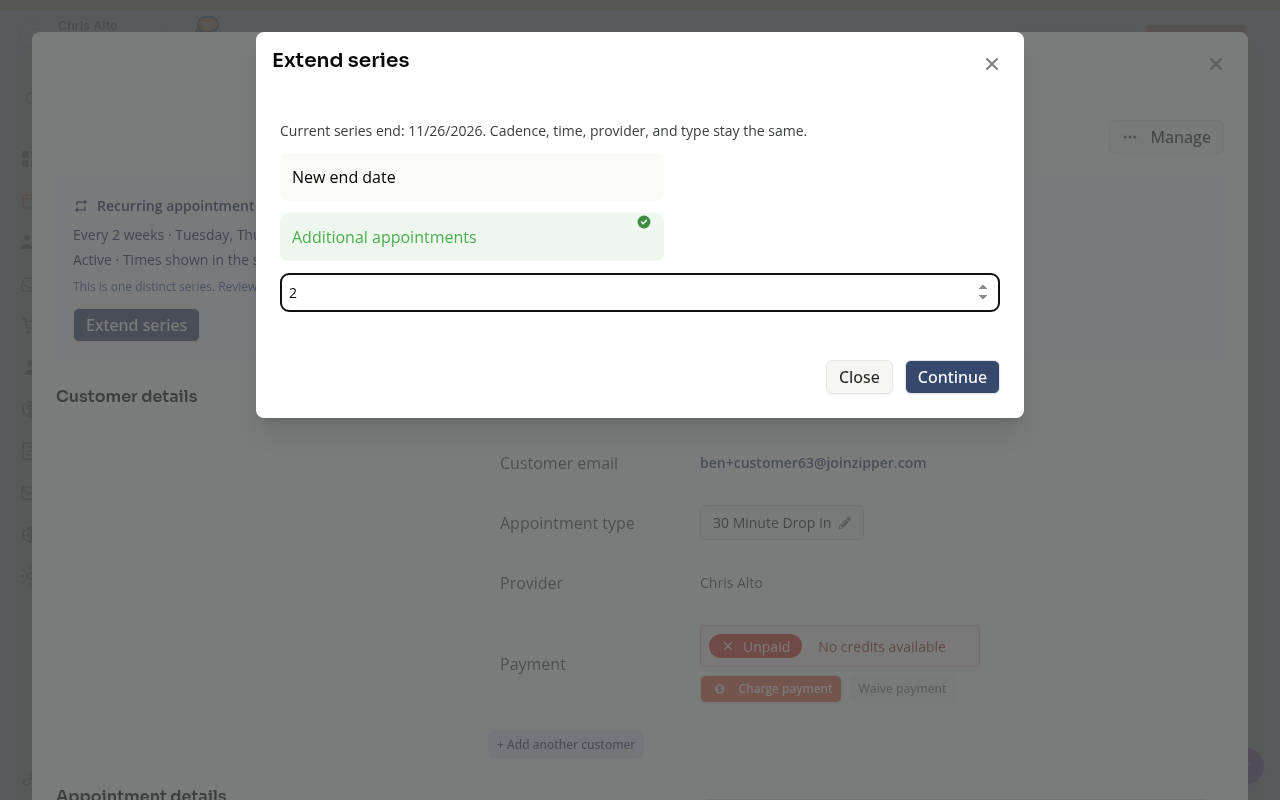
- Choose New end date or Additional appointments.
- Enter a later end date, or a whole number of 1–104 additional appointments.
- Click Continue and review the extension.
- Read the proposed dates and any conflict or validation guidance. Click Add appointments only when the extension is correct.
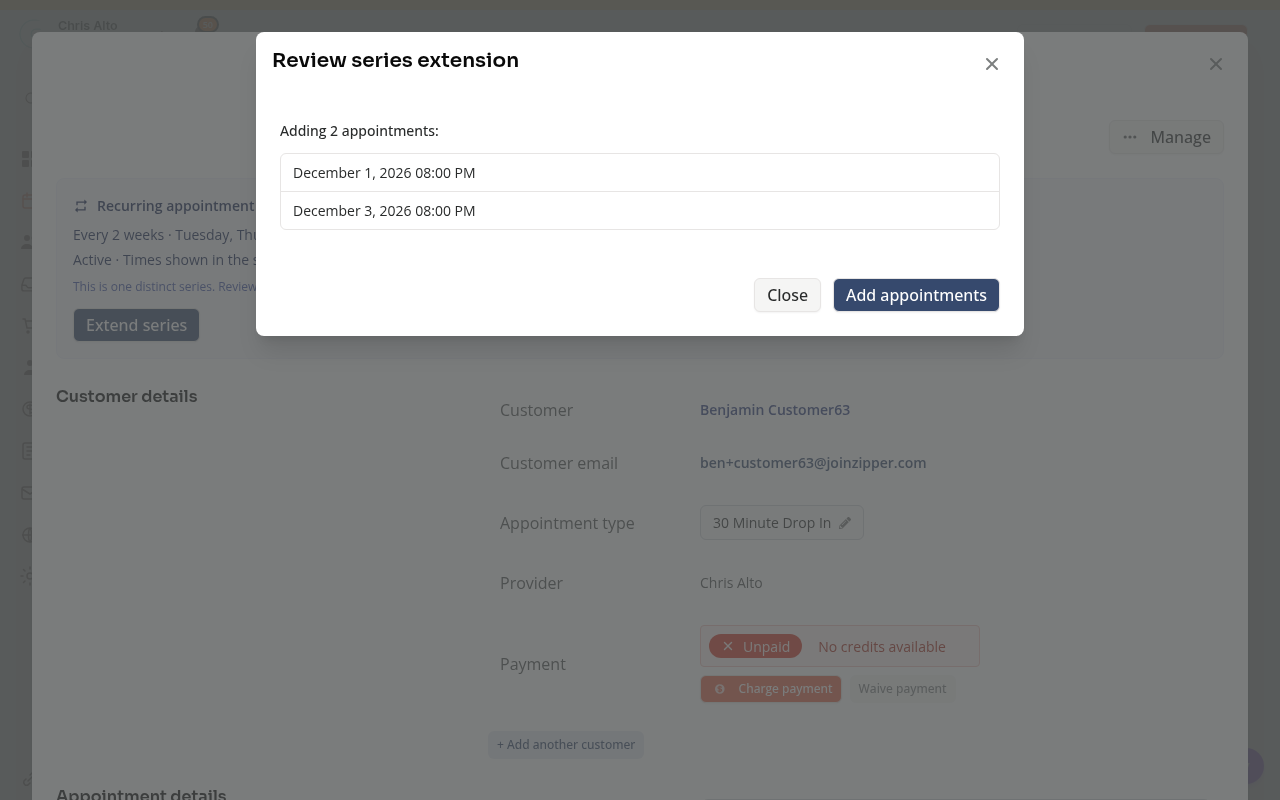
Extending the series creates the new bookings without collecting their appointment fees or applying appointment credits. Check their payment and credit arrangements separately.
The extension suppresses standard appointment booking confirmations. Configured automations and requests for missing required forms can still send messages. A qualifying new booking can also activate a pending deferred membership and trigger its configured charge.
If a large operation is queued, follow its progress and result before trying again. Check the calendar and any skipped or conflicting dates; do not assume every requested occurrence was added.
On Mobile
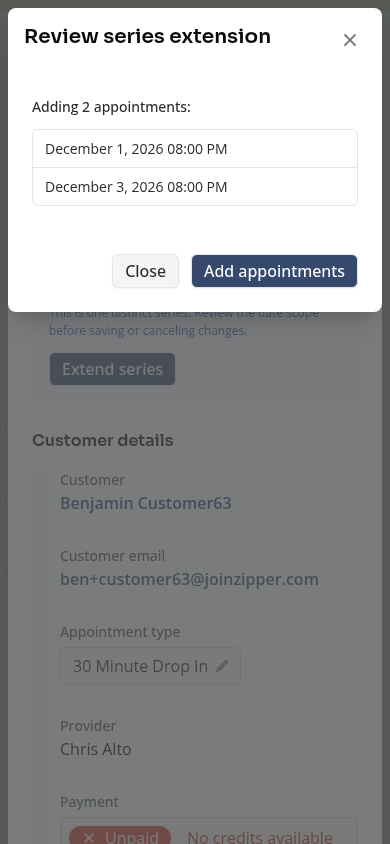
Open the appointment, scroll to the recurring-series details and use Extend series. Review all the dates before Add appointments.
Troubleshooting
Extend series is missing. Check whether the appointment belongs to an active, finite recurring series and whether your account can manage it.
The new date or count is rejected. Read the error under Cannot extend yet in the input dialog, or Preview unavailable after Continue. Correct the input and continue again. Use a later end date or a whole number of 1–104 additional appointments.
A new time conflicts with another booking. Follow the conflict guidance and review which dates can actually be added. Extending the series is not permission to overwrite another booking.
For initial series creation, see How to Book an Appointment for a Customer.
Need a hand?
Email our team at support@joinzipper.com and we'll usually reply within a few hours.
Was this article helpful?
Thanks for your feedback.