How to Enable the Sub Board for Independent Contractors
Enable the substitution board org-wide, then give your contractor staff the right permissions to post and claim sub requests independently.
Video Walkthrough (Using the Sub Board)
See also: How to Handle Instructor Substitutions.
What “Independent Contractor” Means in Zipper
Zipper doesn’t have a separate contractor account type — contractors are Staff-role users. This guide sets them up so they can manage their own substitutions without needing broader admin access.
Part 1: Enable the Sub Board Org-Wide
Step 1: Open Substitution Settings
- Navigate to: Staff > Substitution Board
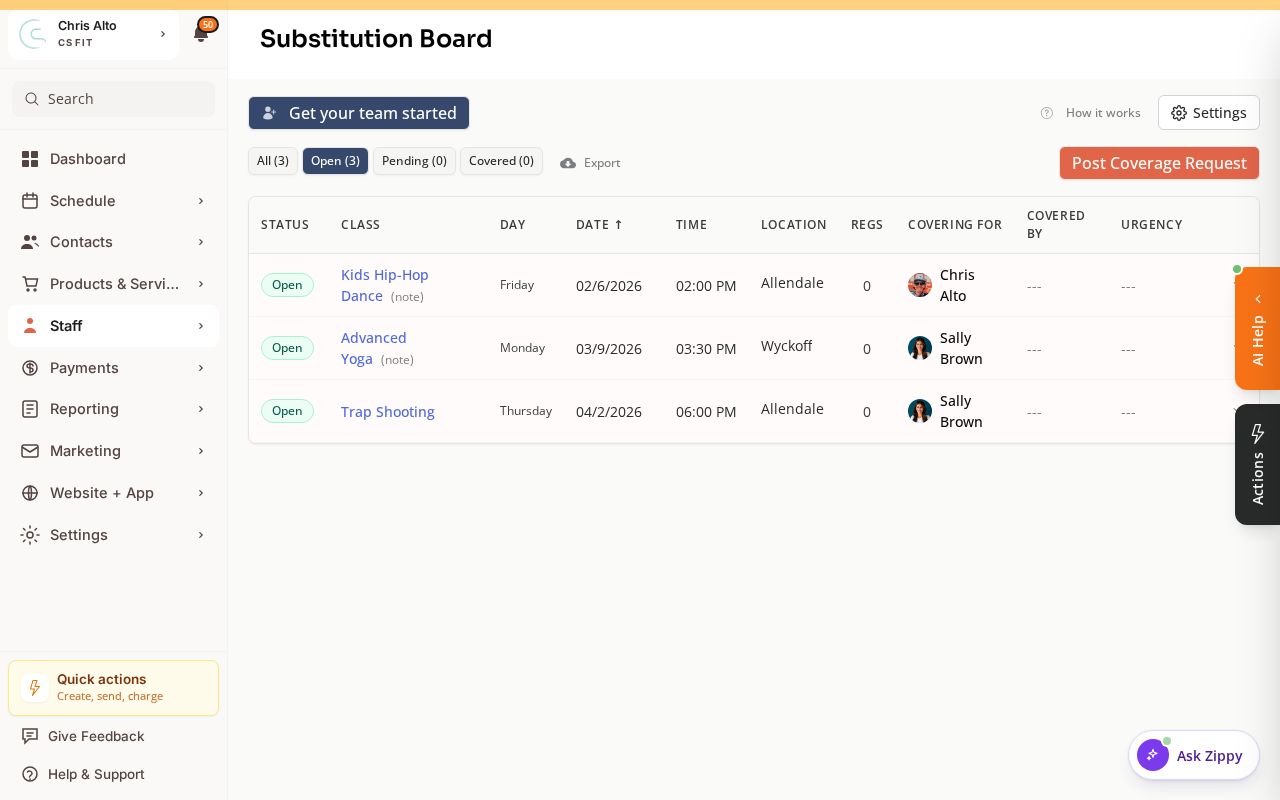
- Look for a Settings or gear icon.
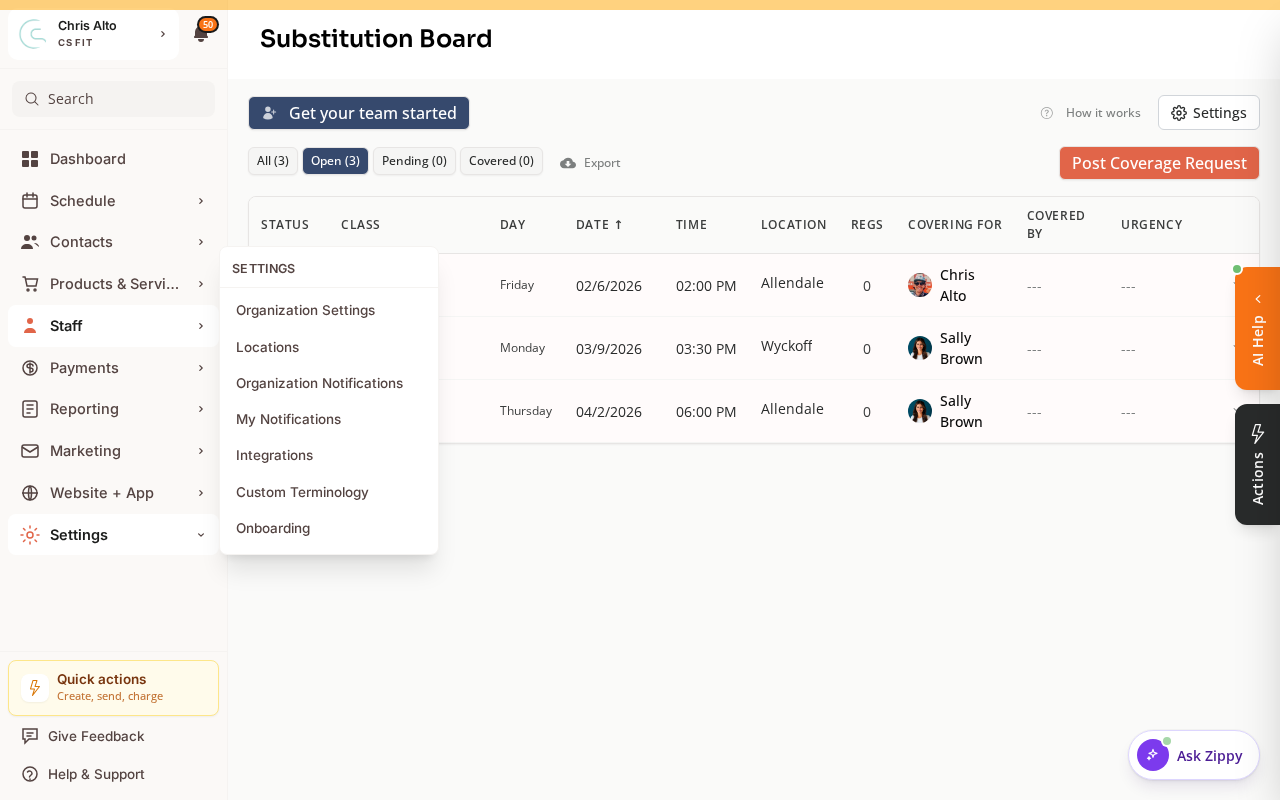
Step 2: Turn on the sub board
- Find the Enable Substitution Board master toggle
- Toggle: On
Step 3: (Optional) Require approval for claims
- Find the Require approval for claims toggle
- Toggle: On if you want to review claims before confirming a substitute
- This is recommended for independent contractors — gives you a final check before the swap is confirmed
Part 2: Grant Sub Board Permissions to Contractors
Step 4: Open the contractor’s staff profile
- Navigate to: Staff > Staff Members
- Click the contractor’s name
- Find the Permissions or Claims section
Step 5: Add the required permissions
Add these claims to the contractor:
- view-substitution-board — they can see open sub requests
- claim-substitutions — they can claim open requests
Optionally add:
- post-substitution-board — they can post their own sub requests
Do not add review-substitution-claims — that’s for managers who approve claims.
- Click: Save
Step 6: Contractor confirms access
Have the contractor log into their Zipper account. They should see a Substitutions section in their navigation where they can view and claim open sub requests.
Tips
- Contractors can self-manage subs with
post-substitution-board+claim-substitutions. Add “Require approval” if you want oversight. - Don’t want contractors posting their own requests? Only grant
view-substitution-board+claim-substitutions— notpost-substitution-board.
Troubleshooting
Contractor can’t see the sub board.
Check: (1) master sub board toggle is enabled, (2) contractor has view-substitution-board claim, (3) contractor is logged into their account (not an admin account).
Contractor’s claim isn’t being confirmed. If “Require approval” is on, a manager needs to review and approve the claim. Remind them to check their pending approvals.
Need a hand?
Email our team at support@joinzipper.com and we'll usually reply within a few hours.
Was this article helpful?
Thanks for your feedback.