How to Enable Direct SMS for Staff
Staff SMS notifications are configured under Settings → Organization Notifications — the same place you manage all system notifications.
Steps
Step 1: Go to Settings → Organization Notifications
- Navigate to: Settings > Organization Notifications
- Or:
/dashboard/organization-management/notification-preferences
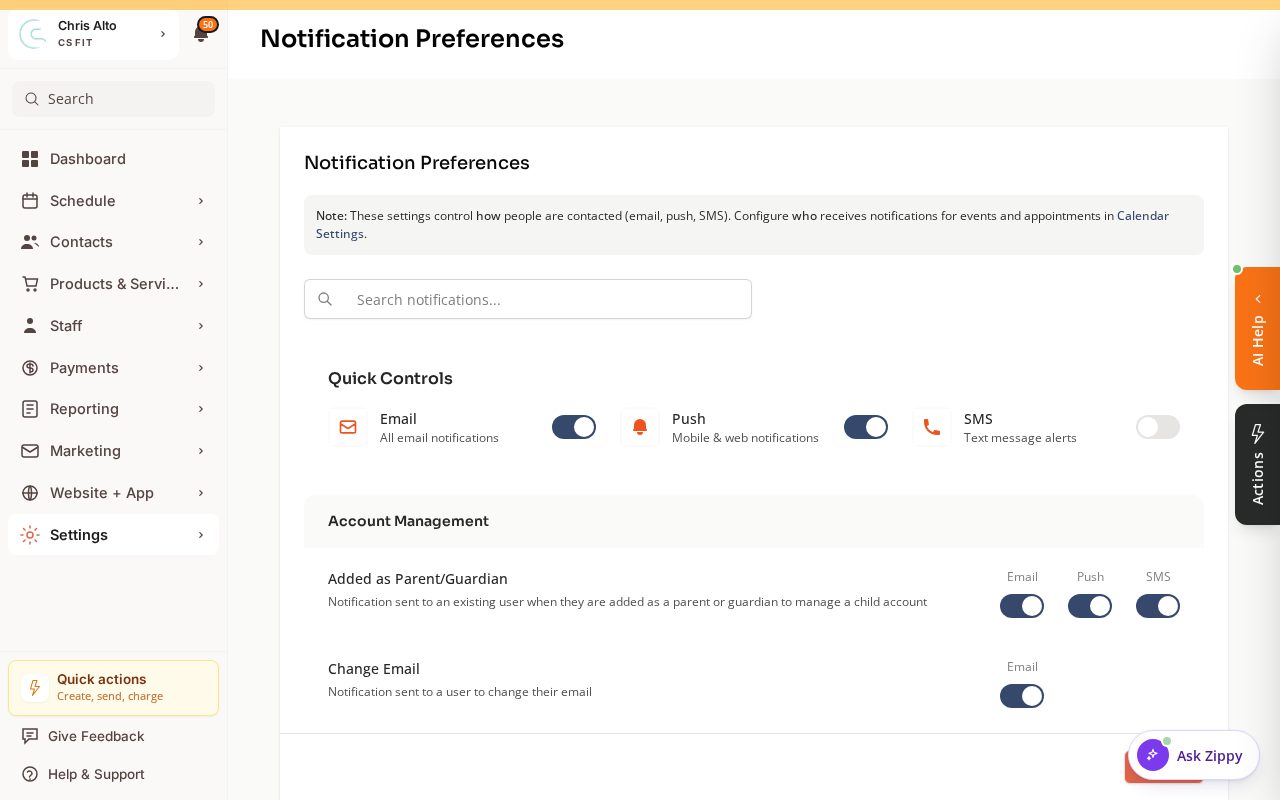
Step 2: Enable SMS for the notification types you want
- Find the notification types relevant to staff (e.g., Appointment Booked, Class Registration, New Customer)
- For each one, toggle the SMS column on
- Changes save automatically
Step 3 (optional): Staff configure their own preferences
- Individual staff can also turn SMS on or off for themselves from Settings > My Notifications
- Their personal setting overrides the org default for their account only
Before SMS Will Work
SMS requires Twilio to be connected. Without it, SMS toggles will have no effect.
- Navigate to: Settings > Integrations > Twilio
- Follow the Twilio setup instructions to connect your account
Tips
- For the full walkthrough of all notification settings, see How to Configure Notification Settings.
- Staff phone numbers must be on file in their profile for SMS to deliver.
Troubleshooting
SMS is enabled but staff aren’t receiving texts. Check: (1) Twilio is connected and active, (2) the staff member’s phone number is on their profile, (3) the staff member’s personal notification settings haven’t overridden the org setting.
Need a hand?
Email our team at support@joinzipper.com and we'll usually reply within a few hours.
Was this article helpful?
Thanks for your feedback.