How to Email Leads and Choose a Contact List
Email the intended leads or tagged customers using a verified audience and the current campaign wizard.
How to Email Leads and Choose a Contact List
A CRM lead is not automatically a contact list or a tagged customer. A list named Leads may not exist. Choose the actual people you want to email.
Make a Lead List
- Open Marketing > Email > Contact lists > Create contact list.
- Choose Static, enter a name and choose Create list.
- Open the saved list. Use Add contact or Import contacts for the intended lead email addresses.
Keep a static list current as leads change. It does not automatically follow changes on the CRM lead board. Use a customer-tag audience only when those people actually have the tags on customer records.
Create the Email
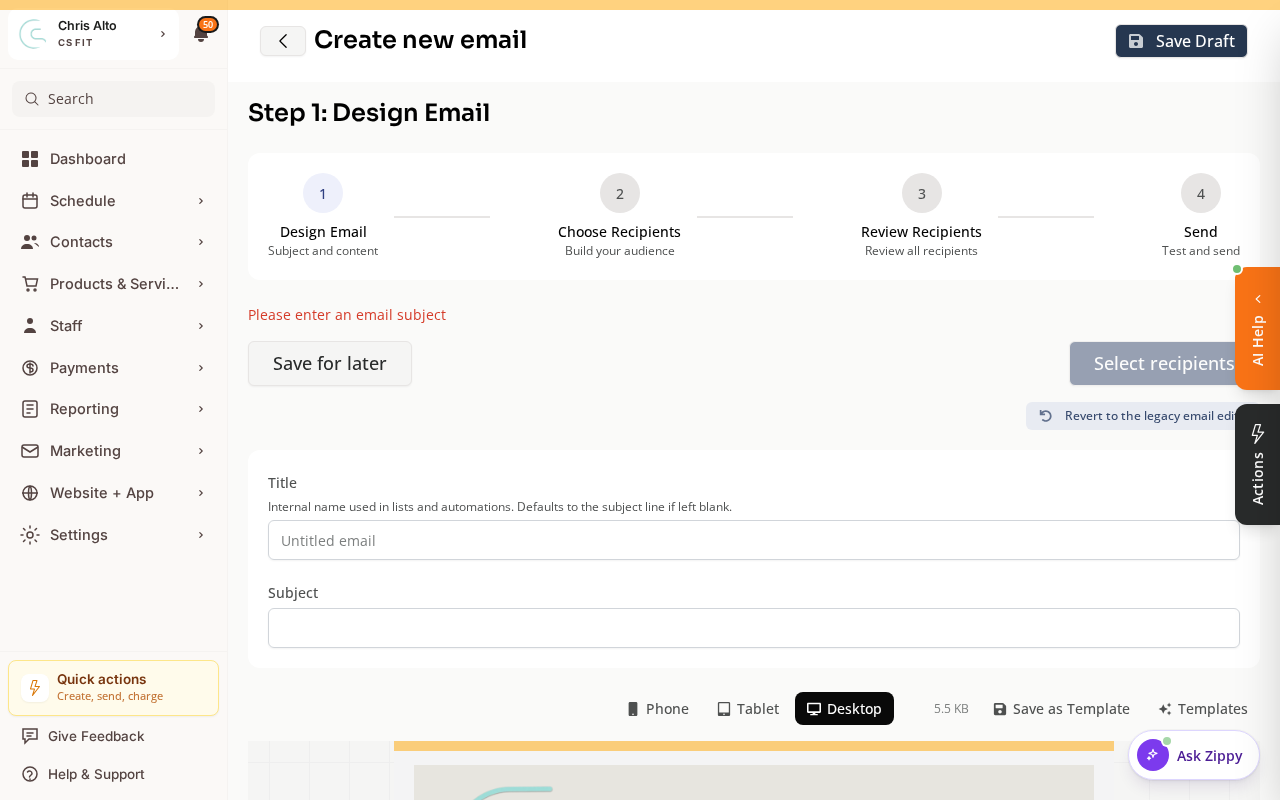
Choose Marketing > Email > Create email. Follow Design Email > Choose Recipients > Review Recipients > Send.
Select the intended list or verified tag audience. Check recipients and exclusions, send yourself a test, then review the send or scheduling controls. Starting a draft is not sending an email.
“All Pilates Teachers in NC”
An occupation and location description is not a saved audience. Find the exact CRM tags or saved list first.
If you ask Zippy for customers with both North Carolina and Pilates Teacher, say that both tags are required. Review the proposed eligible recipients and exclusions before sending. A one-customer email composer does not select a whole audience.
Keep supplied class days and times, such as Tuesday and Thursday at 2pm. Add a price, start date or booking link only when you know the actual details.
Lead-Stage Emails
In Marketing > Automations > New Workflow, choose Moved to Workflow State for the intended pipeline stage. Add Send Email and configure the Customer recipient, shown as Customer’s email. For this trigger it uses that lead’s email.
Choose a template or Custom Message. Review and test before Publish. A stage workflow responds to configured stage activity; publishing one is not a blast to every existing lead or proof of delivery.
Troubleshooting
Recipients are missing. Check the actual list/tag membership, valid email addresses and email permission before sending.
Need a hand?
Email our team at support@joinzipper.com and we'll usually reply within a few hours.
Was this article helpful?
Thanks for your feedback.