How to Edit Photos in the Media Library
Crop, resize, or replace images stored in your Zipper Media Library.
Steps
- Navigate to: Website + App > Media Library.
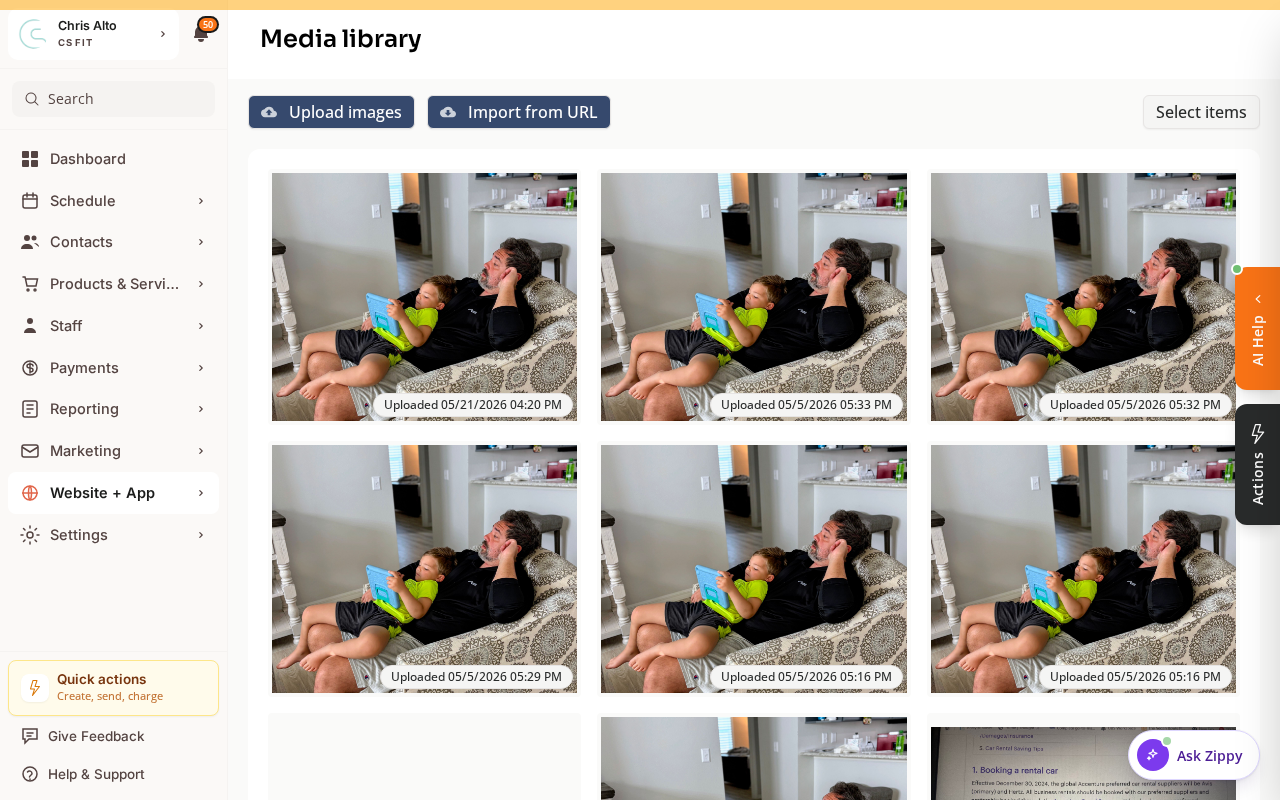
- Find the image you want to edit
- Click on the image to select it
Cropping / editing
- Look for an Edit or Crop button on the selected image
- In the editor:
- Crop: drag the crop handles to frame the image
- Rotate: use the rotation tool if needed
- Zoom: adjust the zoom/scale
- Click: Save or Apply
Replacing an image
- Click: Replace or Upload new version
- Upload the new image file
On Mobile
Same steps — Media Library management works on mobile browser.
Notes
- Supported formats: JPG, PNG, WebP, GIF
- Resolution: Upload the highest resolution you have — Zipper optimizes images for web automatically
- Pages update automatically: Editing or replacing an image updates every page that uses it after publishing
Troubleshooting
I don’t see an Edit button. Some image types may have limited editing options. Try downloading the image, editing it externally, and re-uploading as a replacement.
Need a hand?
Email our team at support@joinzipper.com and we'll usually reply within a few hours.
Was this article helpful?
Thanks for your feedback.