How to Design Emails With Content Blocks
Start with an email layout, edit its blocks, and preview your message before saving.
How to Design Emails With Content Blocks
Open Marketing > Email and choose Create email. For a saved message, choose Open options > Edit on its template card. If it opens in the legacy editor, choose Try our new email editor to work with content blocks.
Start With a Layout
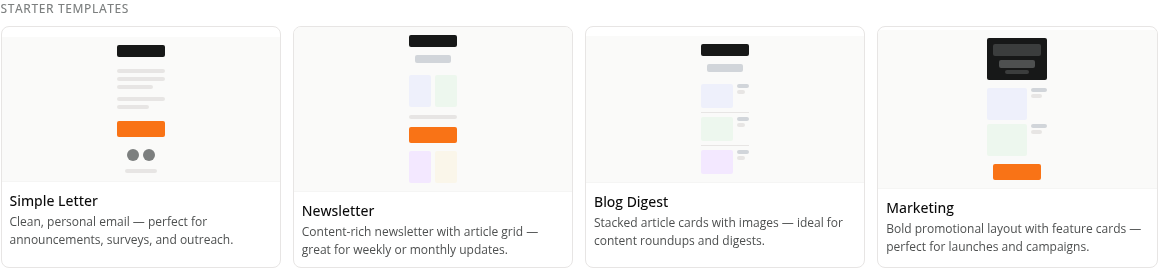
- Select Templates on the design toolbar.
- Choose a Starter Template such as Simple Letter or Newsletter, or choose one under Your Templates.
- If the design already has blocks, review the confirmation and select Apply template. This replaces the existing blocks in the design.
Edit and Preview the Email
Use Edit block to change a block’s content. Use Add above or Add below to insert a block near it, or Move up and Move down to change the order.
Choose Preview email to see the subject and a rendering with sample personalization. Select Back to writing to revise the message.
Save the Message or the Layout
- To keep the message in the email library, use Save template for a new message or Save changes for an existing one. The message includes its subject and design.
- To reuse the design blocks in other emails, use Save as Template on the design toolbar and name the layout. You can find it under Your Templates the next time you open the toolbar’s Templates picker.
Need a hand?
Email our team at support@joinzipper.com and we'll usually reply within a few hours.
Was this article helpful?
Thanks for your feedback.