How to Create a Cancellation Agreement Form
Create a required acknowledgment of your actual cancellation policy and attach it to the right booking.
How to Create a Cancellation Agreement Form
Use a form to collect acknowledgment of your cancellation policy. Decide the actual deadline, fees and exceptions first. A form does not choose those rules for you.
Create the Agreement
- Open Products & Services > Forms > Create form.
- Set Form Name to Cancellation Agreement. Put your actual policy in Introduction.
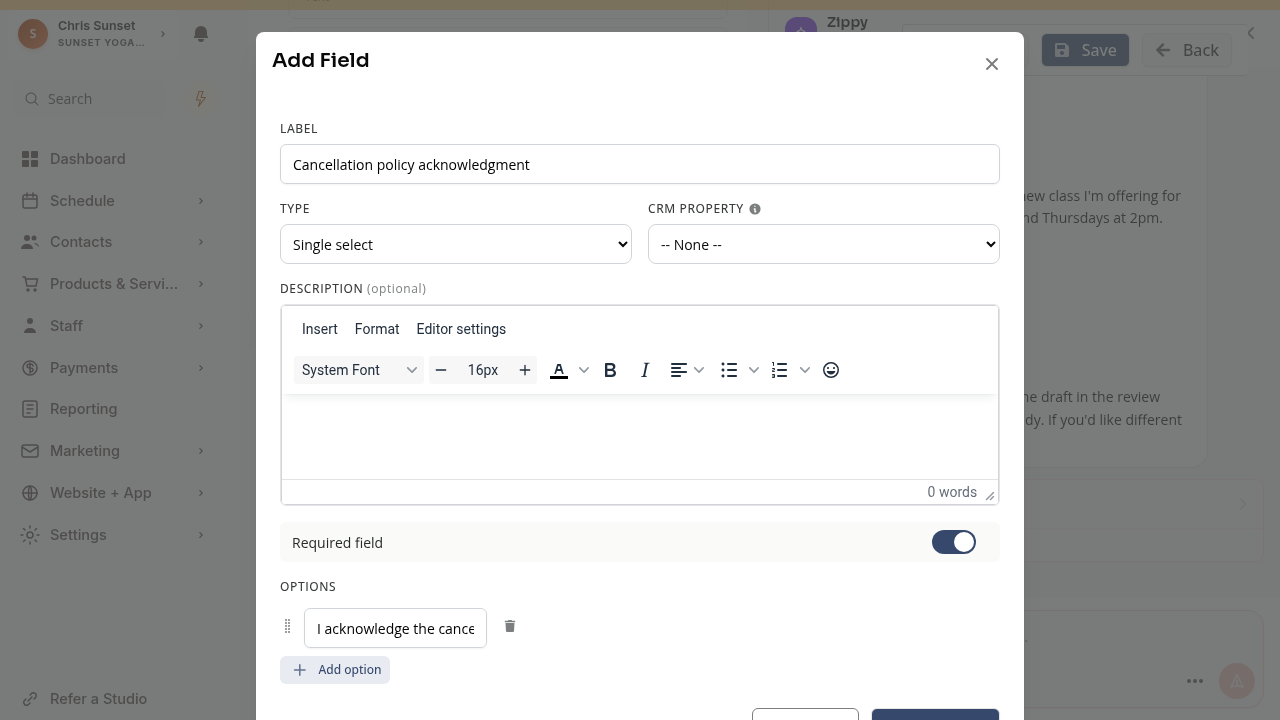
- Choose Add field > Single select. Add a clear acknowledgment label and an option such as I acknowledge the cancellation policy above.
- Turn on Required field. Description can also hold policy text. Add a Signature field if you need a signature.
- For a booking form, enable Require user account so answers stay linked to the customer. Review and Save.
Attach It to Bookings
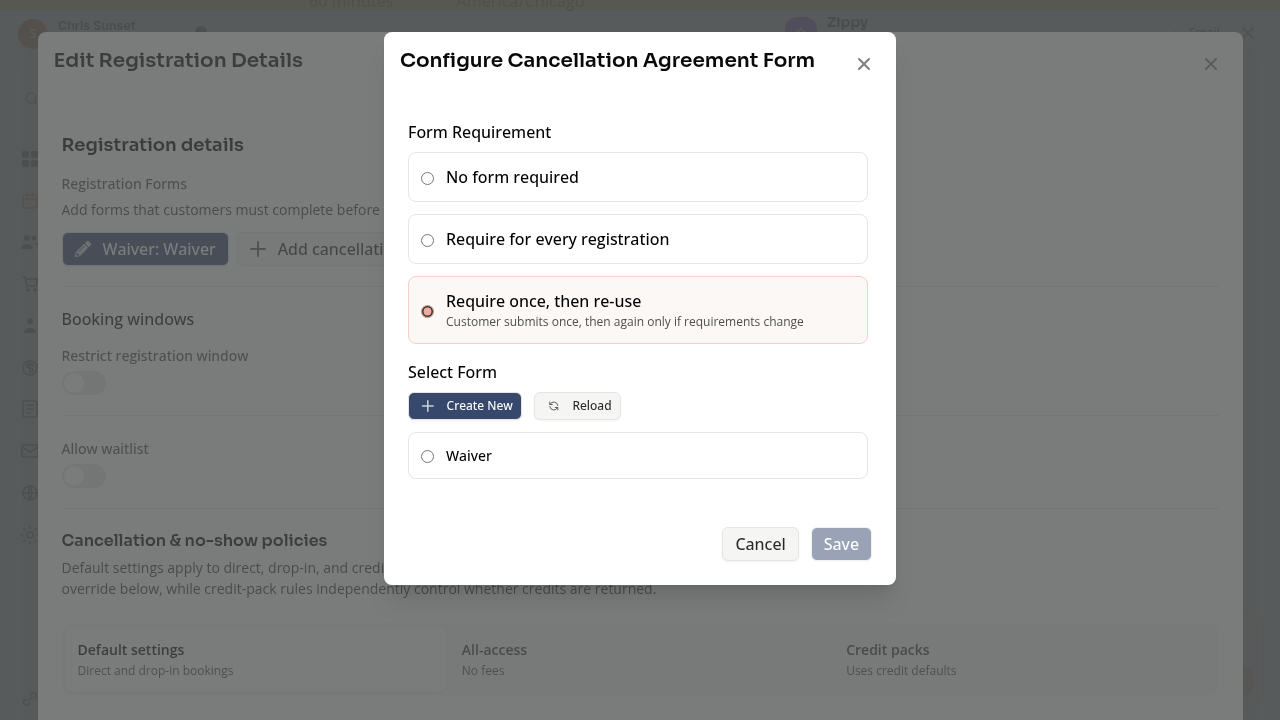
Open the class or event editor and Registration details. Choose Edit if the section is read-only, then Add cancellation agreement form.
Choose Require for every registration or Require once, then re-use to reveal Select Form. Select the agreement and save the selector. Review and save the offering too.
Appointment types have their own Add cancellation agreement control.
Forms and Fees Are Separate
Creating or attaching an agreement does not set a cancellation deadline, configure a late fee or automatically charge anyone. Review the offering’s actual cancellation and fee settings separately.
A once-only requirement can reuse a valid prior response. Check the actual registration flow and all configured requirements.
Troubleshooting
Select Form is hidden. Choose a required-form option first.
The agreement asks again. Check the requirement and whether the saved response remains valid for that customer.
Need a hand?
Email our team at support@joinzipper.com and we'll usually reply within a few hours.
Was this article helpful?
Thanks for your feedback.