How to Correct a Class Registration Payment
Replace a payment recorded on a class registration or swap the booking credit used for that class.
Go to Schedule → Calendar, open the class session, and select Manage registrations. Find the attendee and select Open actions on their row.
Replace a recorded payment
-
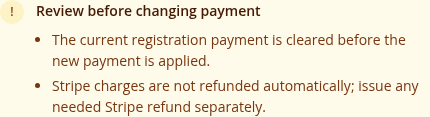
Choose Update Payment. Check the Current payment and read Review before changing payment.
-
Choose the replacement method and review the amount. For a payment you received outside Zipper, choose Record External Payment. Check the amount, select the method under Paid via, then choose Record External Payment again.
-
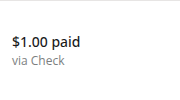
After the success message, close the dialog and check the Payment column for the new method and amount.
Zipper clears the current registration payment before applying the replacement. If you need to refund a previous Stripe charge, issue that refund separately. If the replacement fails after the current payment was cleared, retry from the payment dialog or reopen the unpaid row’s Charge or record payment action.
Swap the booking credit used for a class
- On an active registration paid with a Booking Credit, choose Swap booking credit.
- Check Current payment method and select a replacement under Eligible booking credits. If an option appears under Unavailable, read the reason beside it.
- Review any value difference and enter an Admin note if the form requires one. Choose Apply change.
- In Apply payment source change?, check the credit in From and To. Choose Apply change again. Zipper returns the original credit and applies the replacement to this registration.
If you see No other eligible payment methods, there’s no alternate Booking Credit for this class. The swap returns and reuses booking credits without creating a charge or refund.
Need a hand?
Email our team at support@joinzipper.com and we'll usually reply within a few hours.
Was this article helpful?
Thanks for your feedback.