How to Connect Meta Lead Ads
Choose Facebook Pages whose Meta Instant Form submissions should reach your leads board.
How to Connect Meta Lead Ads
Use Meta Lead Ads — Instant Forms to select Facebook Pages whose Facebook or Instagram Instant Form submissions should reach your leads board. The settings say this requires Leads Access in your Facebook Business settings.
Connect and Select Pages
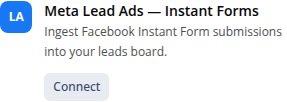
- Open Settings > Integrations and find Meta Lead Ads — Instant Forms.
- Choose Connect and follow the Meta sign-in and permission prompts using an account with access to the relevant Pages. Return to Zipper when prompted. All Meta tiles share one Facebook connection, so if this tile already shows Manage instead of Connect, skip to step 3.
- Choose Manage on the Lead Ads tile. Select the available Pages you want to use and choose Save lead ingestion pages.
- Use a test submission you control and check the leads board before relying on the connection.
To stop ingesting leads for a selected Page, clear it in the Lead Ads settings and save. This setting is separate from your Marketing Copilot Page selections and Messenger or Instagram Inbox settings.
If a Page is missing or submissions do not appear, check the connected Meta account, Page permissions, and Leads Access in Facebook Business settings. Review the saved Page selection and contact support if the issue continues.
Need a hand?
Email our team at support@joinzipper.com and we'll usually reply within a few hours.
Was this article helpful?
Thanks for your feedback.