How to Choose Your Notifications in the Customer App
Choose email, push, and text alerts for bookings and other updates from your studio.
Choose which alerts you get from your studio, such as a class confirmation or a waitlist update.
Open your notification settings
-
On a computer, open Settings → My Notifications.

-
On a phone, open More → Notifications.

Change an alert
-
Use Search notifications… or scroll to the alert you want to change.
-
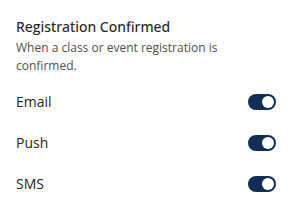
Turn the switch on or off for Email, Push, or SMS, where available.

-
Select Save at the bottom of the page.
A blank spot means that channel is unavailable for that alert. Required account emails, such as password reset messages, stay on.
If Studio reply in customer-app chat is available under Inbox, use its Email and Push switches to choose how you hear about a staff reply. Email requires a verified account email. For push alerts, allow notifications on your device. Open the conversation in the customer app to read and reply.
Need a hand?
Email our team at support@joinzipper.com and we'll usually reply within a few hours.
Was this article helpful?
Thanks for your feedback.