How to Change the Provider or Type on an Appointment
Assign a different provider or change the appointment type on an existing booking from Calendar.
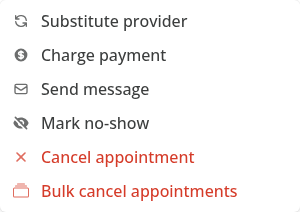
Open Schedule → Calendar and select the booking you want to change. Use the appointment’s Manage menu to replace its provider, or select the current appointment type to change the service.
Change the provider
-
Choose Manage → Substitute provider.
-
Select the replacement provider and the appointment type they’ll deliver. Choose the original type if the replacement offers it and the customer is keeping the same service.
-
On Confirm Substitution, check the provider, type, Start and End. Review Notify user of updates, then select Save Changes. With notifications on, Zipper sends the customer updated details and a calendar invite.
Change the appointment type
- In Customer details or Customers, select the current Appointment type name beside the pencil icon.
- Pick an appointment type from the current provider’s list.
- On Confirm Change, check the Start and End. A different type sets the initial end time using its duration. Review Notify user of updates, then select Save Changes.
Check the updated booking in Calendar. For a recurring appointment, use these controls on the date you opened. To move the time of several dates, see How to Reschedule an Appointment or Series.
If Payment Notice appears, the existing payment details carry over. Review any price difference separately.
For a class session, see How to Handle Instructor Substitutions.
Need a hand?
Email our team at support@joinzipper.com and we'll usually reply within a few hours.
Was this article helpful?
Thanks for your feedback.