How to Change a Scheduled Session’s Class Type
Switch one session to another class type or continue its weekly timeslot under a different class.
Use Change class type to switch a scheduled session to another class. For a recurring timeslot with more sessions, you can also move the rest of that timeslot from the selected date forward.
-
Open Schedule → Calendar and choose the session where the change should start.
-
Open the ⋮ menu on the session and choose Change class type.
-
If you see a scope choice, choose how many sessions to change.
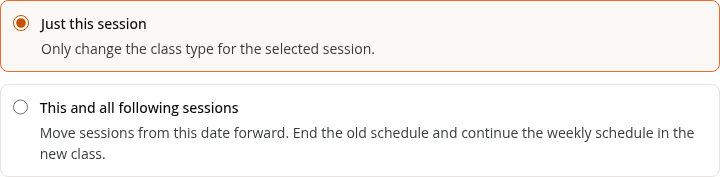
- Just this session makes that occurrence a one-off session under the new class.
- This and all following sessions ends the old timeslot before the selected date and continues the weekly schedule under the new class from that date.
-
Choose the destination class under Select a class…. Review the number of sessions affected and any change in duration. A new default duration can change the end time while keeping the start time.
-
If Send notification is available, keep it enabled and review or edit the message to notify registrants. Turn it off to apply the change without sending that message.
-
Select Apply Change.
To change details for a single occurrence under the same class, see How to Convert a Class Session to a One-Off.
Need a hand?
Email our team at support@joinzipper.com and we'll usually reply within a few hours.
Was this article helpful?
Thanks for your feedback.