How to Cancel or Reschedule a Single Class Session vs. Ending a Recurring Series
Knowing which action to take prevents accidentally canceling your entire class schedule when you only meant to skip one session.
Cancel a Single Session (Keep the Series Running)
Use this when a specific session won’t happen but the class continues normally afterward.
Steps
- Navigate to: Schedule > Calendar
- Click the specific session you want to cancel
- In the calendar booking’s Manage menu, choose Cancel session. If you opened the connected session’s details page, use Cancel this session.
- For a recurring class timeslot, keep Cancel only this session selected. Cancel this and all future sessions in series also cancels future occurrences of that timeslot; it does not select every other timeslot in the class.
- Review the affected registrations and optional cancellation note. Choose Cancel & Refund Credits to return eligible used Booking Credits, or Cancel & Do Not Refund Credits to cancel without those refund side effects. With no affected registrations, use Cancel session to confirm.
What happens to registrants
- Affected active and waitlisted registrations are canceled, and Zipper attempts cancellation notifications.
- Eligible used Booking Credits are returned only if you choose Cancel & Refund Credits. Waitlist bookings can also have used credits; do not assume no credit was held.
- This session-cancellation action does not guarantee a refund to a card or bank account. Review other payment refunds separately.
End a Recurring Series (All Future Sessions)
Use this when the whole class is being discontinued. This action hides the class and ends all its timeslots, including when the chosen cancellation start date is in the future. Use the single-session flow above to skip one date.
Steps
- Navigate to: Schedule > Classes, then Edit the class. The Edit Class header has a Cancel sessions action for ending the series.
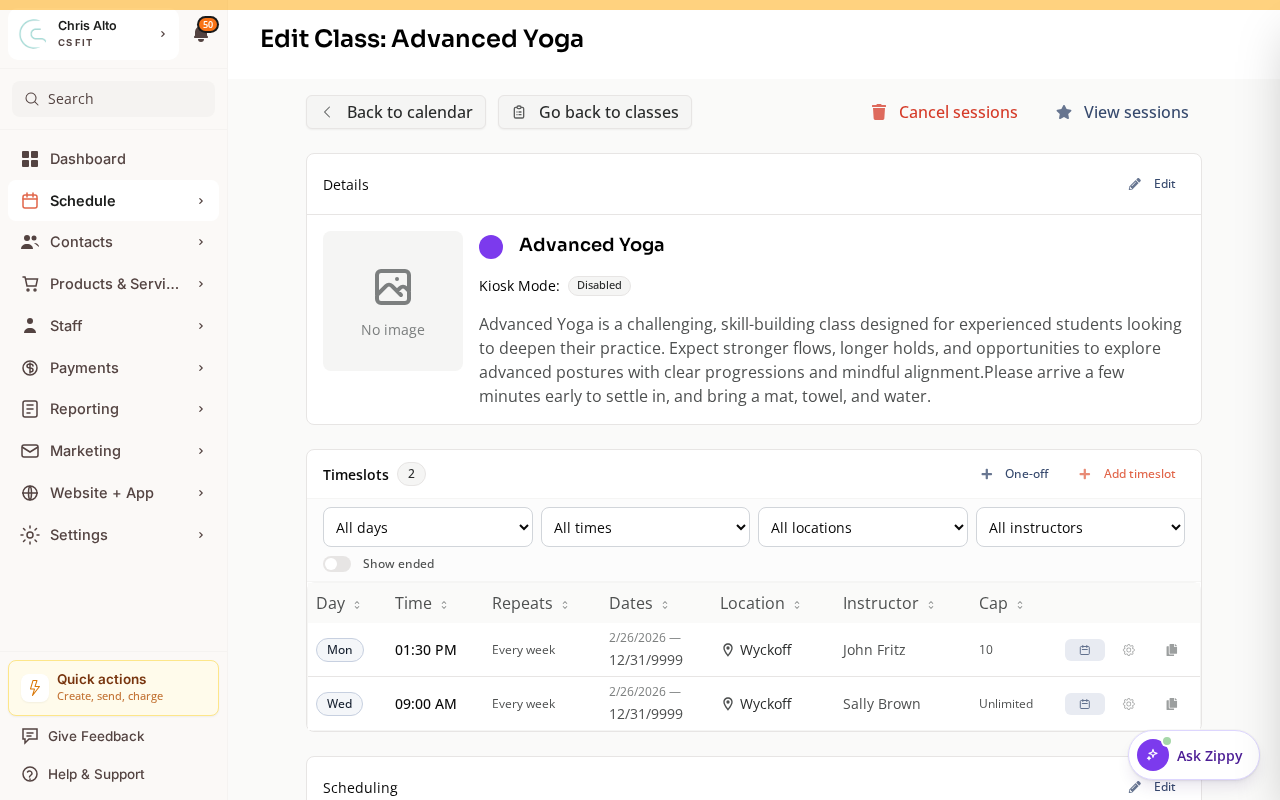
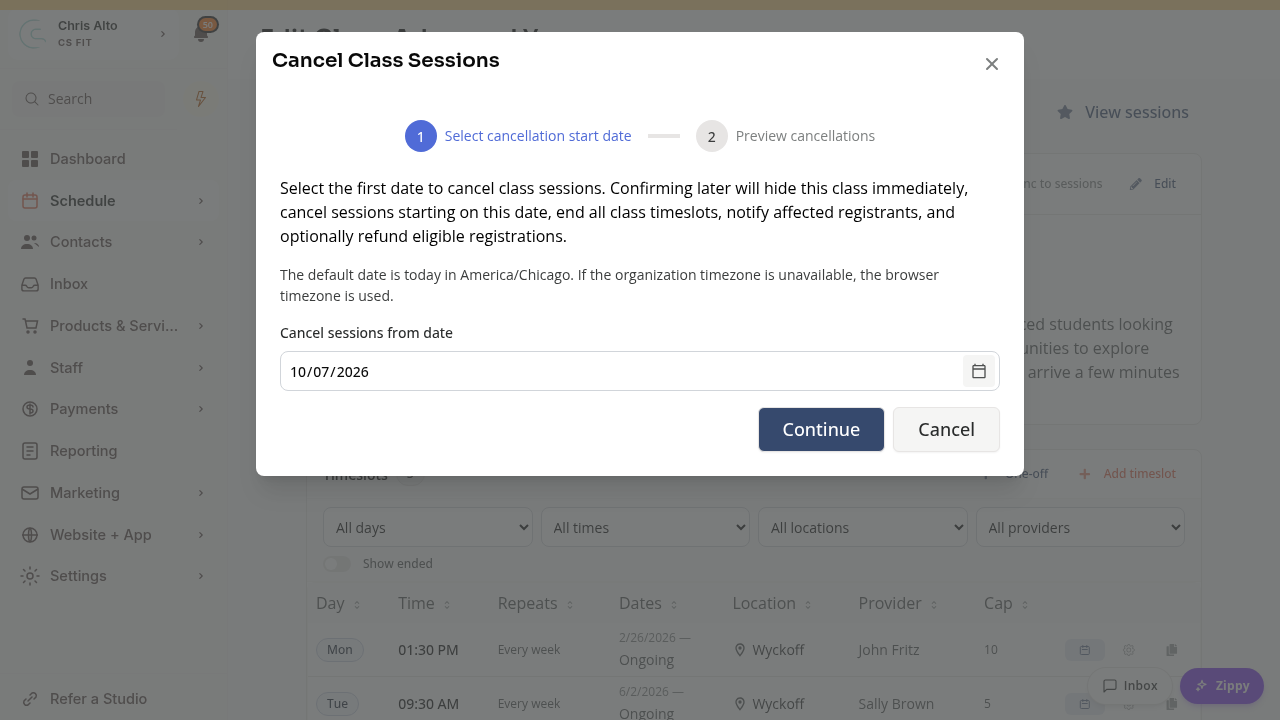
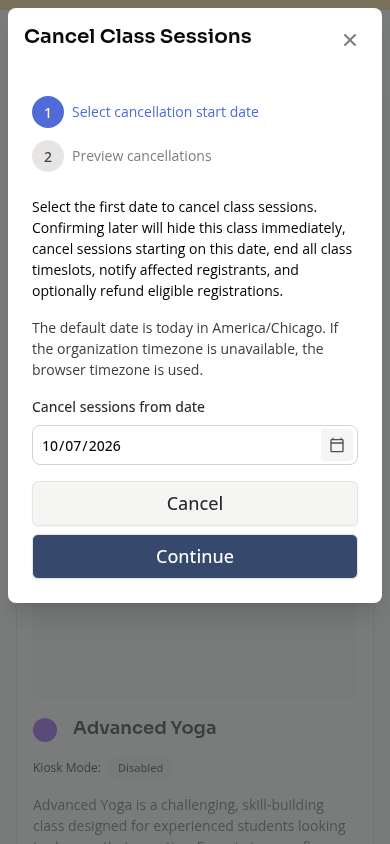
- Click Cancel sessions, set Cancel sessions from date, then choose Continue. The date defaults to today in the organization’s timezone; review the timezone shown in the preview because the class can use a different timezone.
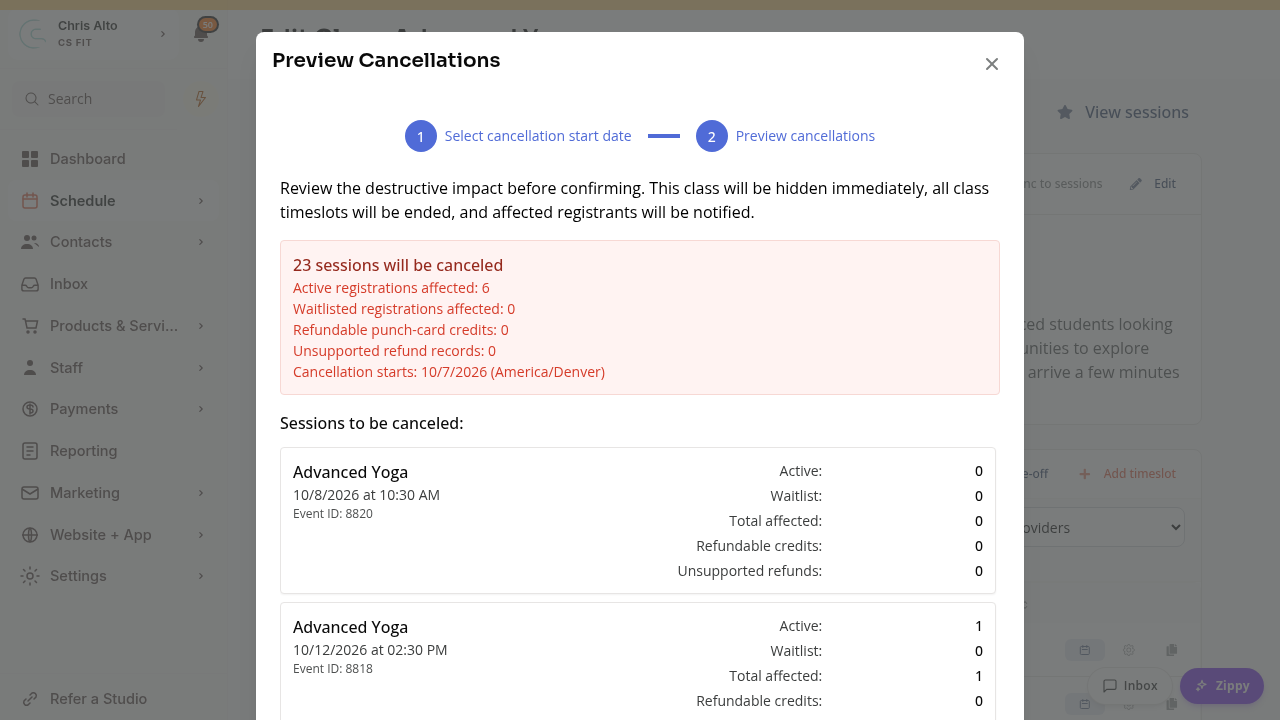
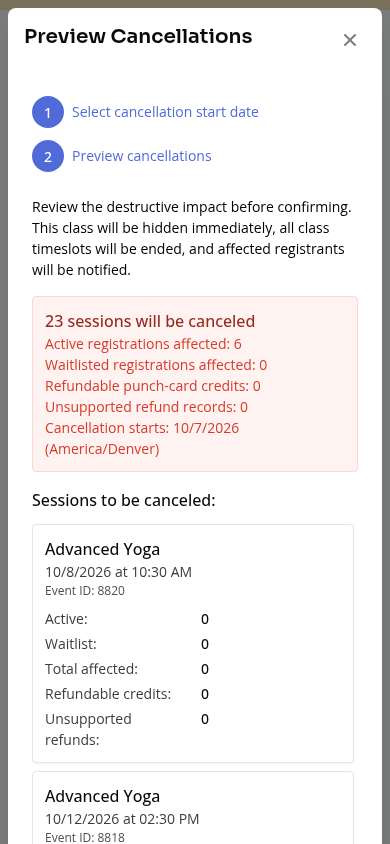
- In Preview Cancellations, review the session dates, active/waitlisted registrations, refundable credit counts, unsupported refund records, and warnings.
- Choose Cancel with refunds to return eligible used Booking Credits, or Cancel without refunds to cancel without refund side effects. With no affected registrations, the confirmation button is Cancel sessions.
- Wait for Canceling class to finish. Zipper checks the background operation automatically. If an error or uncertain result appears, use Check status and review the class before starting another cancellation; refreshing the same page resumes the recorded operation.
- After completion, return to the calendar and review the affected schedule. Sessions starting on the selected date or later are canceled; the whole class is hidden and its timeslots are ended.
What happens to registrants
- Affected active and waitlisted registrations are canceled.
- Eligible used Booking Credits are returned when you choose the refund option; Cancel without refunds does not return them.
- Zipper attempts cancellation notifications. A completed cancellation does not guarantee that every customer received a message.
Reschedule a Single Session
To move the existing occurrence, use the desktop calendar’s Week view:
- Open Schedule > Calendar and switch to Week.
- Drag the class occurrence to the new day/time in the week grid.
- For a recurring class, review Reschedule this class, including From and To, then choose Reschedule. Only that occurrence moves. Canceling the confirmation returns it to its original position. A non-recurring occurrence saves directly after the drop.
- Review the reloaded calendar. The existing event and its registrations are kept; you do not need to cancel and recreate them. A failed move returns the card to its original position and shows Unable to reschedule class.
- If registered participants exist, Event Updated Successfully can ask whether to send an update. Enable Send update notification to all registrants, add Update note (optional) if needed, then choose Send update. Do not send update keeps the schedule change without sending that update.
On Mobile
Single-session and whole-class cancellation controls are available in a mobile browser. Use desktop Week view for the drag-to-reschedule steps above.
Warning: Canceling all future sessions can’t be easily undone. Choose Cancel only this session if you only need to skip one date. Before canceling, check how many members are registered — you may want to email them first.
Troubleshooting
I accidentally ended the entire series instead of one session. Contact your Zipper support or onboarding rep — depending on timing, some sessions may be recoverable. In the meantime, recreate the class series from the next session date forward.
The session-scope choices aren’t showing. Cancel only this session and Cancel this and all future sessions in series appear for class sessions linked to a recurring timeslot. A program session or standalone one-off event has a single-event/session confirmation instead.
A bulk cancellation reports an error or seems stuck. Use Check status for the existing operation and review the class. Some changes may already have occurred; do not assume an error means nothing was canceled.
I cannot drag a class to another time. Use desktop Week view. This guide does not promise the same drag interaction in Month view or on mobile.
Need a hand?
Email our team at support@joinzipper.com and we'll usually reply within a few hours.
Was this article helpful?
Thanks for your feedback.