How to Book a Duet or Semi-Private
Zipper doesn't have a separate "duet" product type — duets and semi-privates are regular appointment types with the capacity set to 2 or more. Here's how to set them up and book them.
Setting Up a Duet or Semi-Private Appointment Type
Step 1: Create or edit the appointment type
- Navigate to: Schedule > Appointments
- Create a new appointment type (e.g., “Duet Pilates Session”) or edit an existing one
Step 2: Set the appointment capacity
- Find the Appointment capacity setting
- Set to:
2for a duet,3–6for semi-private - Optionally enable Show remaining available spots so customers see “2 spots left” when booking
- Save
Step 3: Configure pricing
- Set the price per person (each client books and pays separately at their per-person price)
- Or use a group pricing approach — whatever fits your billing model
Booking the Appointment (Admin)
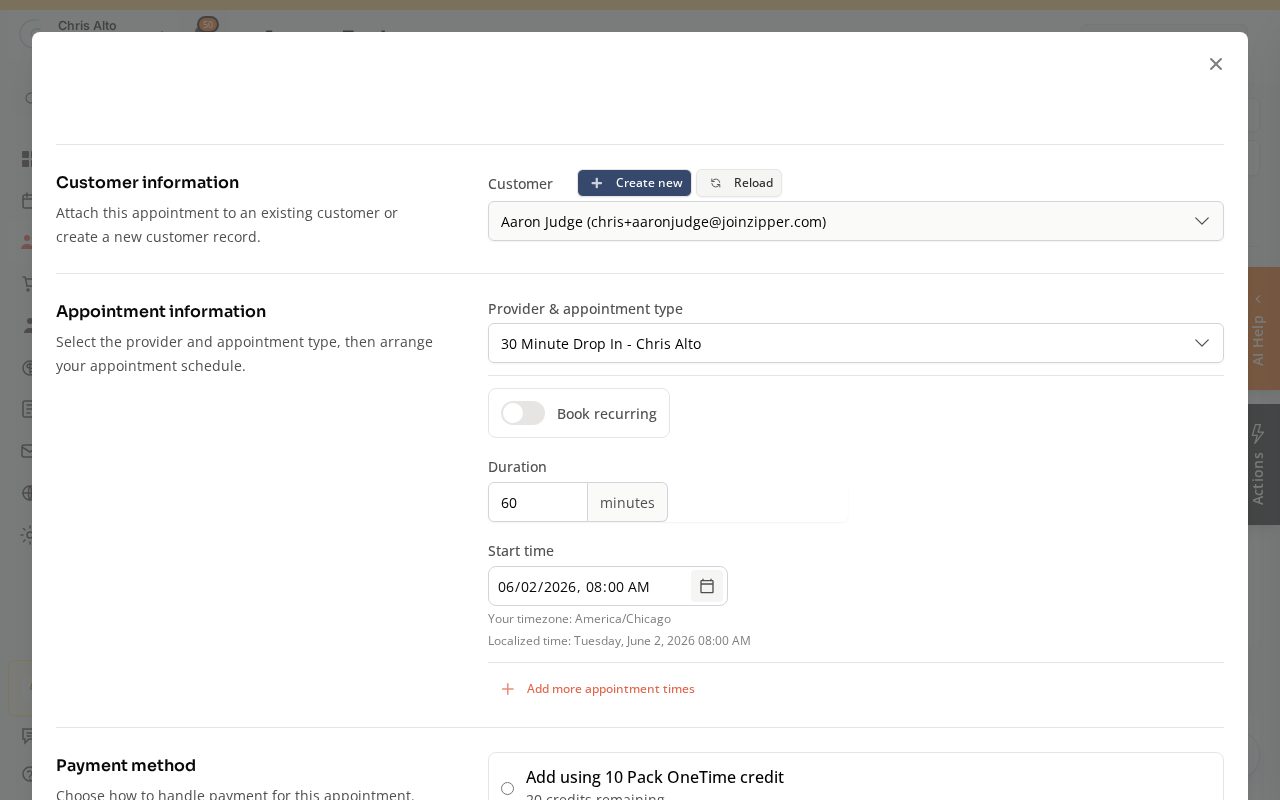
From a customer’s profile, click Schedule appointment, choose the duet/semi-private appointment type, set the time, and pick the payment method.
Booking a Second Client into the Same Slot (Admin)
When a client books a duet slot, there’s still one more spot available. To fill it:
- Navigate to: Schedule > Calendar → find the appointment
- Click the appointment to open it
- Click: + Add another customer
- Search for the second client
- Select the payment option for them
- Click: Confirm
What It Looks Like in the Calendar
When 2+ clients share a slot, the calendar tile shows multiple names. Each client can be:
- Checked in/out independently
- Charged separately
- Canceled or no-showed without affecting the other client
On Mobile
Same steps — capacity settings and appointment management work on mobile browser.
Note: The appointment type name (e.g., “Partner Session”) is what clients see — the word “duet” is never shown. Each client registers and pays separately by default; to charge one person for both, handle the checkout manually via Point-of-Sale.
Troubleshooting
”+ Add another customer” isn’t available. This option appears when the appointment has available spots (capacity not full). If the slot is already at capacity, you’ll need to increase capacity first.
Clients are booking into the slot but I need them to appear together. By default, multi-person slots show all clients together in the calendar. If they’re appearing as separate appointments, confirm they’re all booking into the same appointment type at the same time slot.
Need a hand?
Email our team at support@joinzipper.com and we'll usually reply within a few hours.
Was this article helpful?
Thanks for your feedback.