How to Approve Customers for Higher-Level Classes
Use approval tags for advanced classes and understand the limits of class-count automations.
How to Approve Customers for Higher-Level Classes
Use a customer tag to record who is approved for an advanced class. Class requirements and payment credits are separate.
Approve a Customer
- Open Contacts > Customers and the member’s profile.
- Choose Tags > Manage tags and add an approval tag, such as approved-level-2.
- Open the higher-level class settings. Under Member signup requirements, choose Restrict to members with specific tags and select the same tag.
- Review and save the class. Check the actual booking flow.
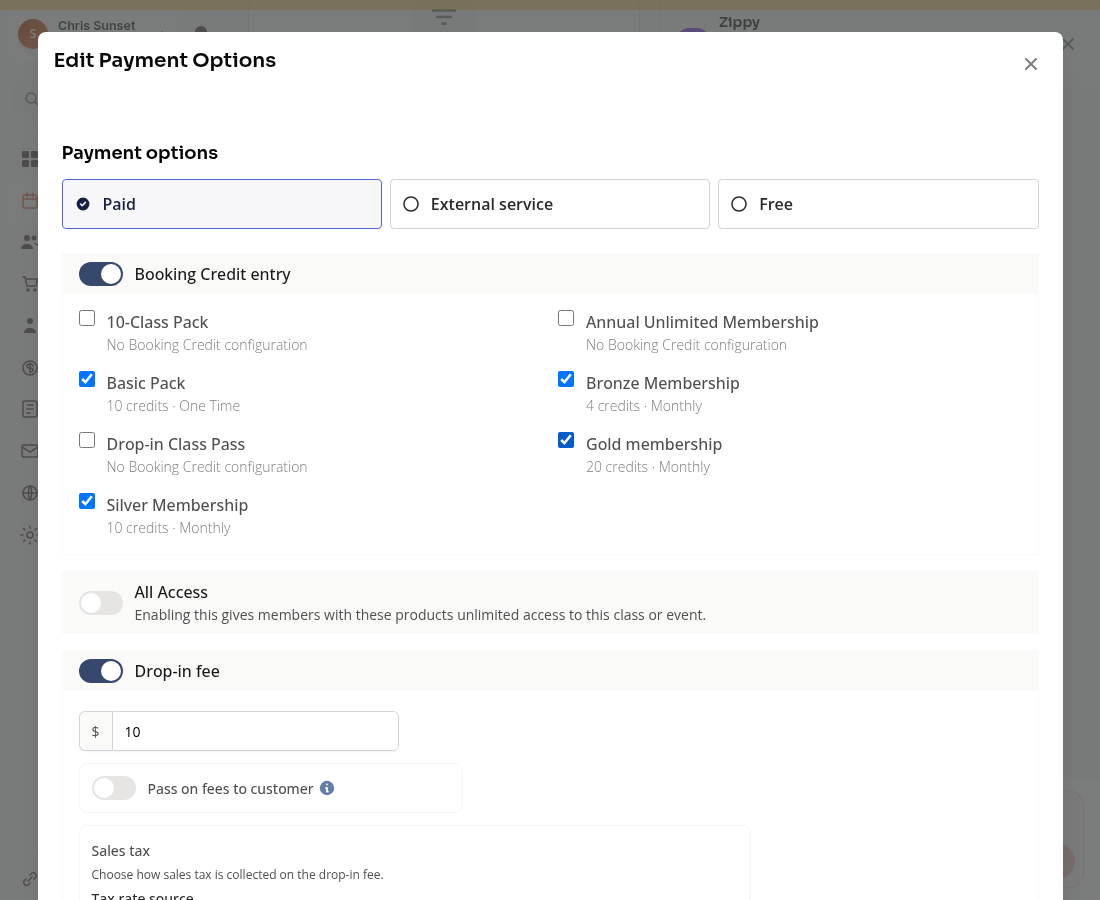
Adding a tag alone does not set the class requirement or give the customer a paid membership or booking credit.
Can Ten Level 1 Classes Trigger Approval?
In Marketing > Automations, Events Attended Milestone can run Add Customer Tag. Set the threshold, choose At least, and choose All Time when you need an all-time count.
Filter by Class selects one class grouping. It cannot select several Level 1 offerings for a combined ten-class total. Any class includes other levels. Separate ten-class rules do not create a combined ten-class threshold.
For a combined Level 1 prerequisite, review the relevant records and add the approval tag manually.
The milestone checks past active registrations. Canceled and no-show records do not count. It does not require a recorded check-in, so it is not proof that the customer physically attended. Processing is periodic; do not promise instant approval after the tenth class.
Review and activate the workflow when ready. Creating a workflow, tagging a member and enforcing a booking requirement are different steps.
Troubleshooting
An approved person cannot book. Check the customer’s tag, the class’s signup requirement and their payment or credit eligibility.
The count seems wrong. Check the selected class grouping and registration statuses. Review attendance manually when physical attendance matters.
Need a hand?
Email our team at support@joinzipper.com and we'll usually reply within a few hours.
Was this article helpful?
Thanks for your feedback.