How to Adjust Your Clock-In and Clock-Out Times
Correct a time tracking entry after the fact — if you forgot to clock in, clocked in at the wrong time, or need to add a missed session.
Steps
- Navigate to: Staff > Time Tracking.
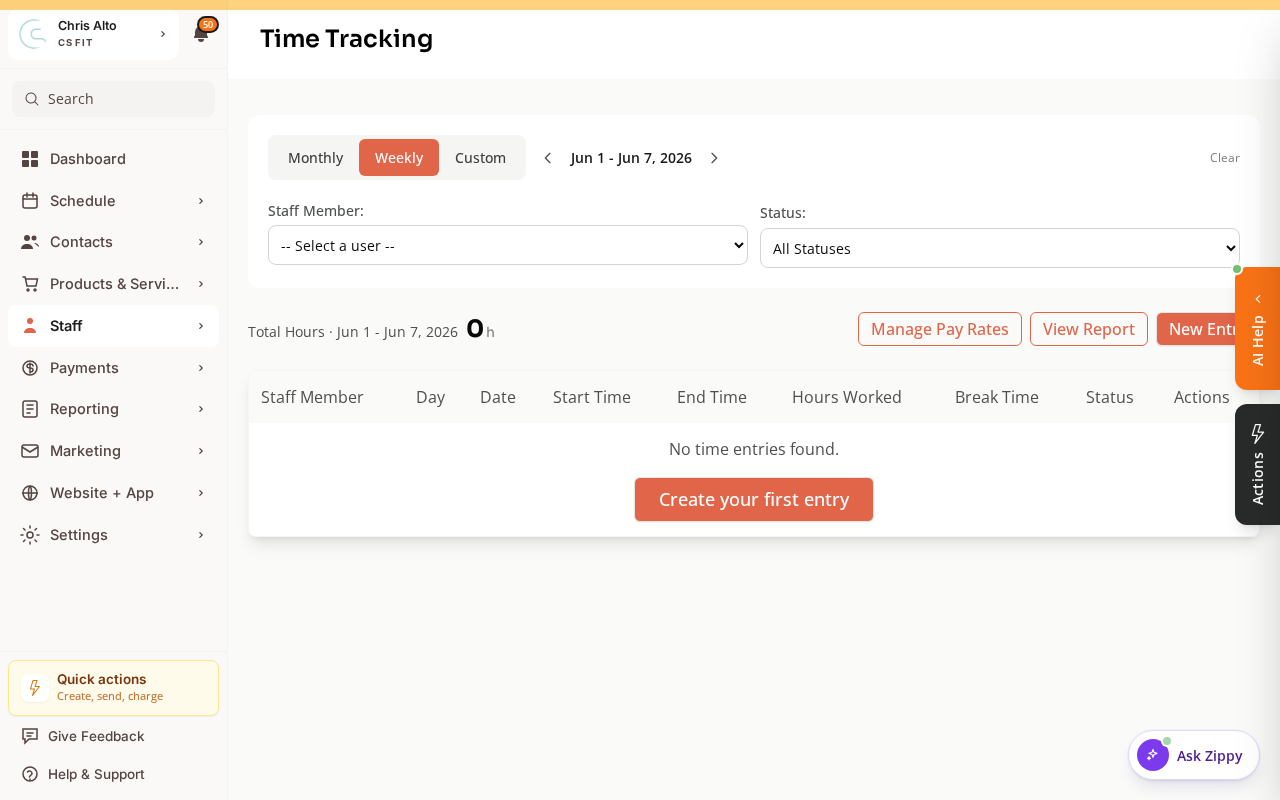
- Find the entry you want to adjust (search by date)
- Click the entry to open it
- Edit: the clock-in time, clock-out time, or both
- Add an optional note explaining the adjustment
- Save
For Admins Adjusting Staff Entries
- Navigate to: Staff > Staff Members → find the staff member
- Open their Time Tracking tab
- Find and edit the entry as above
Adding a Missed Entry
If someone forgot to clock in entirely:
- Click Add entry or New time entry
- Set the date, clock-in, and clock-out times manually
- Save
Tips
- Reason is important: Always add a note when editing — it helps during payroll review to understand why an entry was changed.
- Admin approval: Some organizations require a manager to approve time adjustments. Check your org’s workflow.
Troubleshooting
I can’t find the time tracking option.
Time tracking access depends on your permissions. Staff-role users need the manage-own-time-tracking claim. Admins need manage-others-time-tracking to edit staff entries.
Need a hand?
Email our team at support@joinzipper.com and we'll usually reply within a few hours.
Was this article helpful?
Thanks for your feedback.